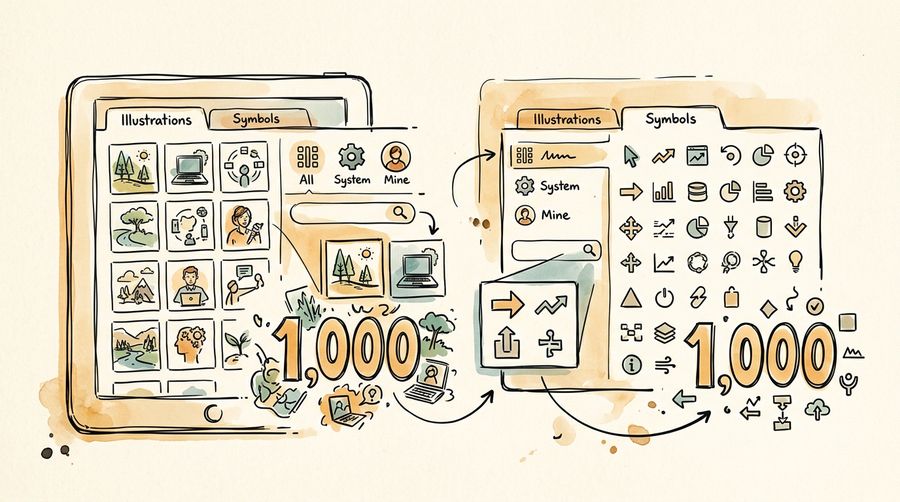
1,000 illustrations + 1,000 symbols
Two separate tabs, each organised into themed categories with instant search, large lightbox previews and All / System / Mine filters.
A real sketch board with 25 brush families, non-destructive adjustments, a huge hand-drawn library, arrows that behave, and exports for wherever your board has to live.
Two separate tabs, each organised into themed categories with instant search, large lightbox previews and All / System / Mine filters.
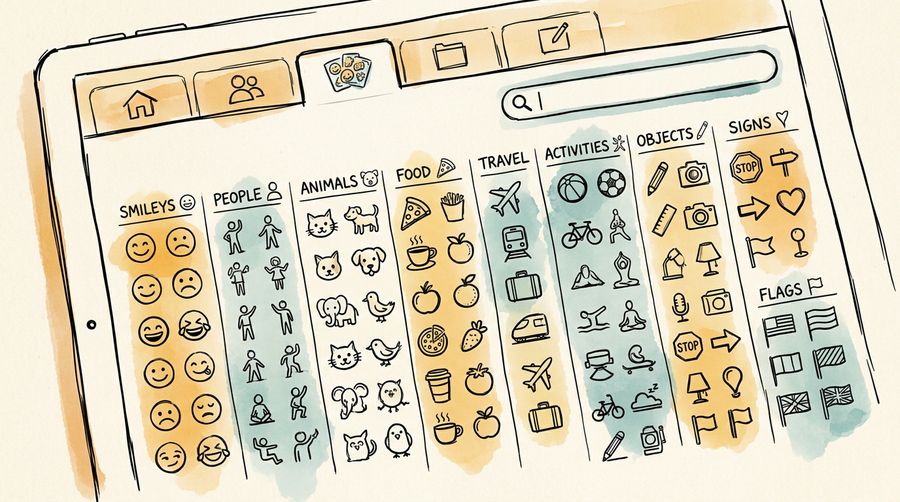
A third tab with 1,000 stickers across nine categories — smileys, people, animals, food, travel, activities, objects, signs and flags — searchable, categorised and rendered crisply at any size.
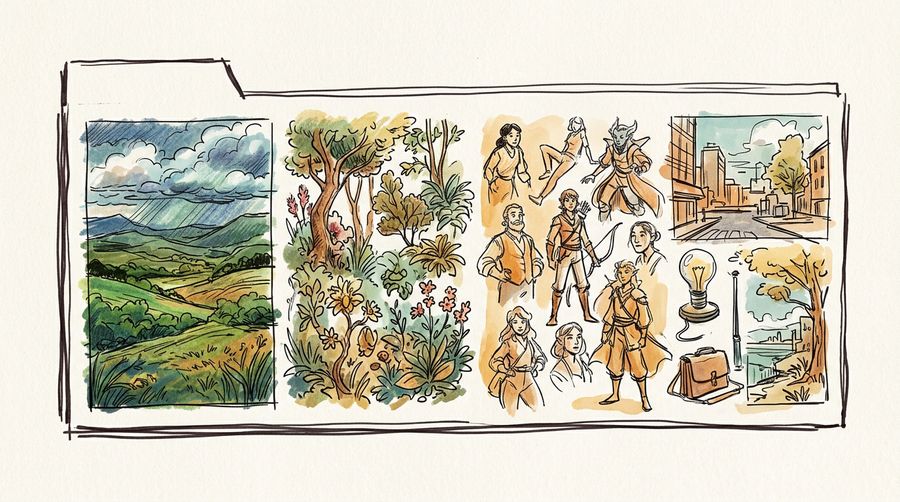
A Drawings tab with richer, coloured-pencil scene artwork — weather and sky, landscapes, plants and animals, people and characters, places and props — for slides that need more than a flat cutout.
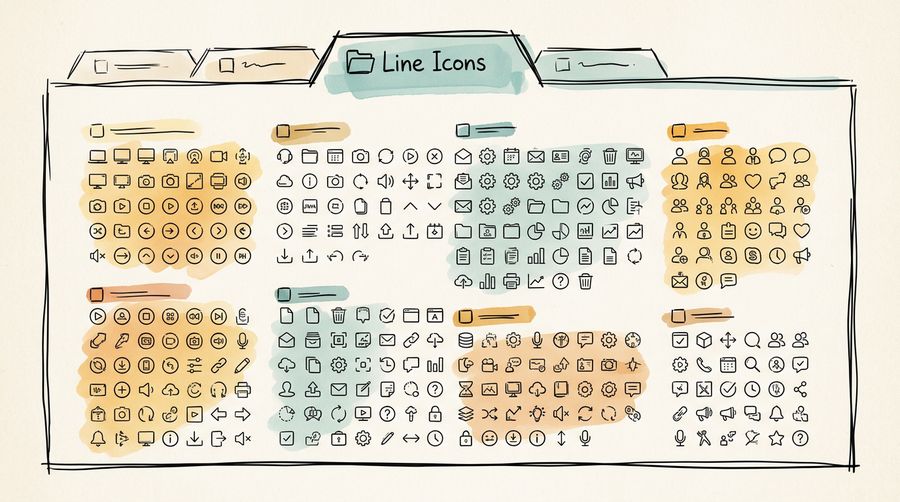
A Line Icons tab with 1,000 crisp, even-stroke pictograms in curated categories — the cleaner, solid-line counterpart to the hand-drawn sets, with its own colour control.
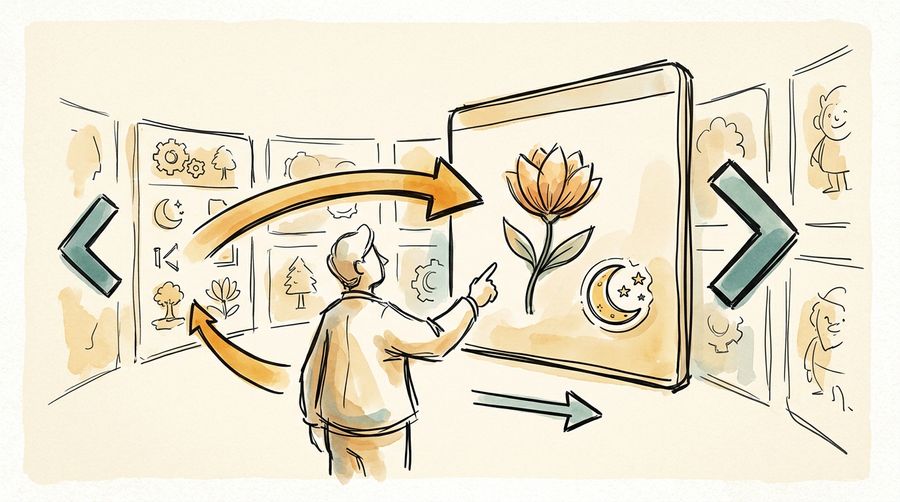
Click any illustration, symbol or sticker to open it large with its name and position in the set, then step through the whole category with the arrow keys or the side chevrons before adding it.
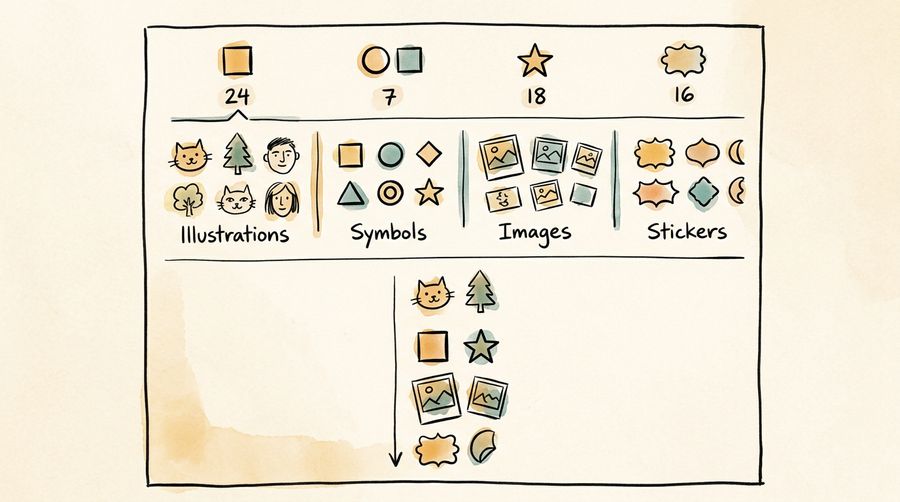
Illustrations, symbols, images and stickers all browse in per-category sections with counts when you're on All, and flatten into a single result list the moment you search.
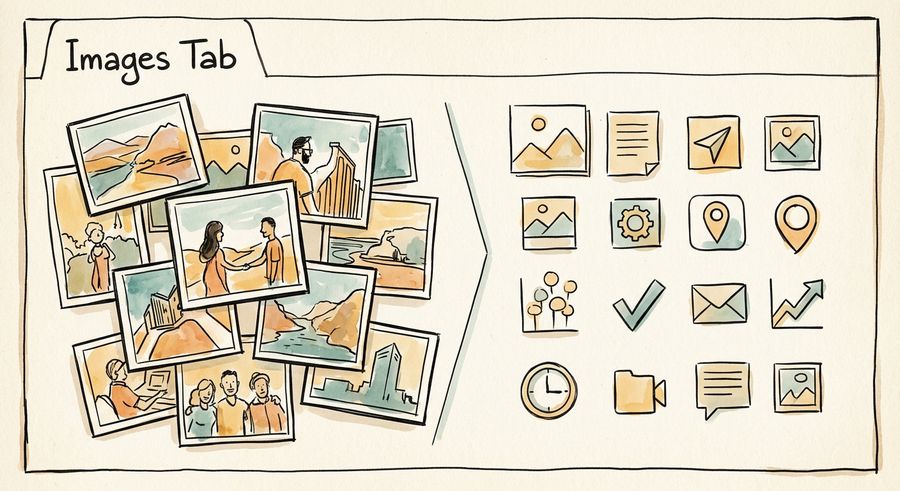
Free-form AI images and uploads land in their own Images tab, separate from illustrations, symbols and stickers, so the hand-drawn sets stay clean.
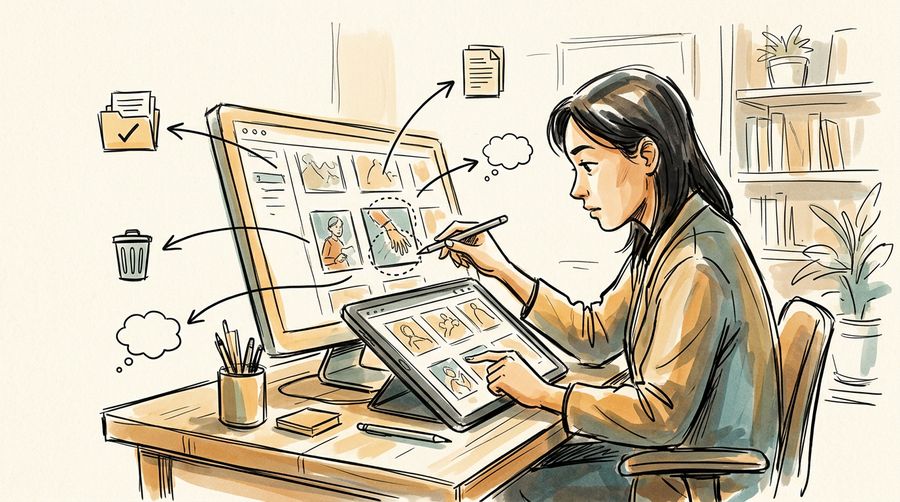
New generations arrive in a review tray first: keep it, ask for a redo with fresh directions, add a caption, or make a surgical edit by selecting just the area you want redrawn — nothing lands in your library until you say so.
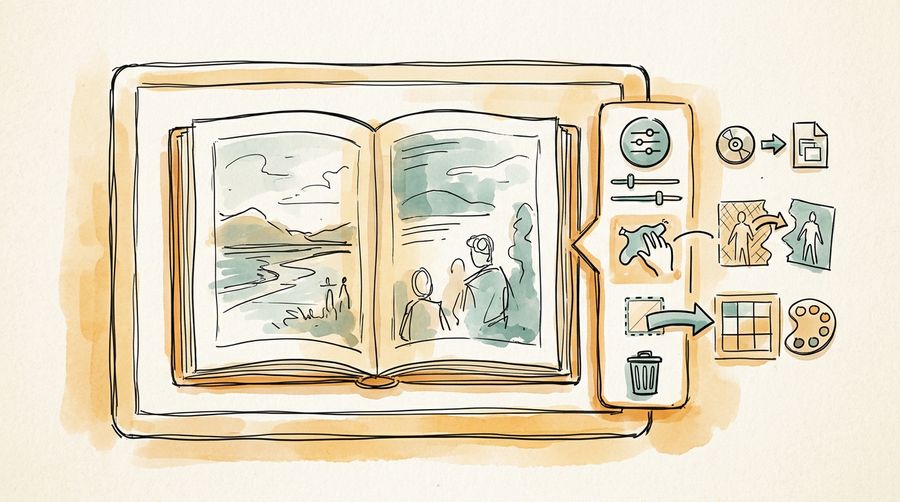
Open any library item in a square preview, see the whole image without cropping, move through the set with the arrow keys, then add it to the canvas or swap it for the selected element.
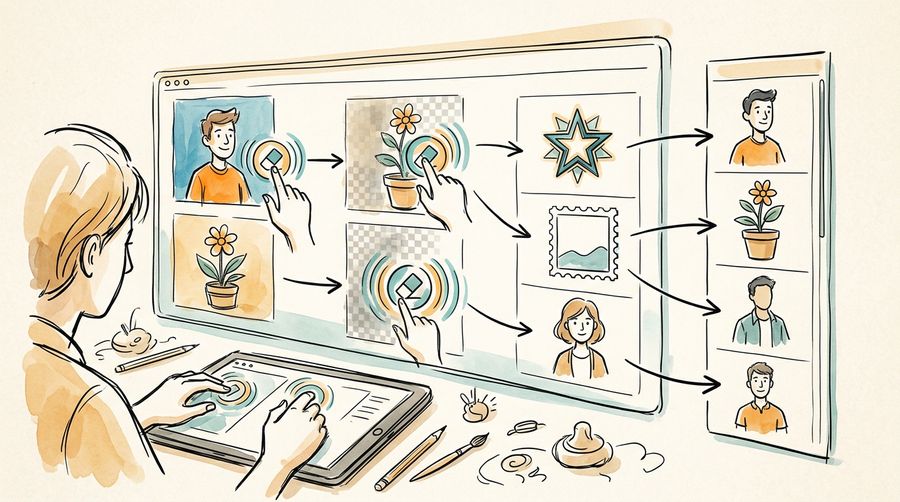
Any AI image that still has a background gets a one-click eraser — confirm once and the cut-out is saved as a new item, leaving the original untouched. Images generated transparent (logos, stamps, cut-outs) never show the tool at all.
Close any large library preview with its X, the visible Close button or the Escape key, without interrupting the board underneath.
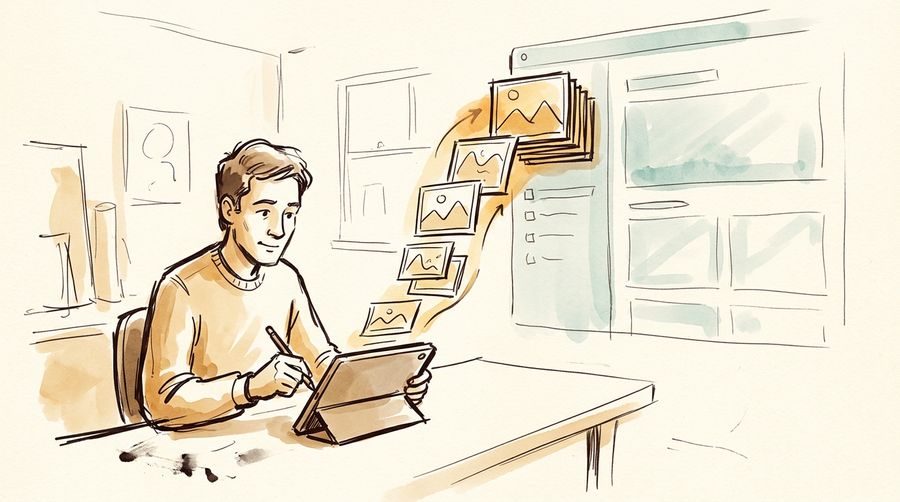
Your own images sort to the top of the library the moment they're generated or uploaded, and uploads always land in the Images tab with the panel jumping there for you.
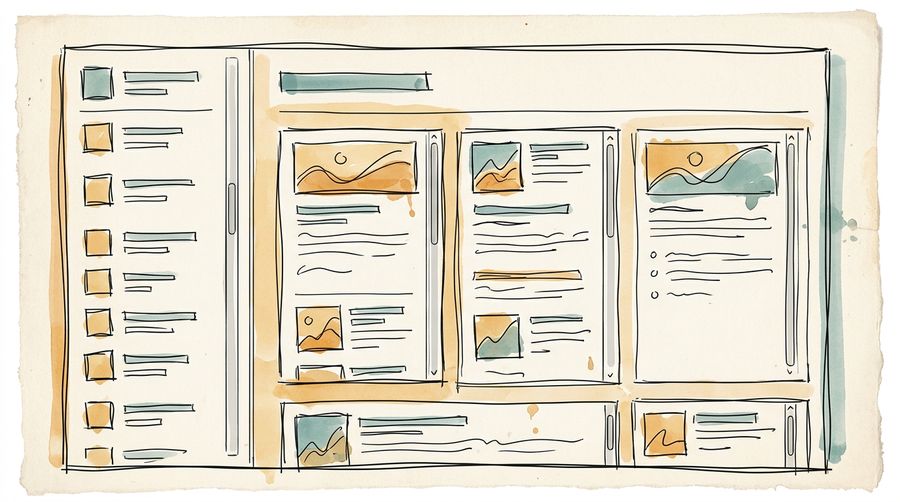
Expanded categories and the category rail keep a slim, always-visible scrollbar with its own reserved gutter, so nothing hides underneath it and you can see how deep a list runs.
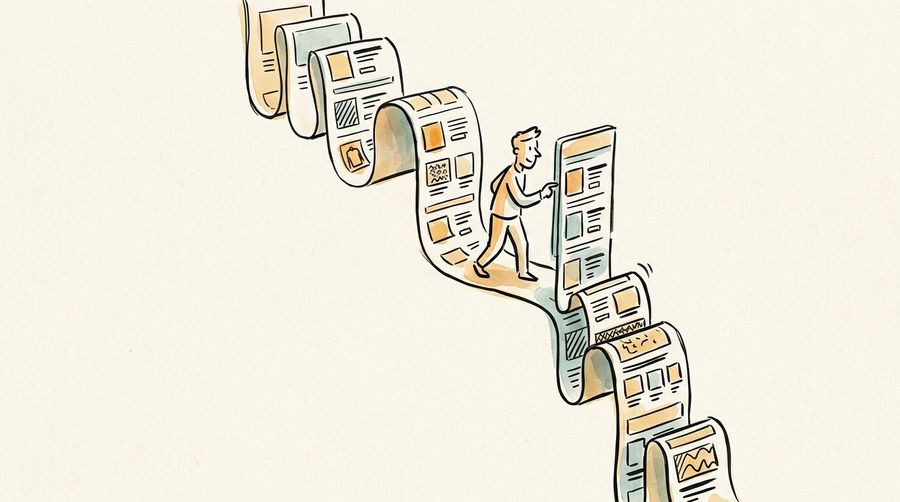
Long categories load as you scroll instead of hiding behind a Show more link, so browsing 1,000 items never breaks your flow.
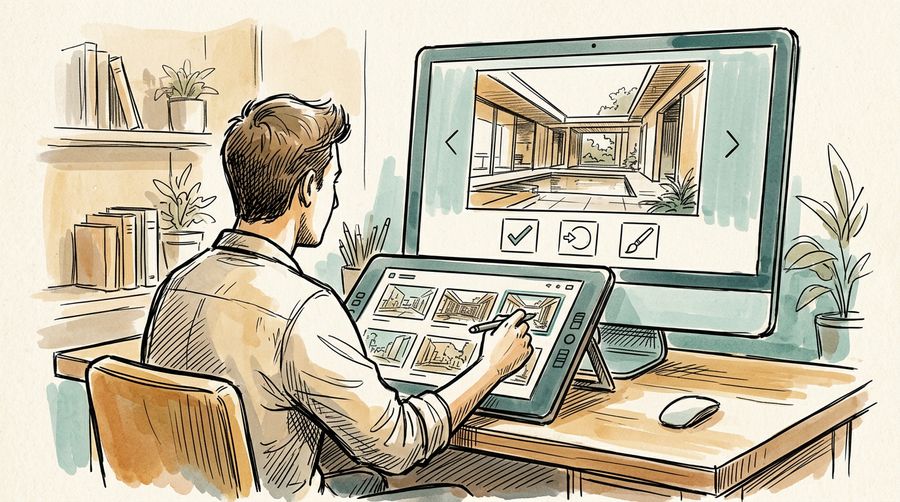
Click a generated image in the review tray to open it full size before you decide whether to keep it, redo it or edit part of it.
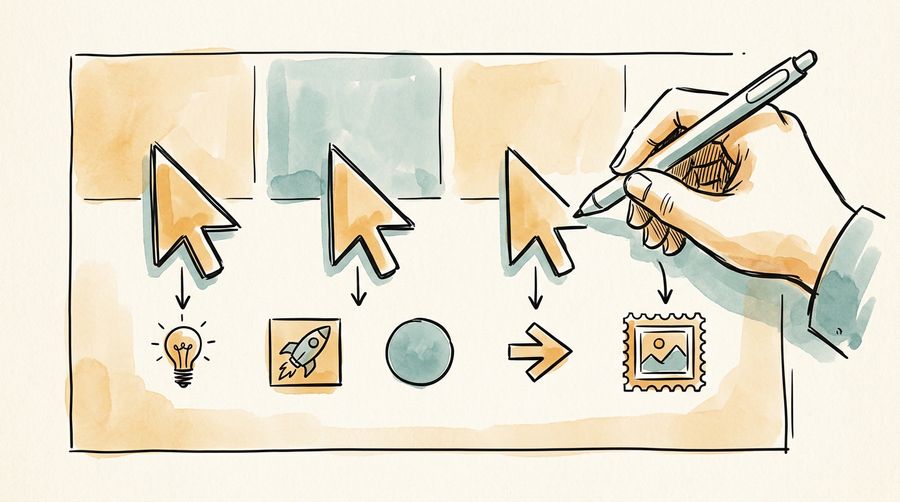
Illustrations, symbols, shapes and stickers all land at the same 280px long side, so nothing arrives oddly large or small — and dropping one lands it centred under your pointer.
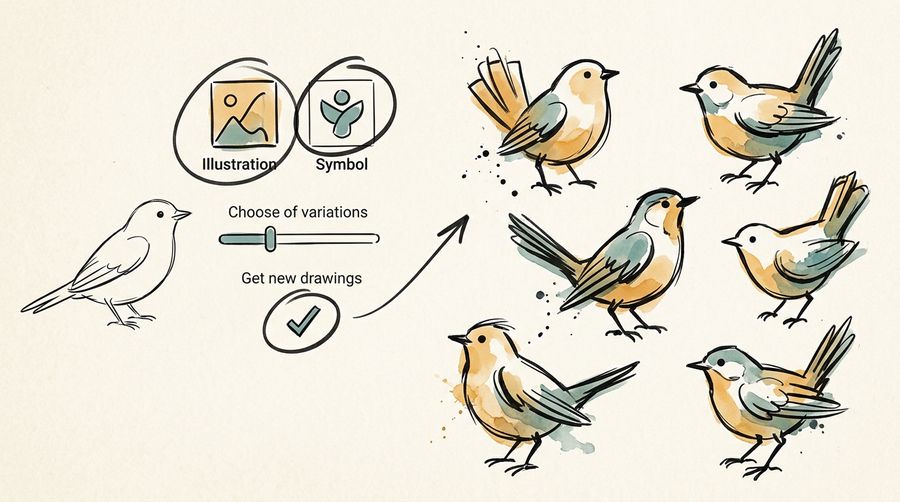
Pick Illustration or Symbol, describe anything, choose how many variations you want, and get new drawings matched to the library's ink-and-wash style.
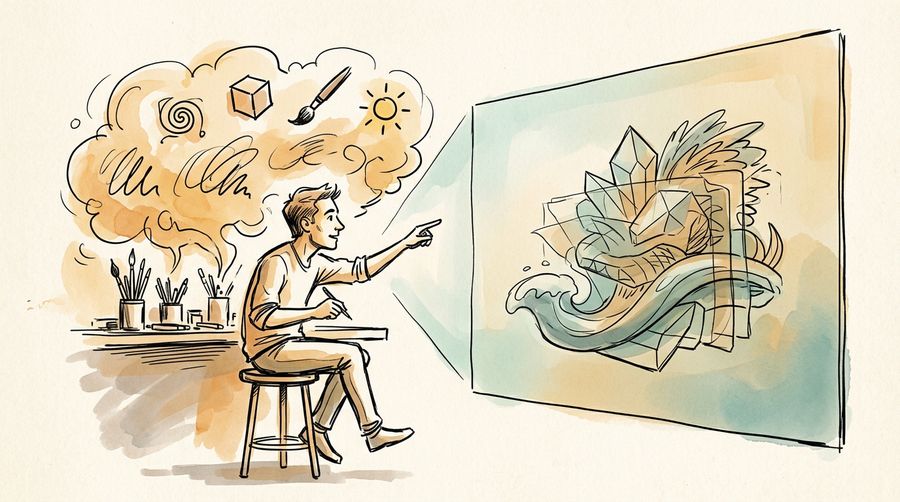
A free-form generate mode with style, shape and transparency options, so you can ask for exactly the artwork you have in mind rather than picking from presets.
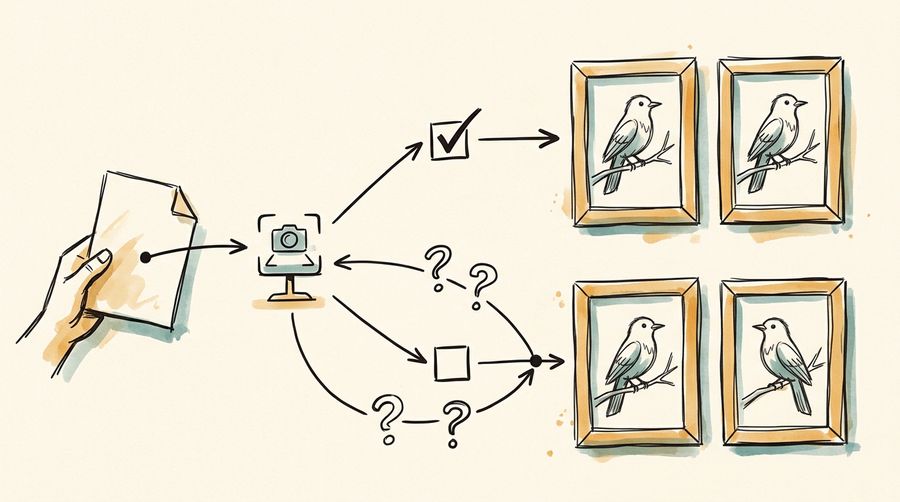
Upload or paste a reference image and choose an exact copy or a new variation of it — and asking for the same thing twice returns the same drawing, not a surprise.
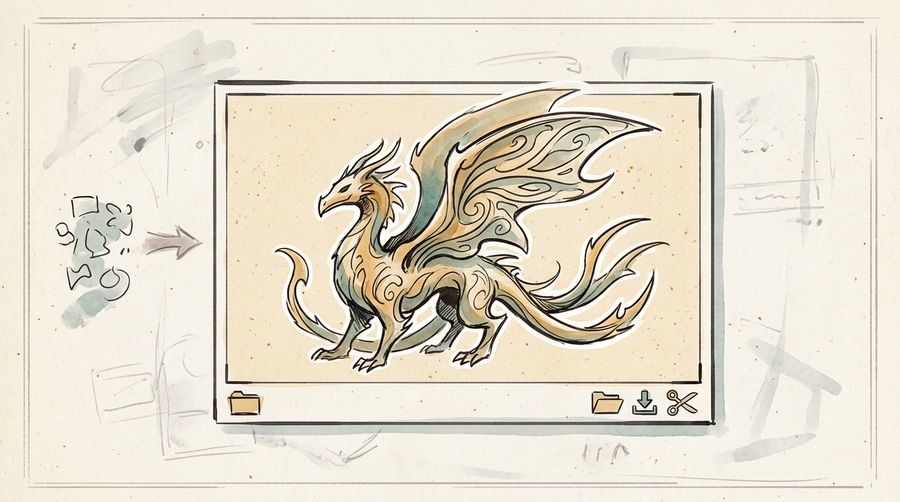
Every AI drawing comes back on a genuinely transparent background, cropped to its artwork, so it sits on any slide colour without a white box behind it.
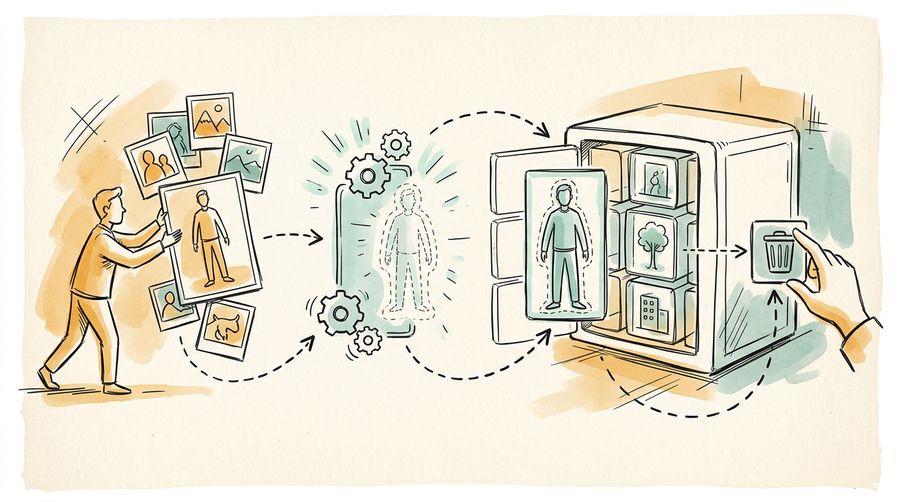
Upload your own artwork or photos, remove the background automatically, and keep them private to your library — deletable any time.
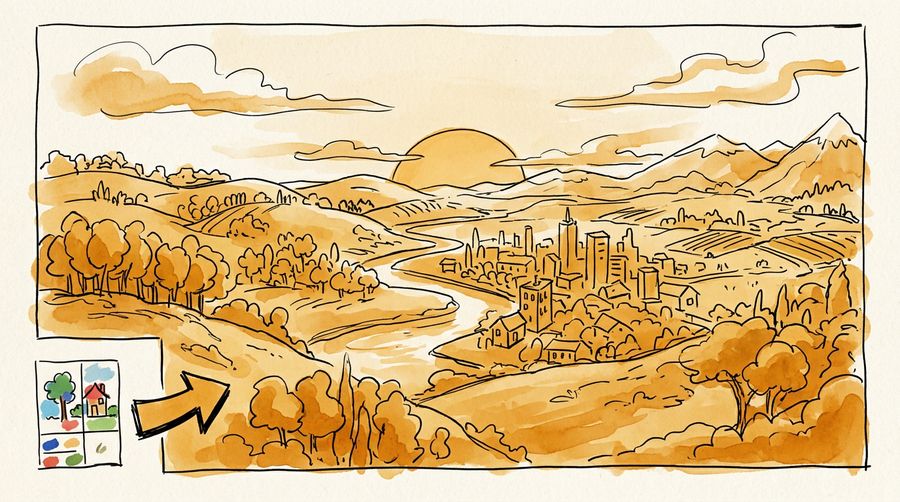
Colour filters restyle illustrations and symbols on the canvas so a whole slide reads in one palette.
A scroll-to-top button appears as soon as you're deep in a long library list, so search and filters are always one click away.
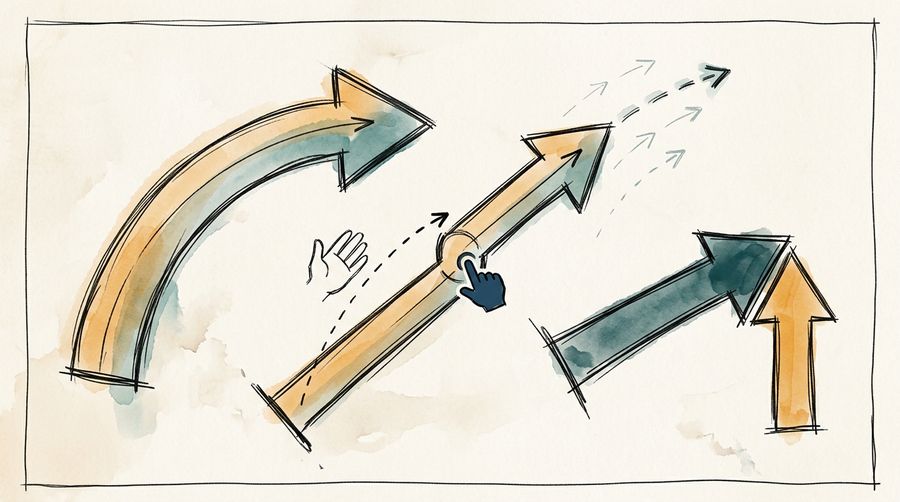
Straight, elbow and arc arrows whose endpoints follow your cursor in real time — with a draggable elbow and the ability to anchor an arrow onto another arrow.
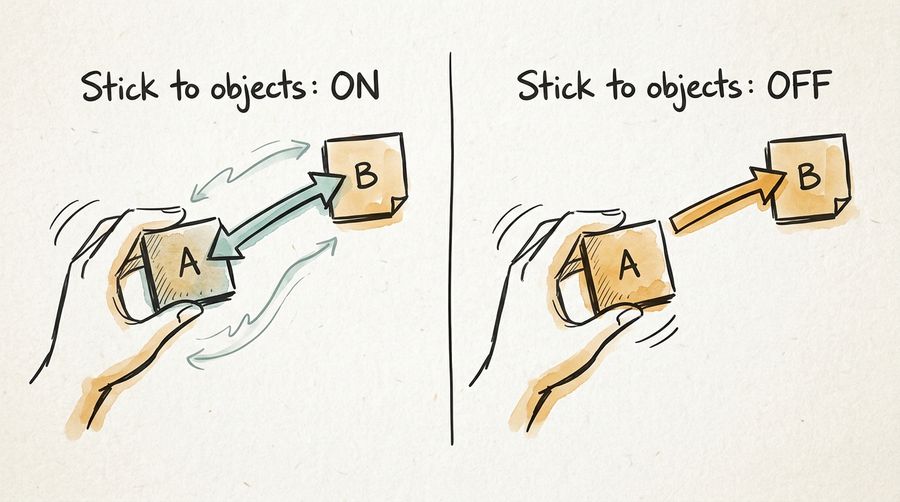
Turn 'Stick to objects' on and an arrow stays attached as you move the artwork it connects; turn it off and the arrow keeps exactly the ends you drew.
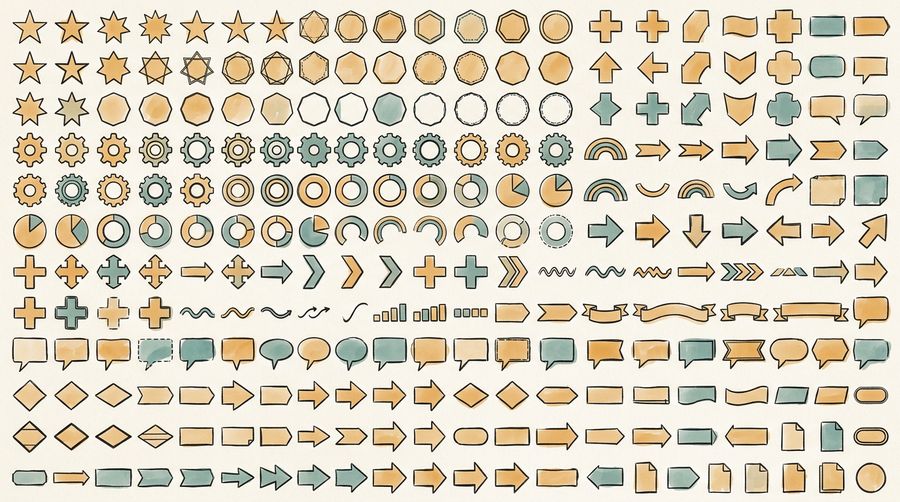
A searchable shape browser with stars, polygrams, polygons up to 24 sides, gears, rings, pies and arc bands, block arrows and chevrons, crosses, waves, bars, callouts, banners and flowchart symbols — every one with its own fill, outline colour, dash, stroke width and independent fill/outline opacity.
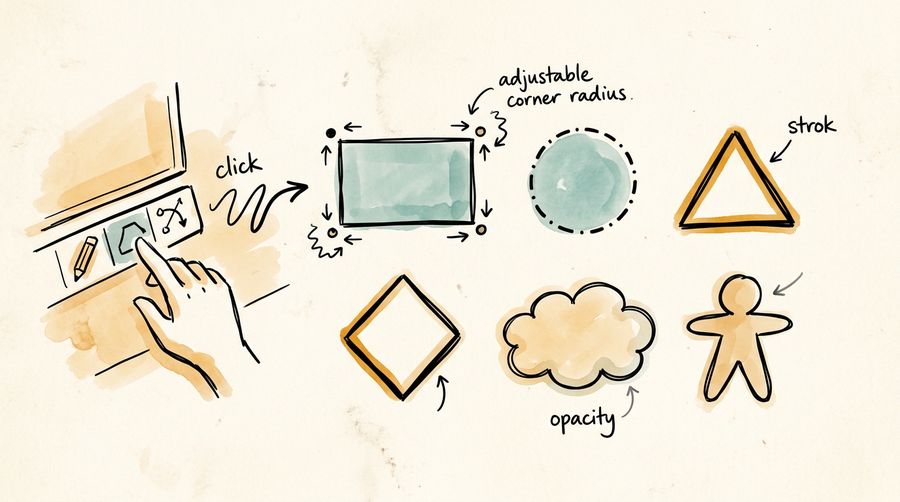
Rectangle, circle, triangle, diamond, puffy cloud and person shapes draw straight from the toolbar — rectangles get an adjustable corner radius, and every shape takes fill, outline, dash, stroke width and opacity.
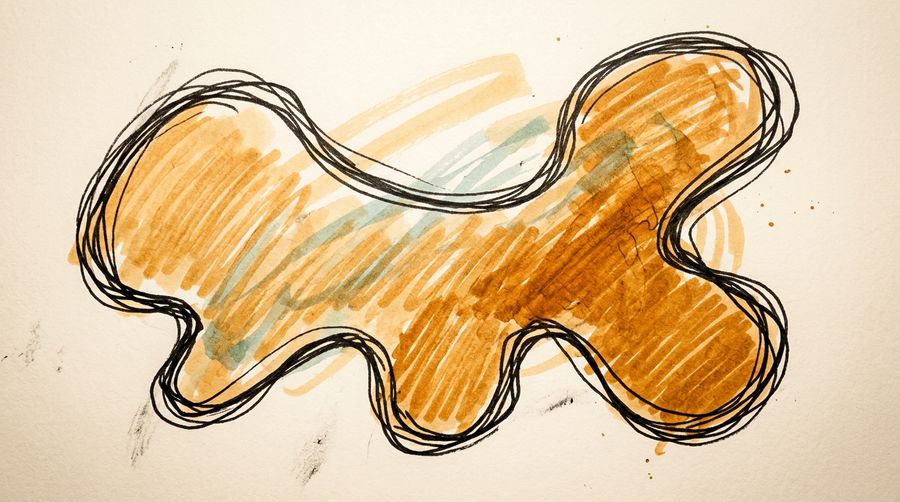
A wash fill scribbles inside a shape's own outline with its own opacity — push past 100% for a dense, saturated marker texture — and the wash resizes with the shape.
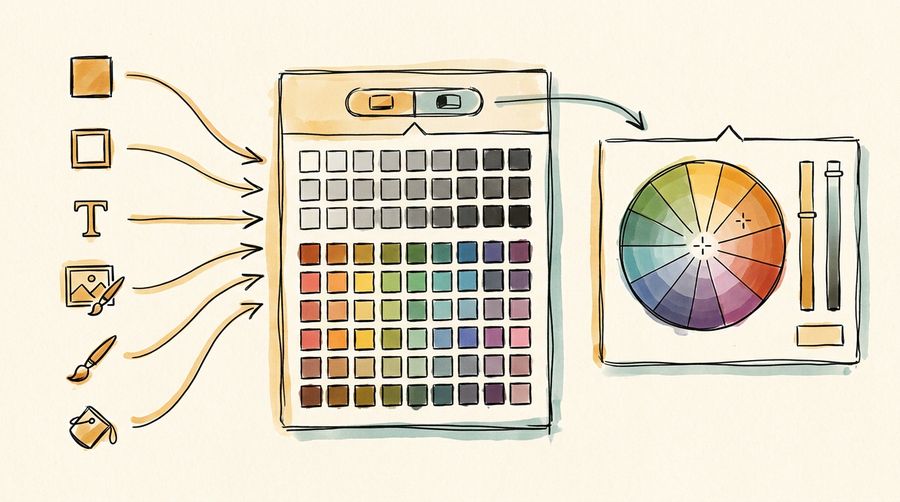
Every colour control — fill, outline, text, image tint, brush and fill tool — opens the same popover with a macOS-style swatch grid of greys and 96 hues, and a toggle to switch to a full HSV wheel with a hue strip and hex field. It remembers whichever mode you prefer.
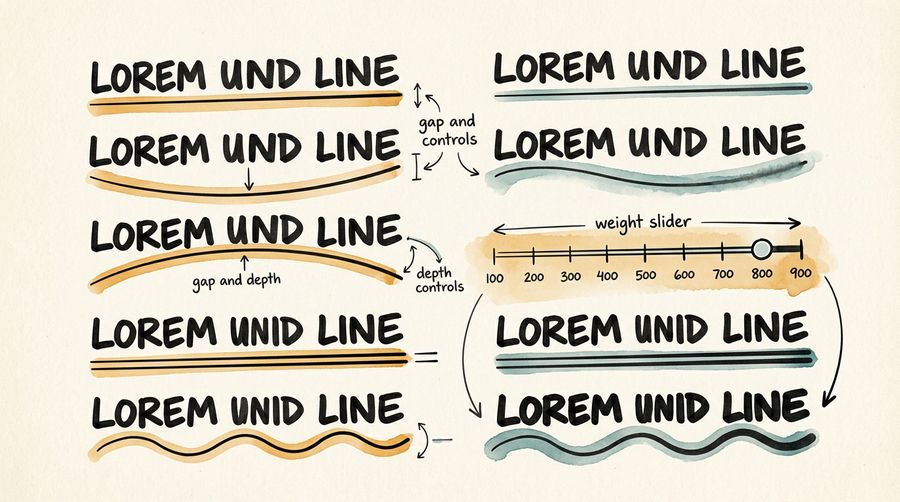
Choose from 25 handwriting and script fonts, set line height, and tune boldness from 400 to 1,400. Underlines come straight, curved, arched, double or wavy — in solid or wash ink, with gap and depth controls.
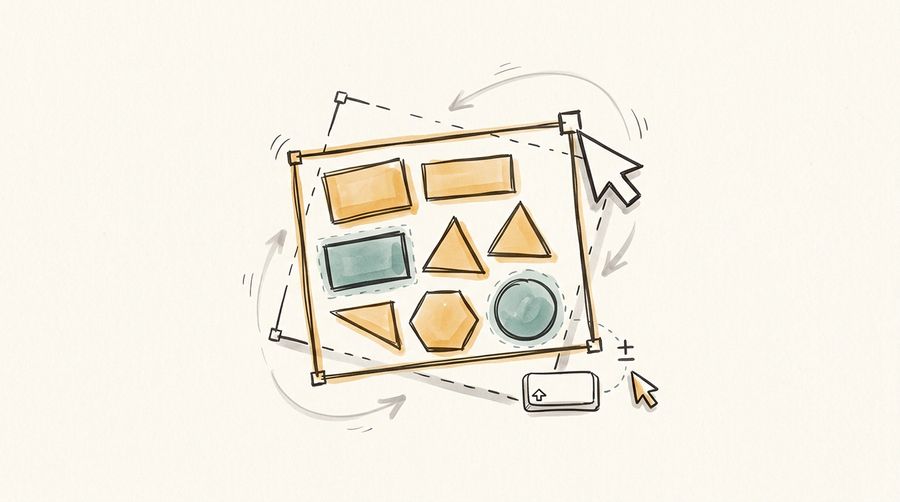
Select several elements and a single shared bounding box resizes or rotates them all together; Shift-click toggles individual elements in and out of the selection.
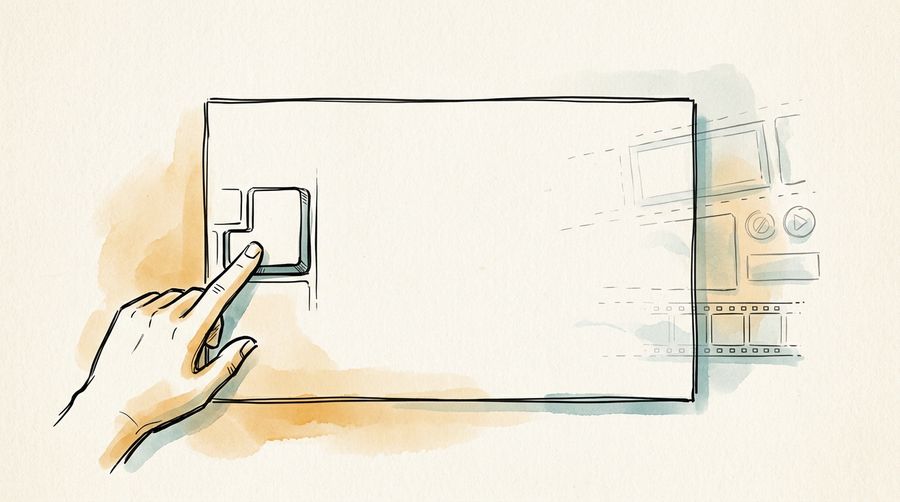
Tap Tab to hide every floating panel and the slide strip for a clean canvas, and tap it again to bring back exactly what was open.
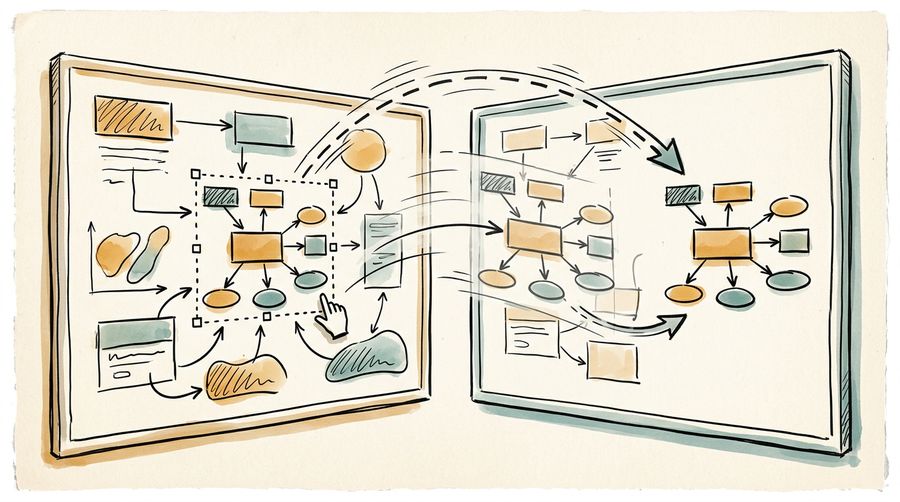
Copy elements on one board or slide and paste them into another — positions, styles and even arrow connections to the artwork you copied come across.
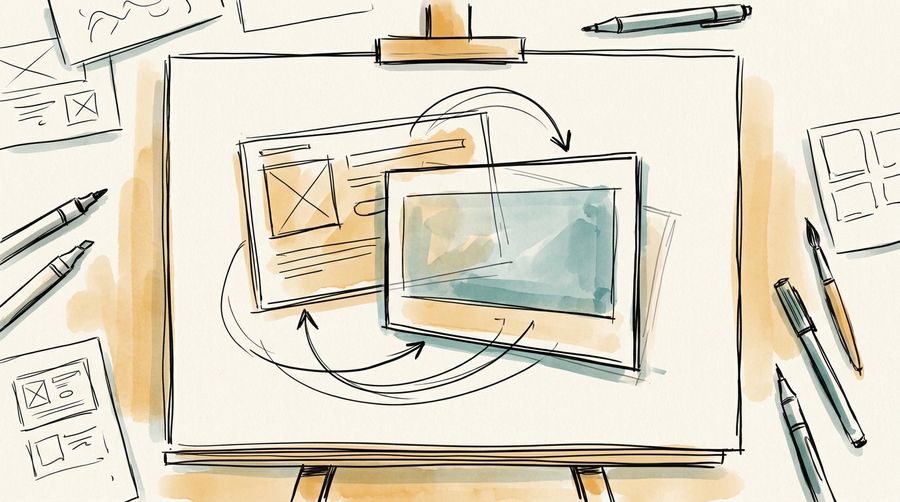
Open any library item's large preview and swap the selected canvas element for it right there — position, size, rotation and styling stay exactly as they were.
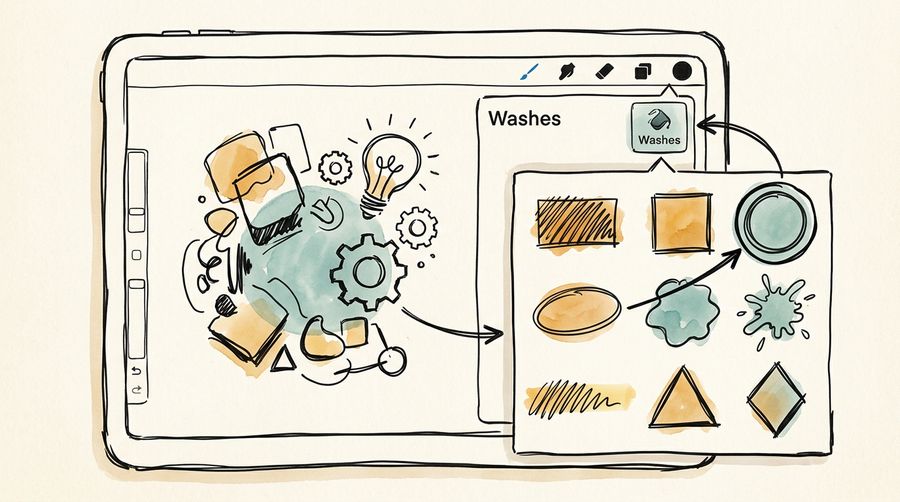
Nine hand-scribbled marker washes — rectangle, square, circle, oval, blob, splash, highlight band, triangle and diamond — chosen from a dedicated Washes button and dropped behind your elements automatically, in any colour.
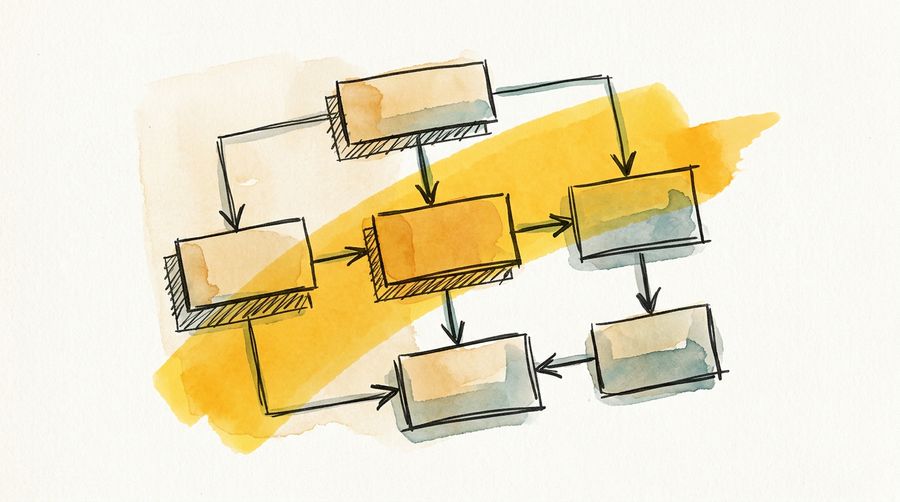
A translucent highlighter you can draw with anywhere on the board, with adjustable thickness up to 80px and true multiply blending over what's underneath.
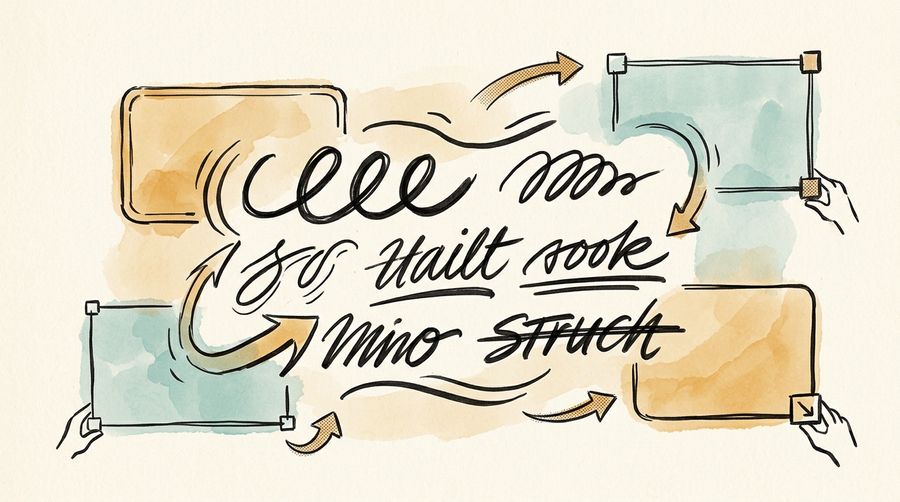
Bold, italic, underline and line-through, borders with adjustable padding and rounded or square corners, background fills with their own opacity, and drag-to-resize text.
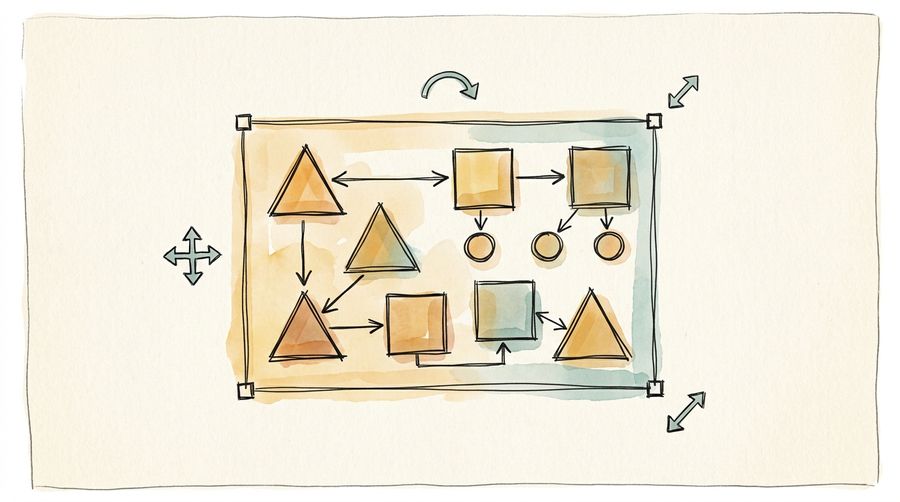
Group with Cmd/Ctrl+G and move, resize or rotate the group as one — a single shared bounding box, with connected arrows staying put.
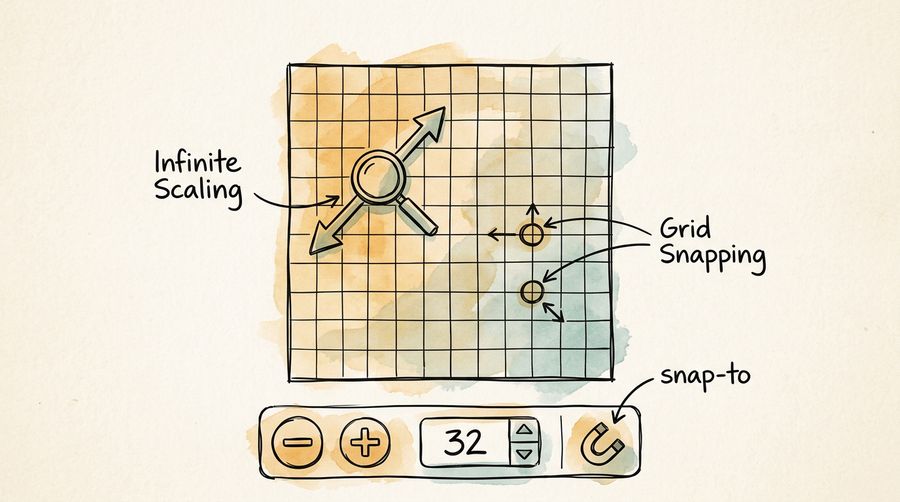
Crisp SVG grid lines that stay visible at any zoom, with an adjustable grid step from the toolbar and grid snapping to match.
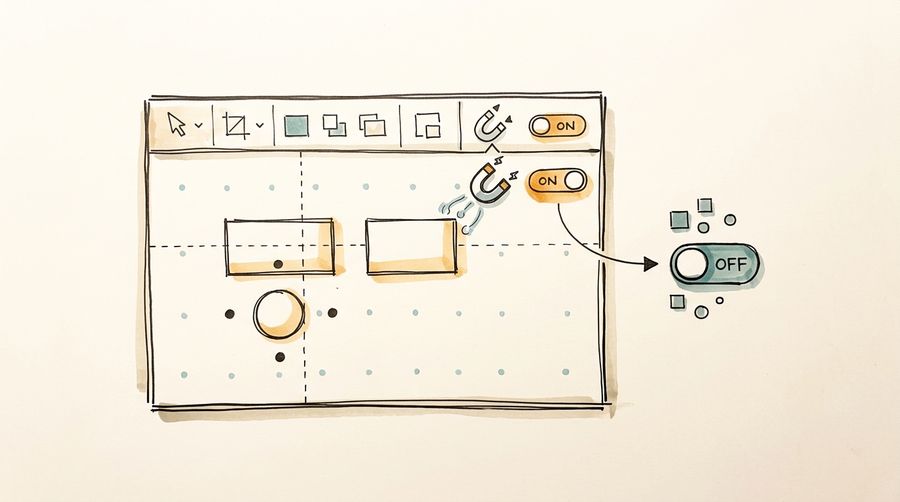
Element and grid snapping with live alignment guides, toggled on or off from the toolbar.
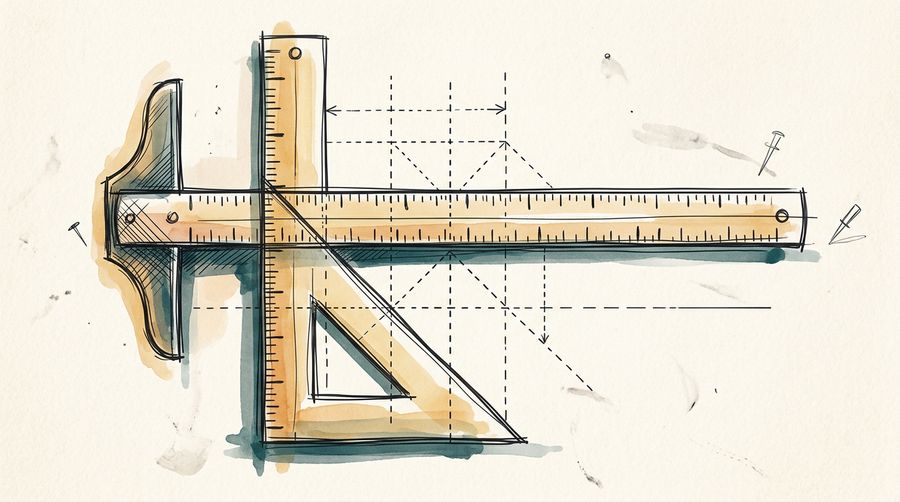
Optional canvas rulers for precise measurement while you place things.
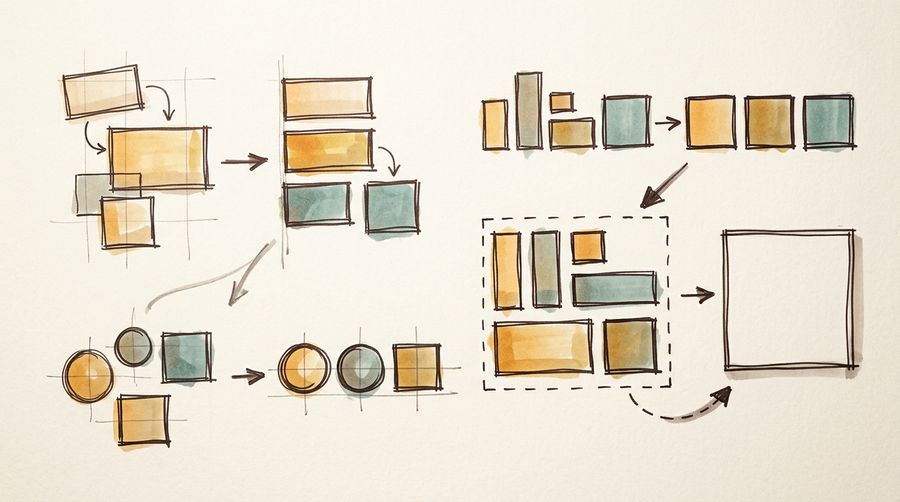
Line elements up on any edge or centre, or make a whole selection the same width and height.
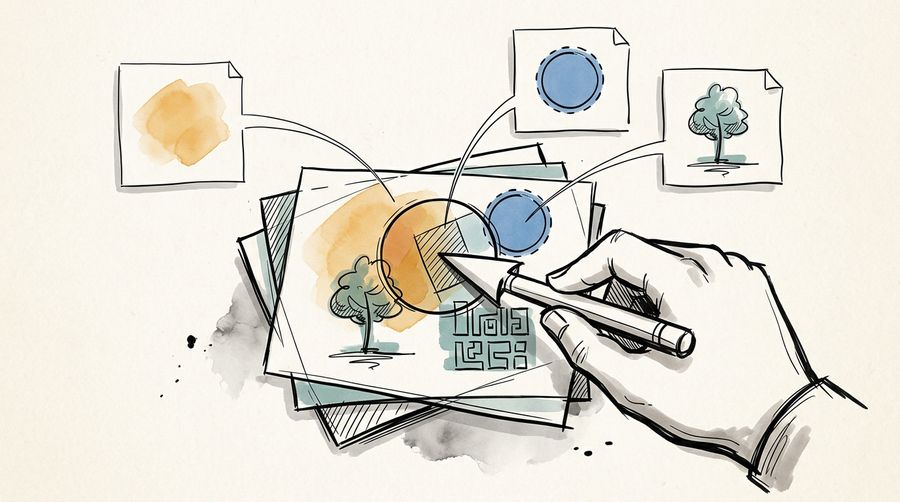
Alt/Option-click where things overlap and choose exactly which layer you meant — the wash, the illustration, the shape or the text.
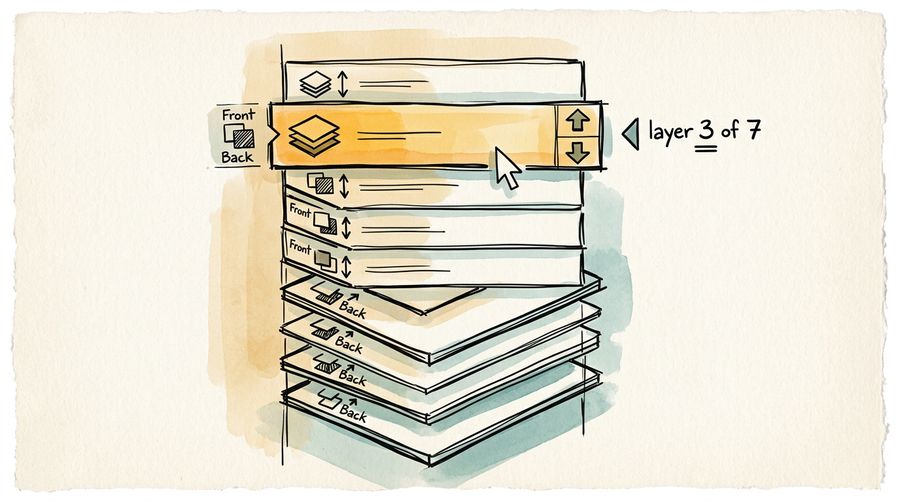
A top-to-bottom list of everything on the slide with Front and Back badges, the selected layer highlighted and a 'layer 3 of 7' readout — click a row to select it, or use the row arrows to move it up and down.
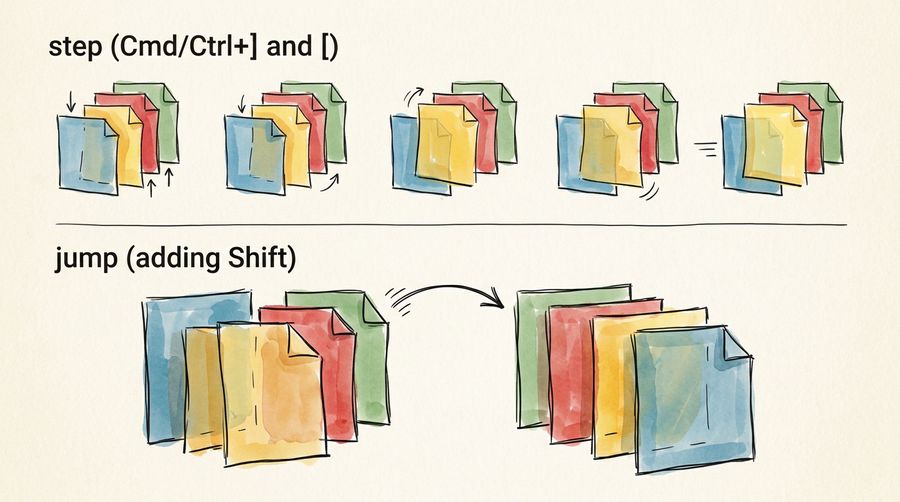
Nudge an element one layer forward or backward, or send it all the way to the front or back — Cmd/Ctrl+] and [ step, add Shift to jump the whole stack.
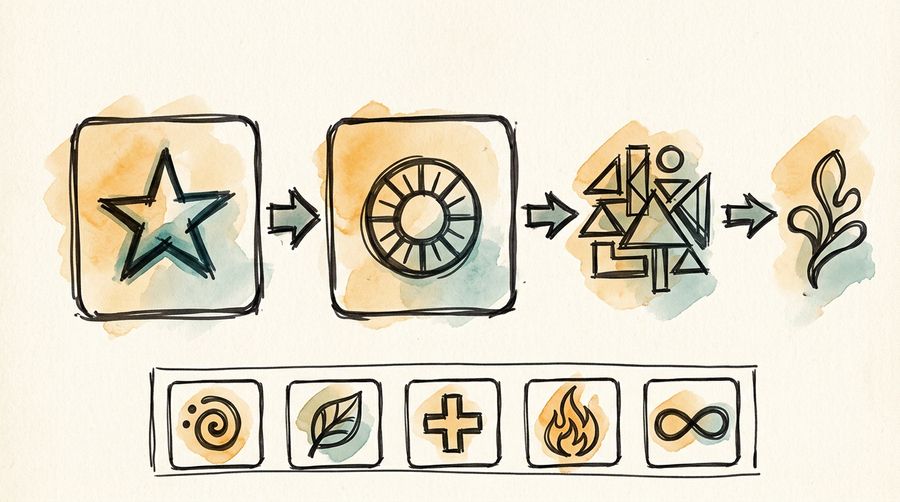
Select a sketch, symbol, shape or wash and step through alternatives of the same kind with arrows or a thumbnail strip — position, size, rotation and styling stay exactly as they were.
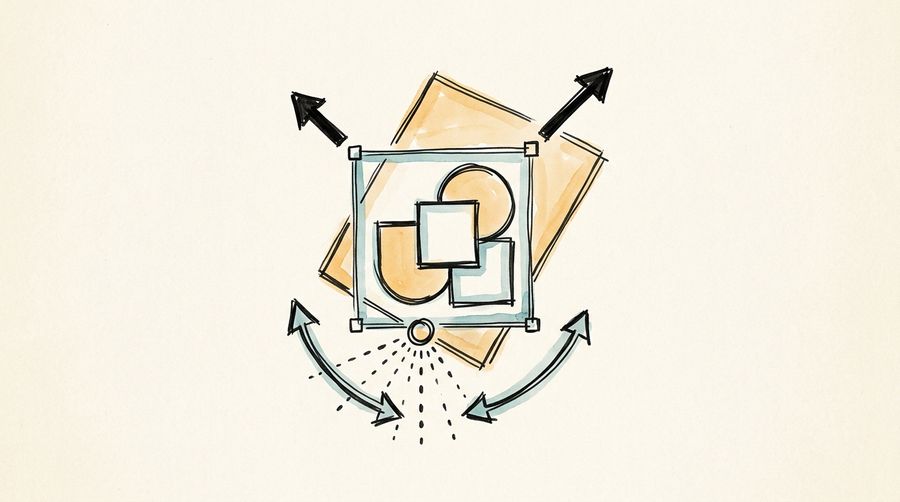
Rotation handles with optional 15° snapping, plus proportional resizing on single elements or groups.
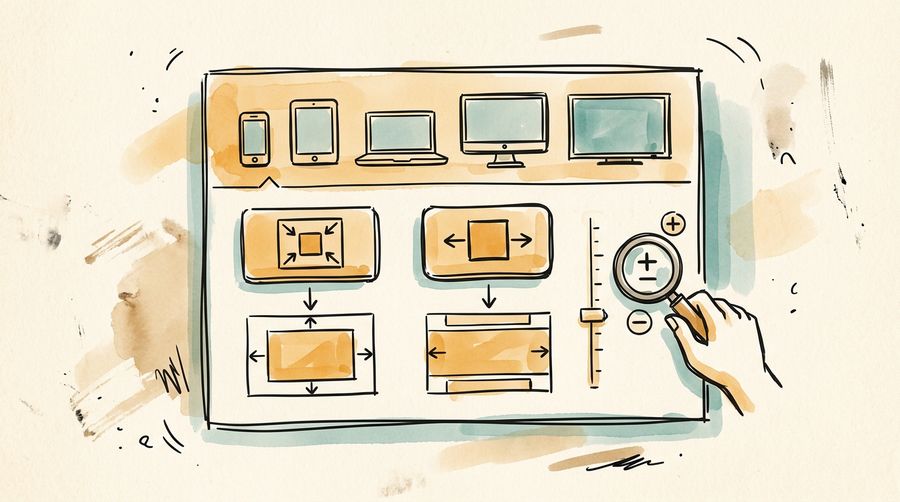
Preset sizes for every device and platform, plus one-click Fit to see the whole slide or Fit width to fill the canvas edge to edge, and manual zoom whenever you want it.
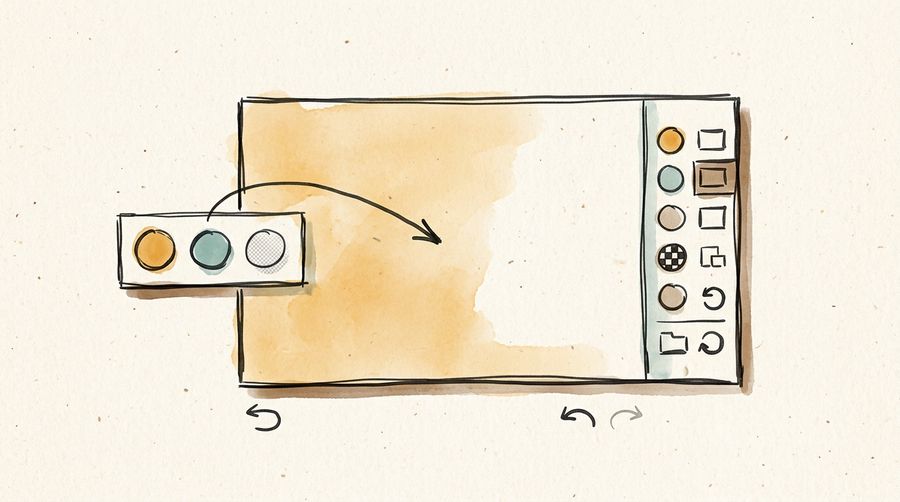
Set any slide's background from the Style panel — pick a palette colour, dial in a custom one, or reset to the paper texture. It's always available, with or without a selection, and it's part of undo/redo.
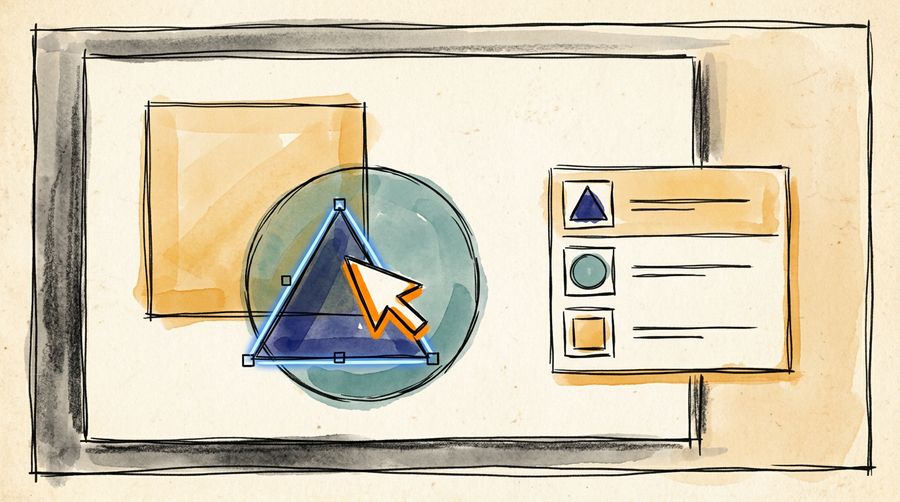
Clicking overlapping artwork always selects the element drawn on top, not the biggest bounding box behind it — and right-clicking opens a picker listing everything under your pointer.

Select an illustration, symbol or shape and add a wash shaped to fit it — the scribbled patch lands behind while your artwork stays in front, and it stays identical when you duplicate the slide.
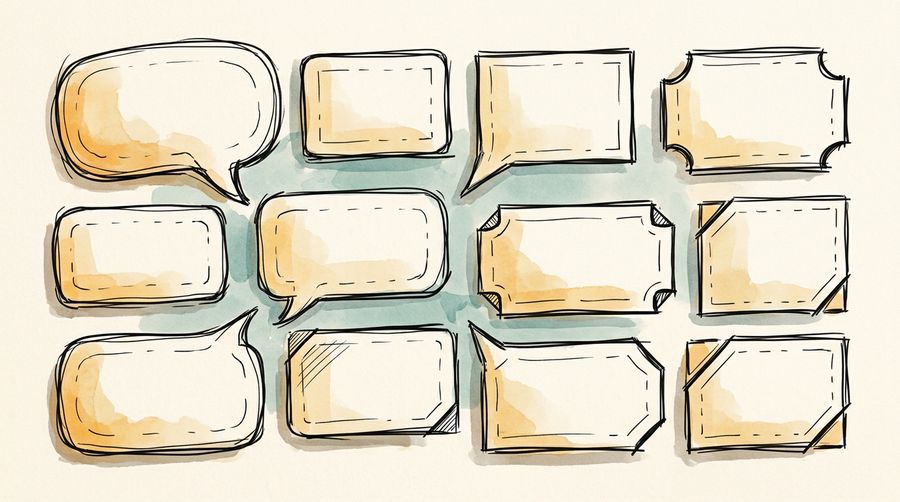
Text boxes and labels take rounded, square, cut or notched corners, with padding and background opacity of their own.
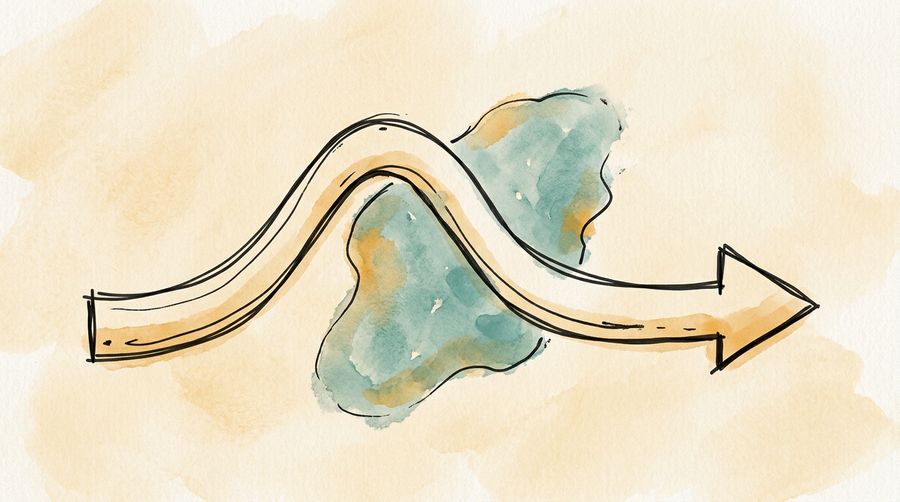
Drag an arrow's midpoint handle to curve it around whatever's in the way, then keep both ends anchored where they were.
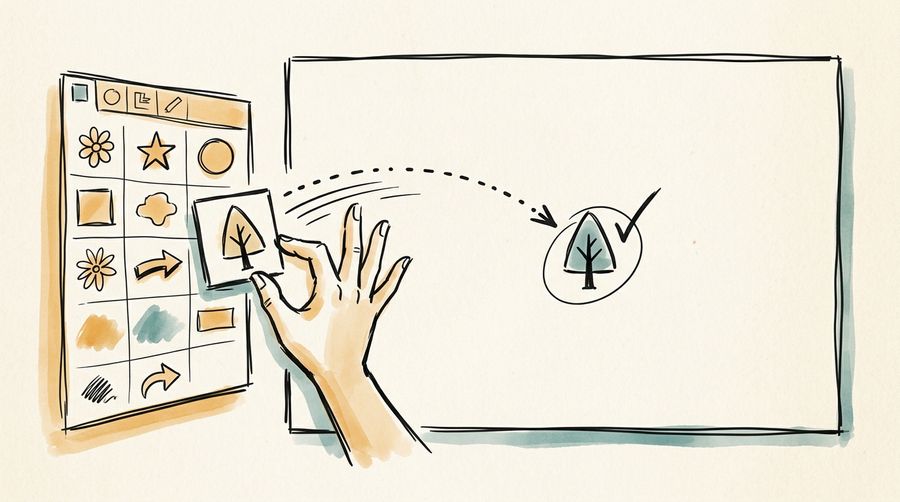
Drag any illustration, symbol, sticker, shape or wash out of the library and drop it exactly where you want it on the canvas.
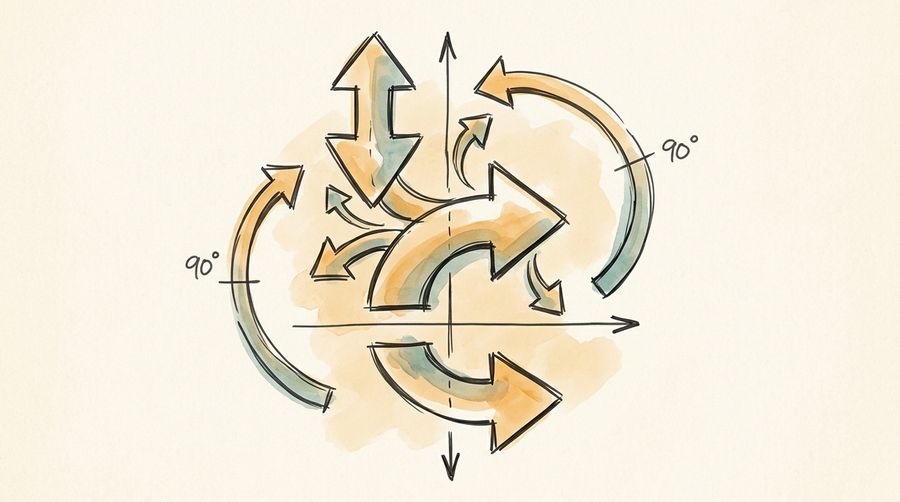
Rotate any element in 90° steps or mirror it horizontally and vertically from the Style panel — useful for facing arrows, figures and props the other way.
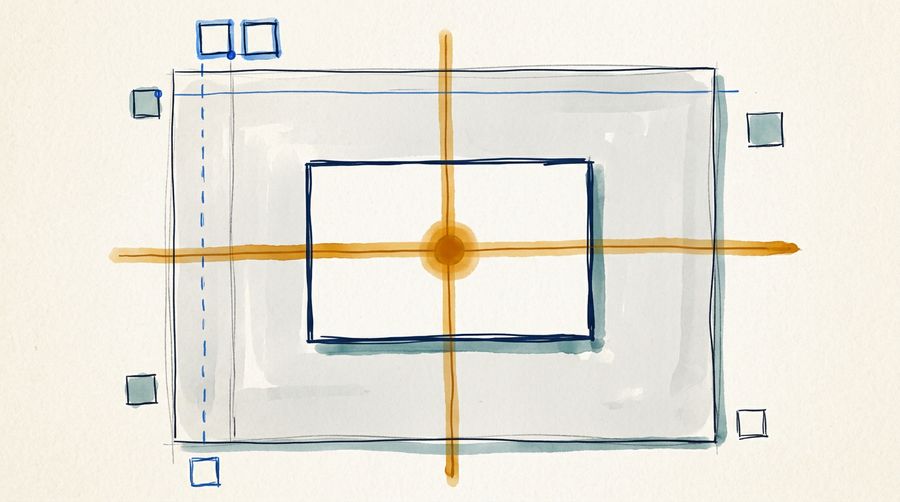
Middle and centre alignment guides draw in amber while ordinary edge snaps stay blue, so you can tell at a glance when something is truly centred.
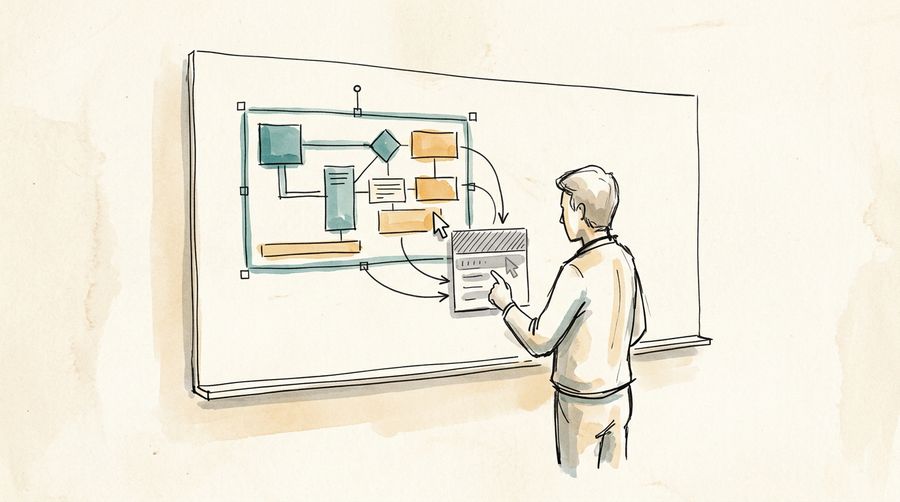
The right-click picker greys out anything inside a group and tells you to ungroup first, so you can't accidentally pull a single piece out of a group.
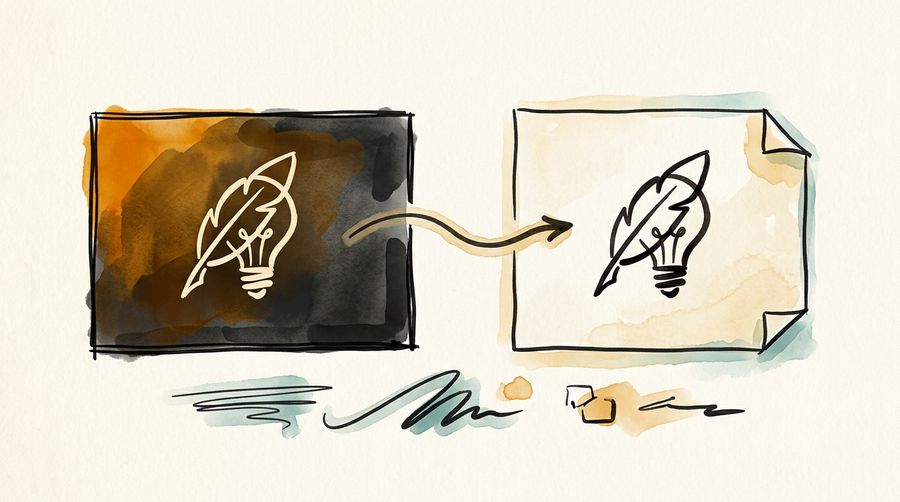
Add text or a shape on a dark slide and it arrives in light cream ink; on pale paper it arrives dark — readable from the first keystroke.
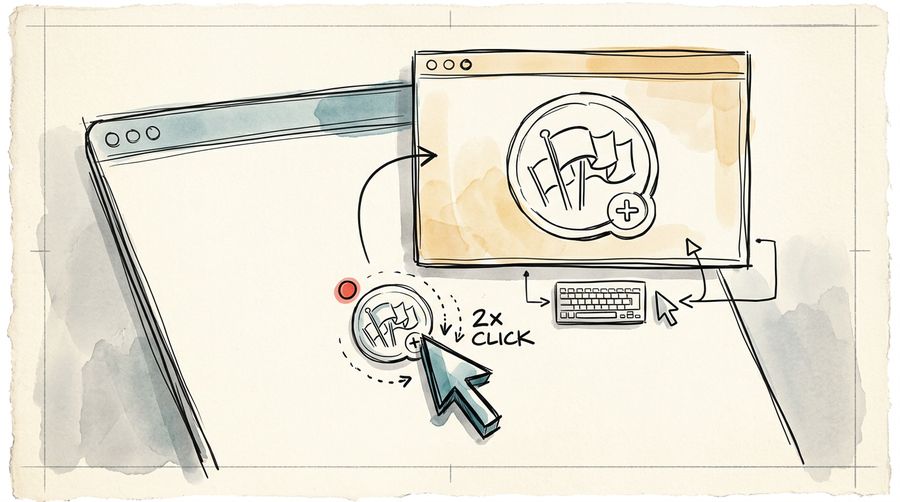
Double-click a sticker on the slide — flags included — and it opens large in its own preview instead of dropping you into a text editor.
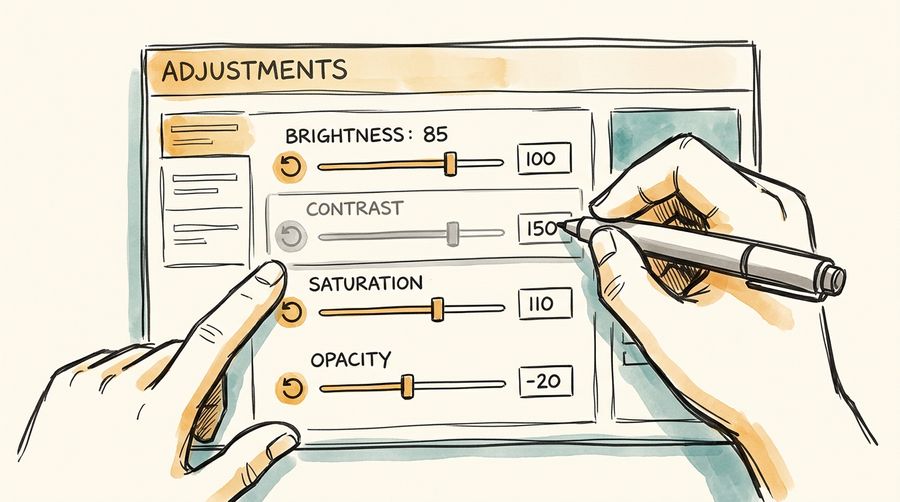
Every slider in the Style, Draw and Adjust panels takes a typed number and carries a reset icon that snaps it back to its default, greyed out when it's already there.
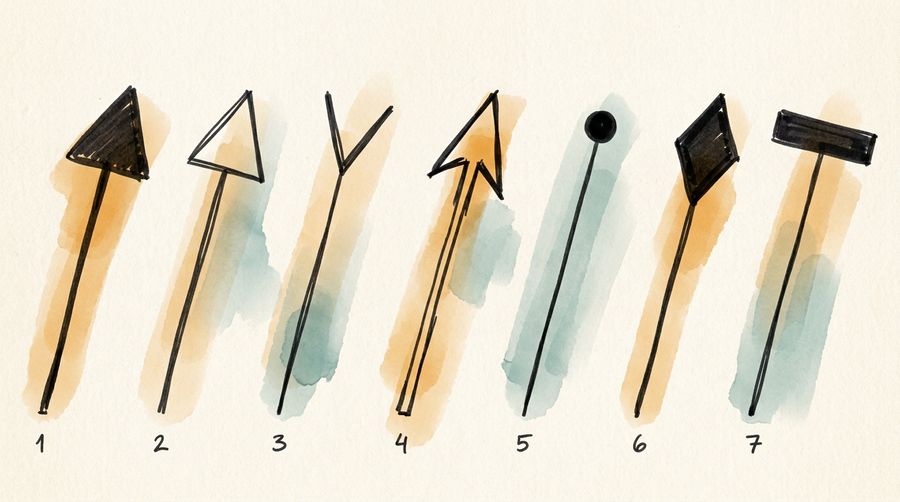
Pick a solid marker head, a triangle, an open V, barbed, a dot, a diamond or a plain bar from a thumbnail picker, and size the head independently of the line weight.
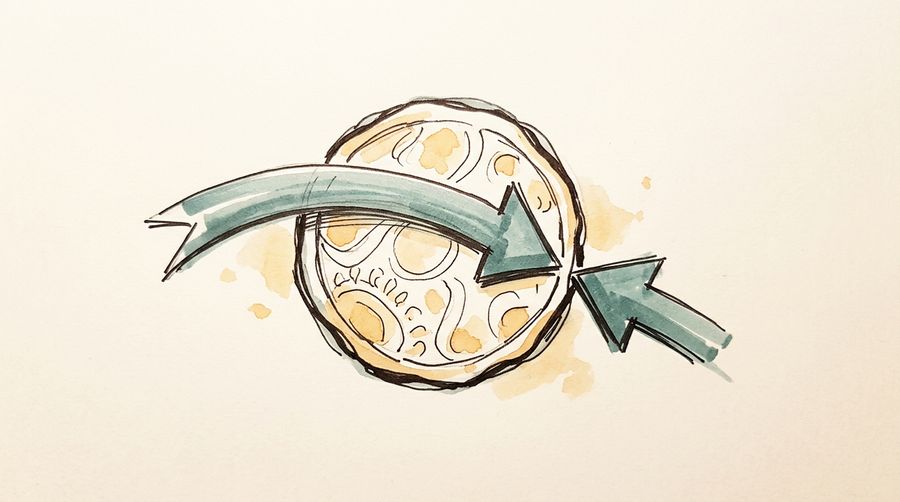
Drop an arrow end anywhere on an uploaded photo, AI image, illustration or sticker and it pins to the visible edge of the drawing — then keeps hugging it as you move, scale or rotate the element.
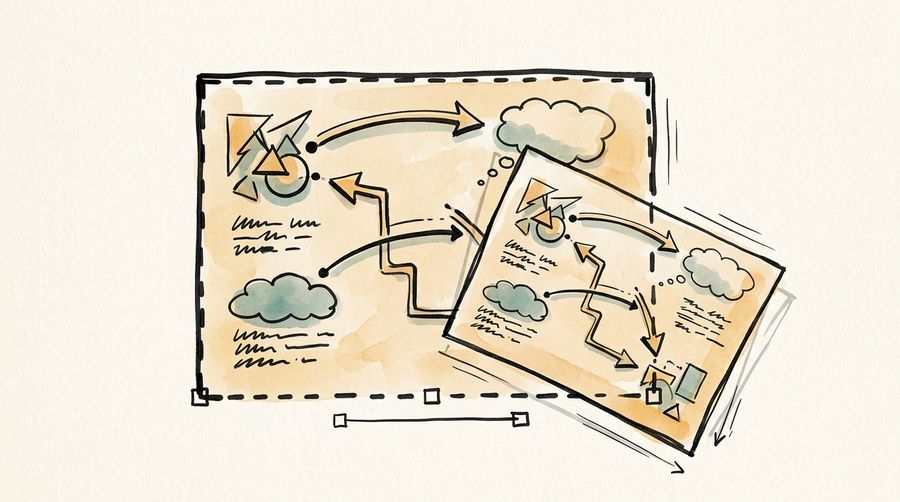
Select arrows together with artwork and text: the shared box wraps their endpoints, moving drags them along, and resizing or rotating scales their line weight, head size and bend point with everything else.
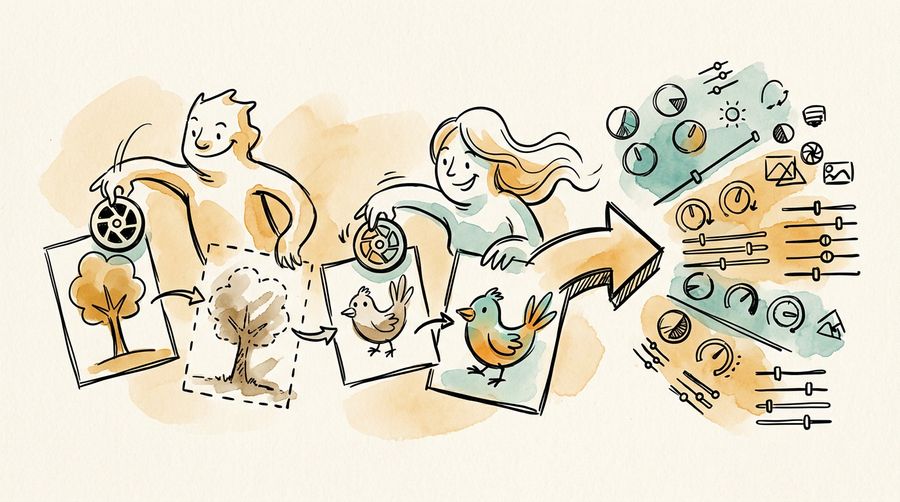
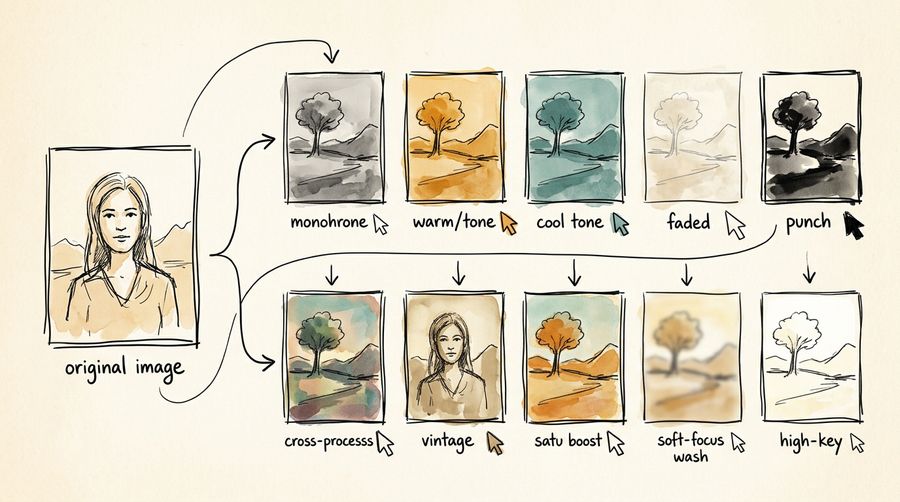
Drop a preset like mono, sepia, vivid, faded or noir onto an image, illustration or sticker, then open All filter options for hue, saturation, brightness, contrast, blur and the rest.
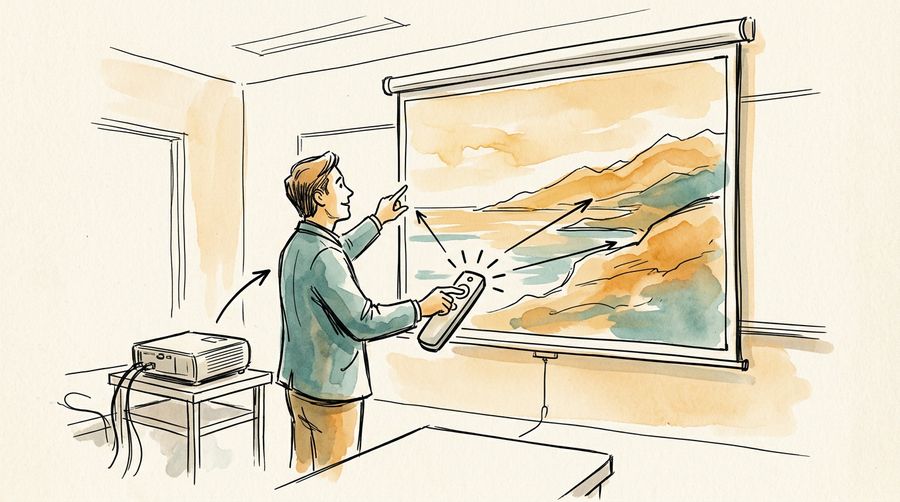
Send any image to fill the whole slide, its full width or its full height in one click — it scales and centres itself without stretching.
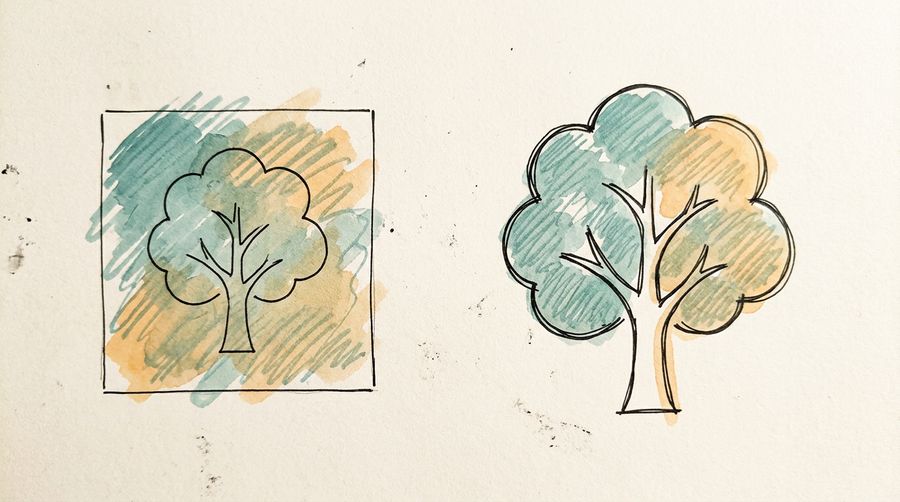
Line icons take the same scribbled wash fill as shapes, filling the icon's own artwork rather than its box.
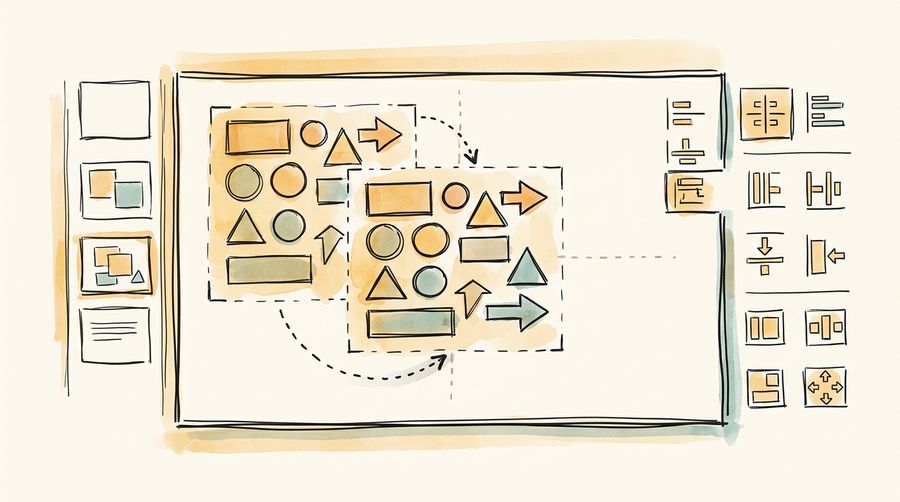
Move everything you've selected to the middle of the slide as one block — their relative positions stay exactly as you arranged them — alongside align, distribute and spread controls.
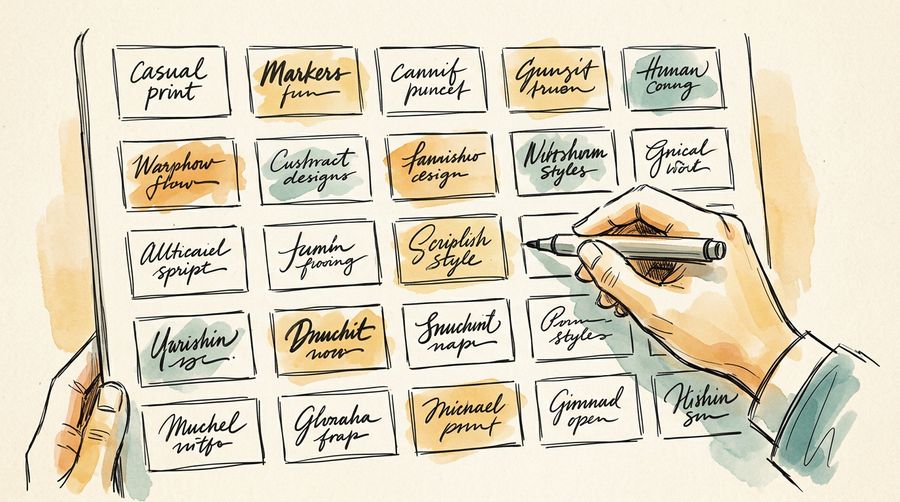
A live-preview font gallery in the Style panel with casual print, marker, brush and script faces, each rendered in itself so you pick by eye.
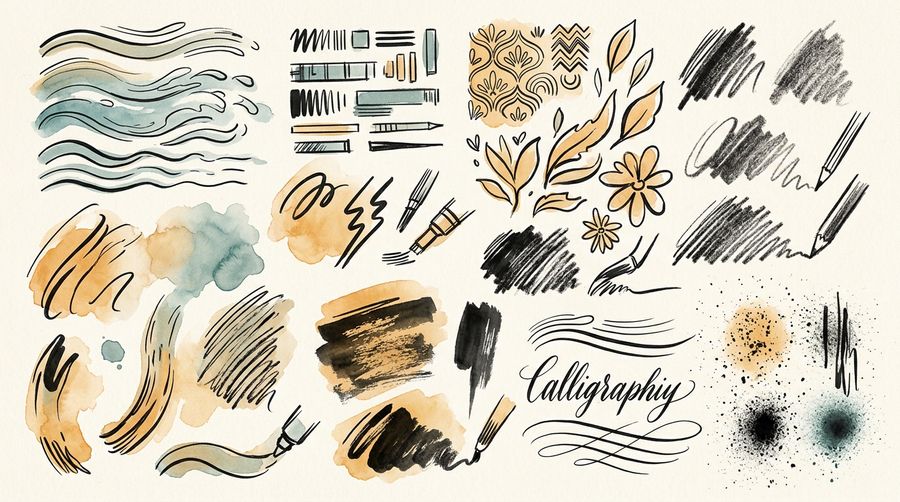
Sketching, inking, drawing, painting, artistic, calligraphy, airbrushing, textures, abstract, charcoals, elements, gouache, spraypaints, luminance, industrial, organic, water, vintage, retro, materials and more — each family holds its own named brushes.
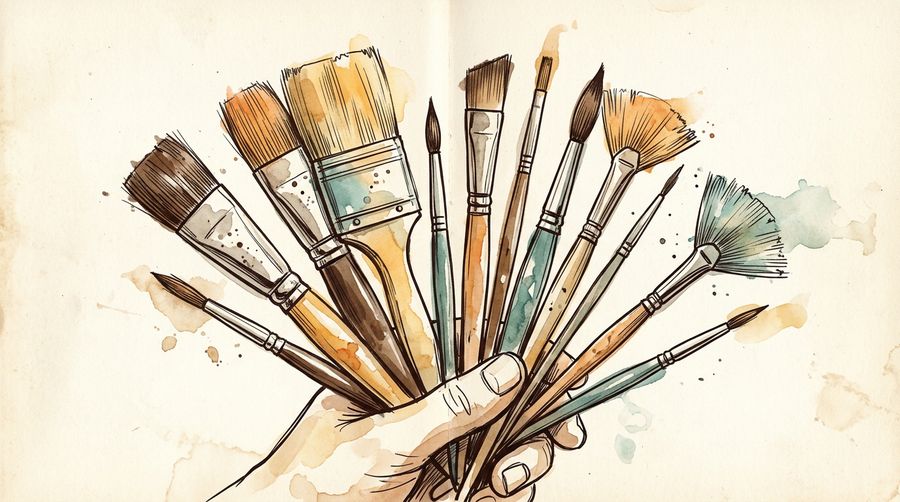
Every brush carries its own grain, taper, wetness, scatter and blending — plus your own colour, size, opacity and smoothing on top.
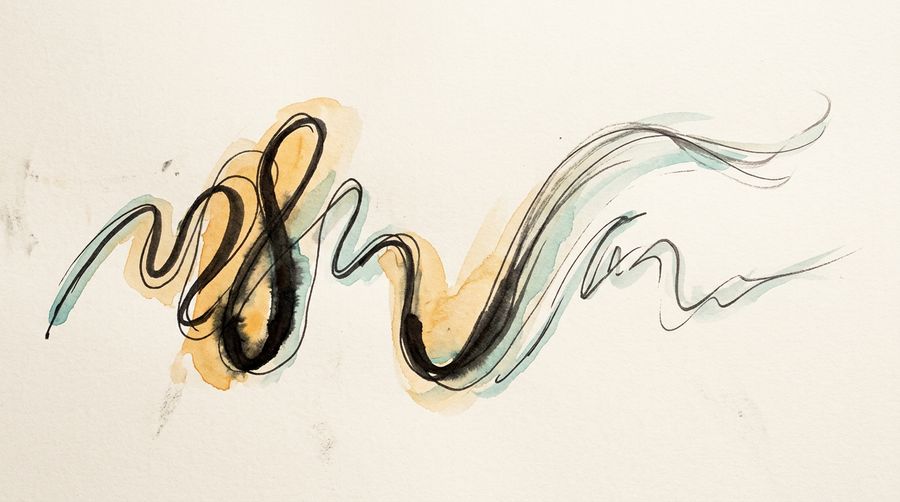
Press harder and the line gets thicker and darker; move faster and it thins and tapers, exactly like real ink — on a pen, a trackpad or a touchscreen.
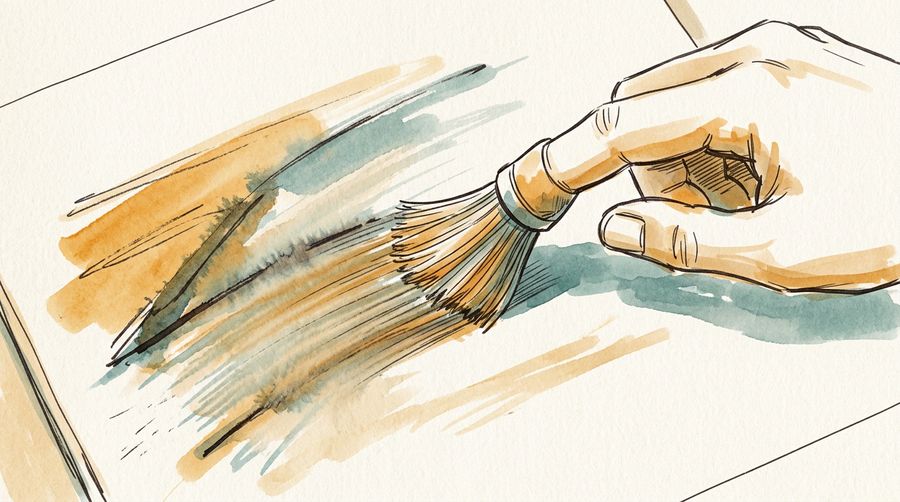
The tip works like a fan of soft bristles: each hair picks up the colour beneath it and drags that pigment along your gesture as a faint directional streak that runs dry, so the smear mixes tones and feathers out instead of painting a second line.
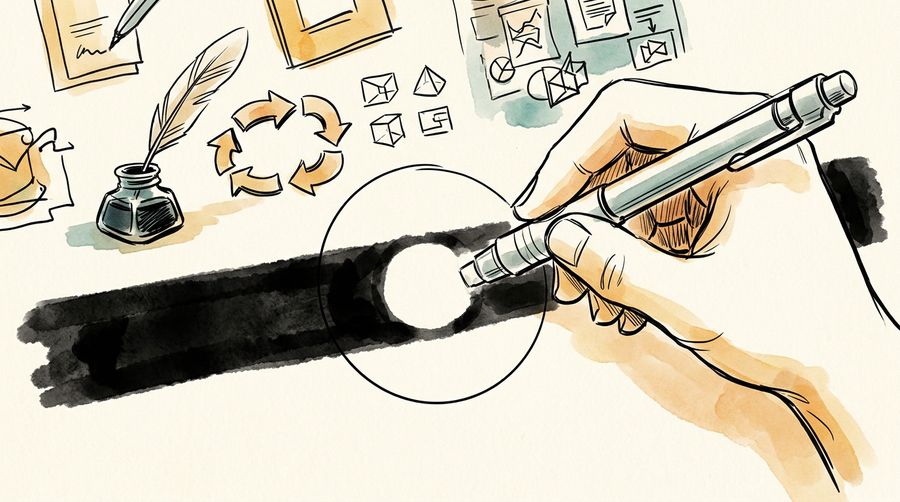
Rub away only the ink under the tip with an adjustable eraser size and a live circular preview — the rest of the stroke keeps its exact colour, and illustrations, shapes, text and arrows are never touched.
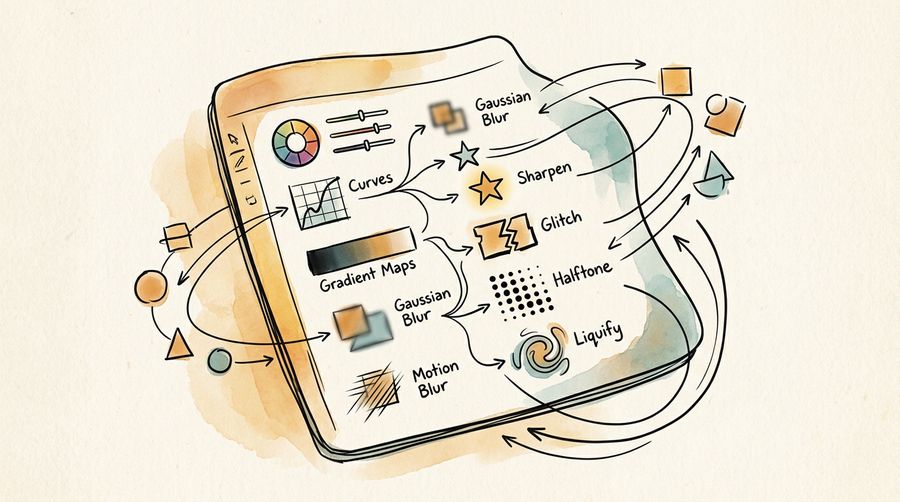
A floating Adjust panel with hue, saturation and brightness, curves and gradient maps, gaussian and motion blur, sharpen, bloom, glitch, halftone and liquify — applied live to any element and reversible at any time.
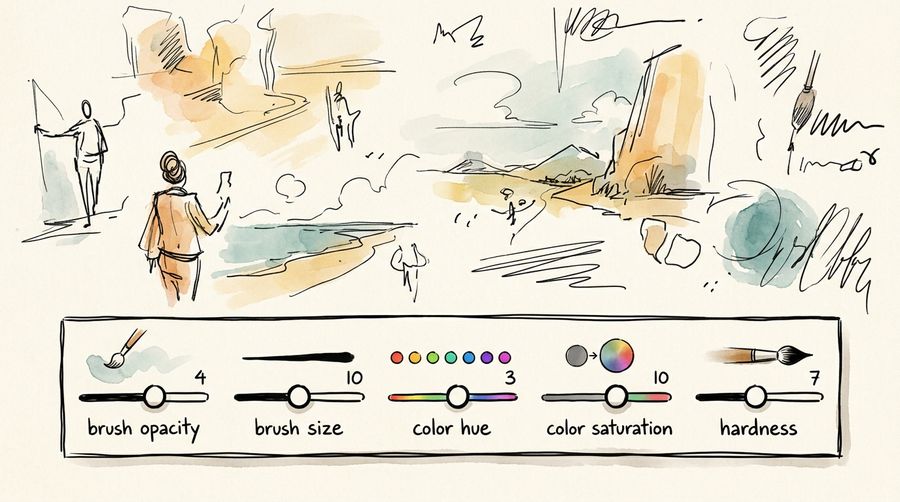
Every adjustment and brush setting sits on a single-row slider with its label and live value, so the panel stays short and you keep seeing the board.
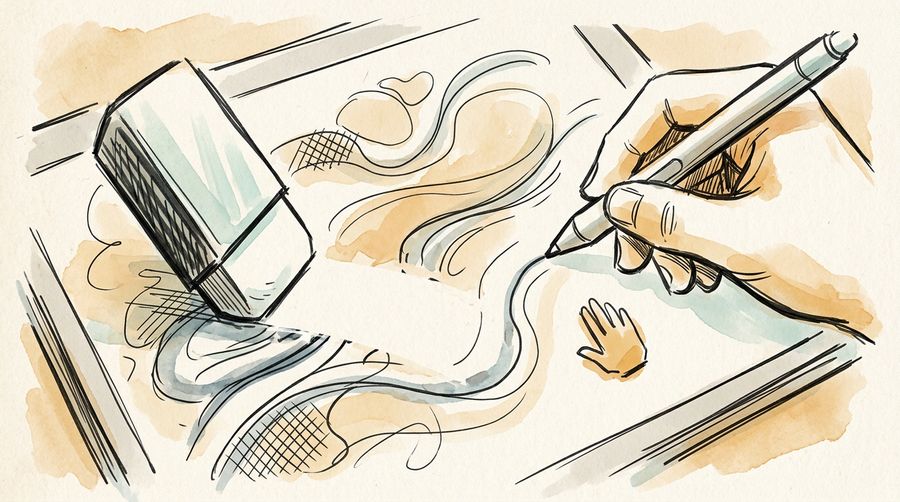
Freehand strokes behave like ink on the paper: they never clutter the layer list and can't be selected or dragged by accident — only the eraser affects them.
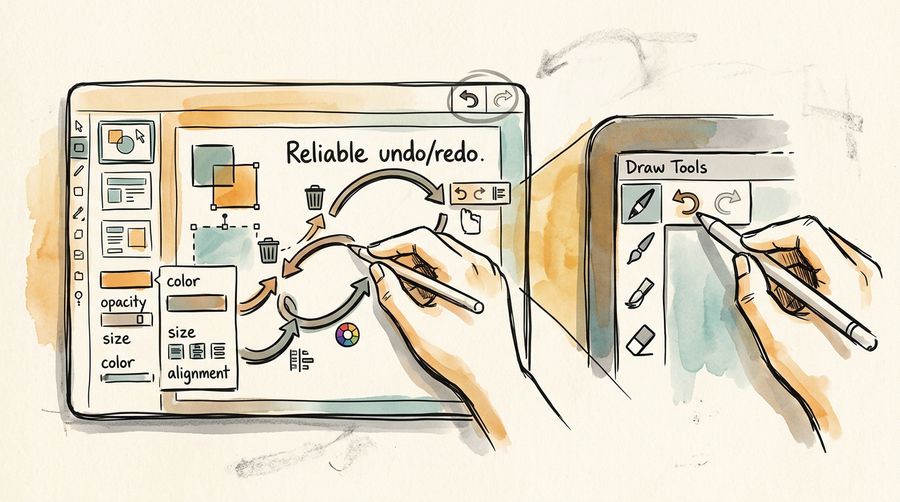
Full history with Cmd/Ctrl+Z and Cmd/Ctrl+Shift+Z on every action — including slide deletes and every style change: colours, opacity, padding, sizing and alignment. Undo and redo buttons also live inside the Draw tools panel, so pen-and-touch users never reach for the keyboard.
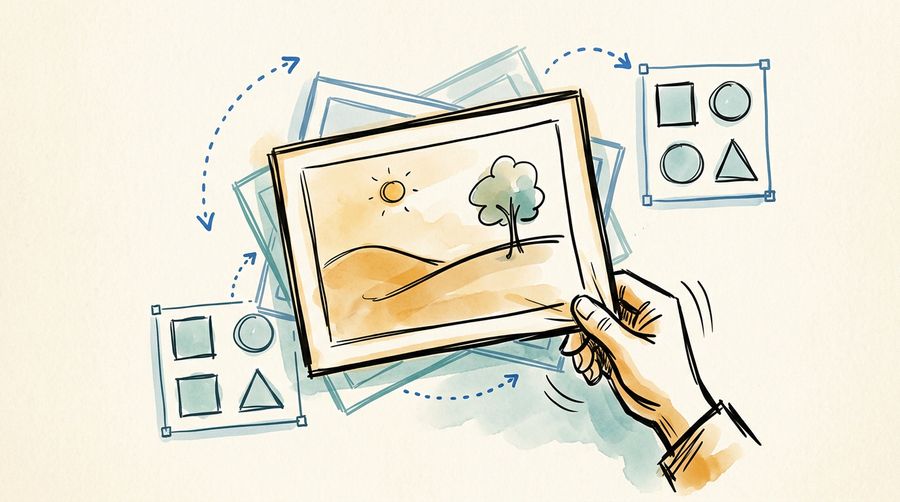
An uploaded image moves, resizes from any corner, rotates and joins multi-selections exactly like a native element — no jumping to its trimmed artwork, no shrinking box.
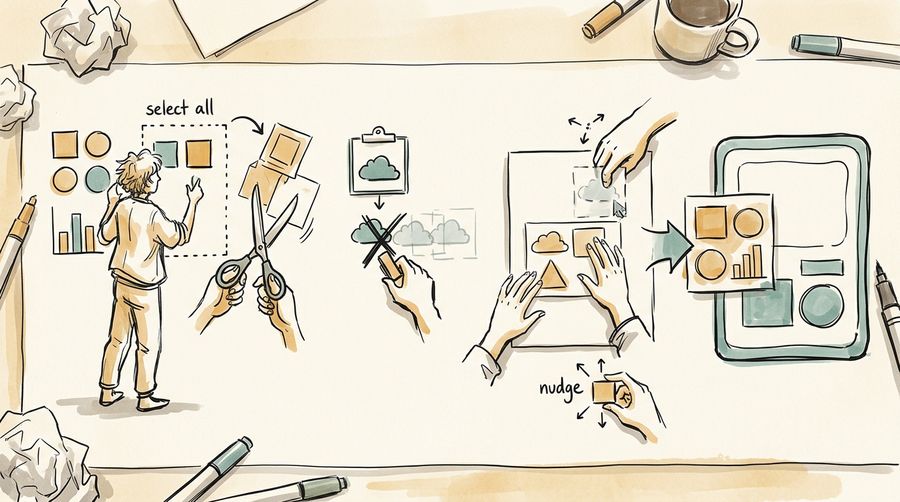
Standard clipboard shortcuts, select-all, nudging with arrow keys, and copy elements straight to another slide.
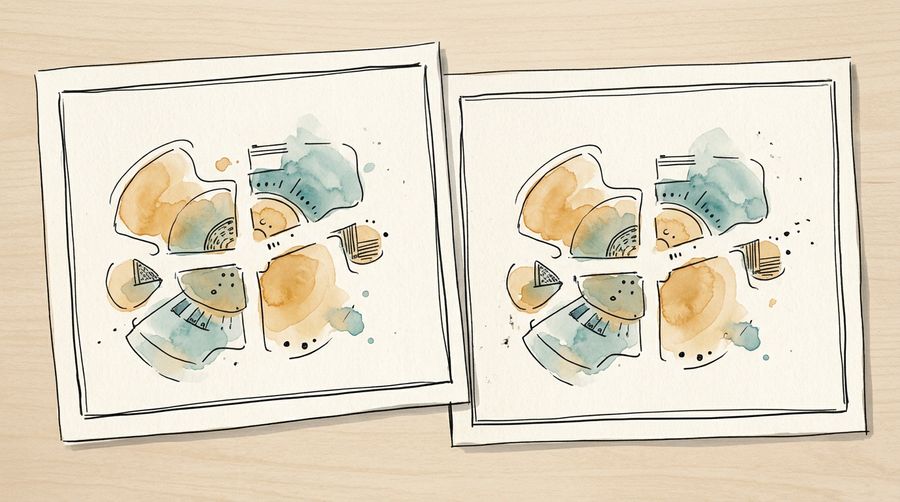
Clone an entire slide — every element, colour, opacity, wash pattern, background and setting comes across as a pixel-identical copy.
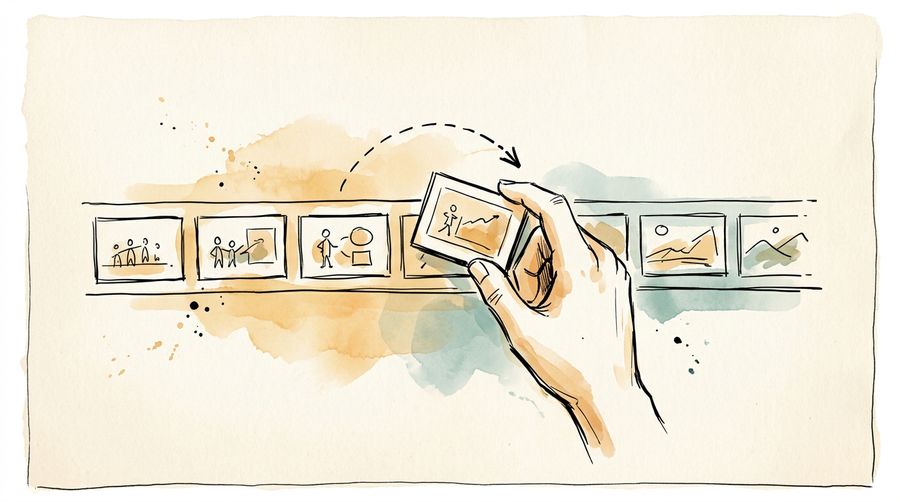
Drag slide thumbnails in the strip to rearrange your story; the new order saves itself.
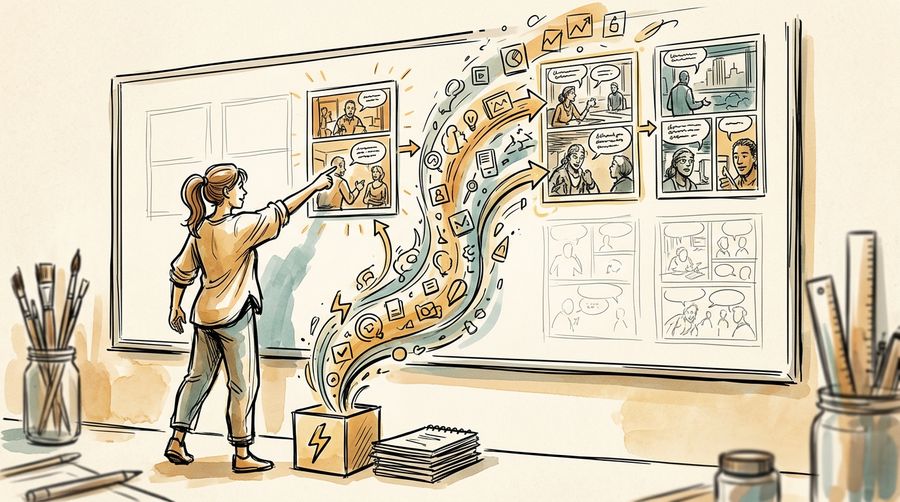
Illustrations, symbols, shapes and washes are cached locally, so panels come back fully drawn instead of blank when you return to a board.
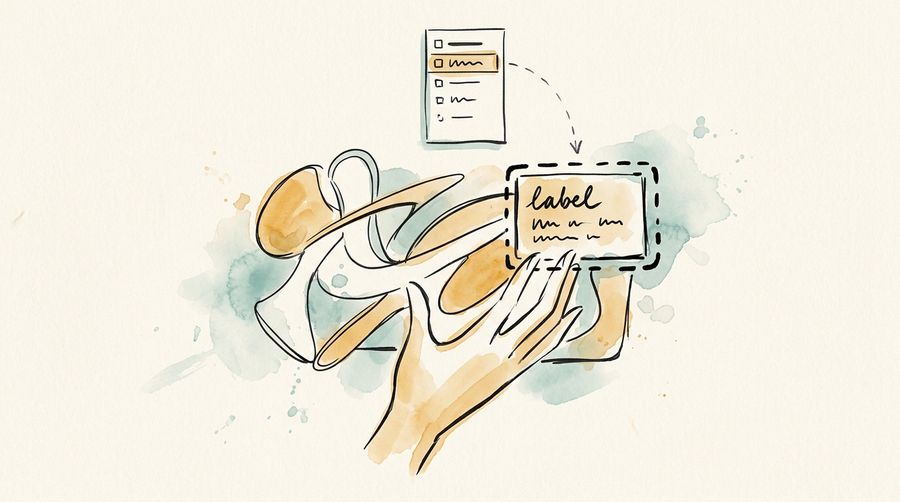
The Style panel names the selected element, so you always know whether you're editing the wash, the sketch or the label.
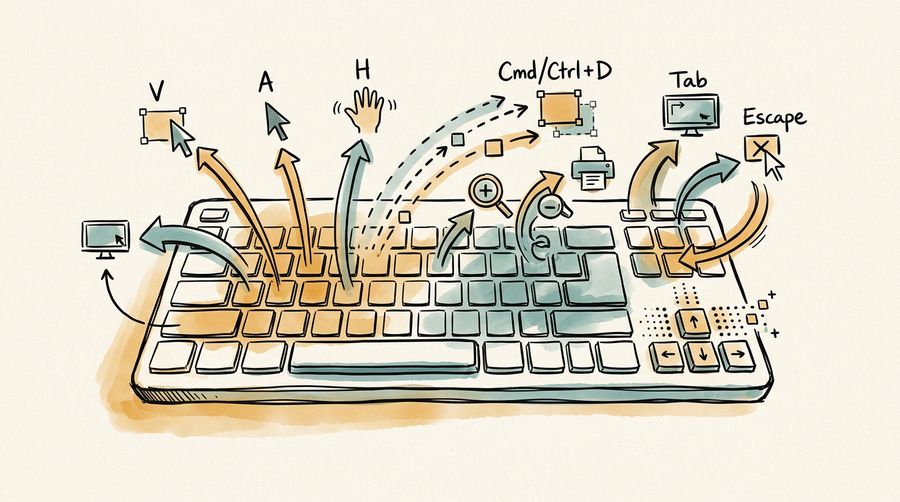
Every core tool has a shortcut: V select, A arrow, H hand, Tab to hide the interface, Escape to step back to select and clear the selection, Cmd/Ctrl+D to duplicate, Cmd/Ctrl+P to print, Cmd/Ctrl + and − to zoom, and arrow keys to nudge 2px or 20px with Shift.
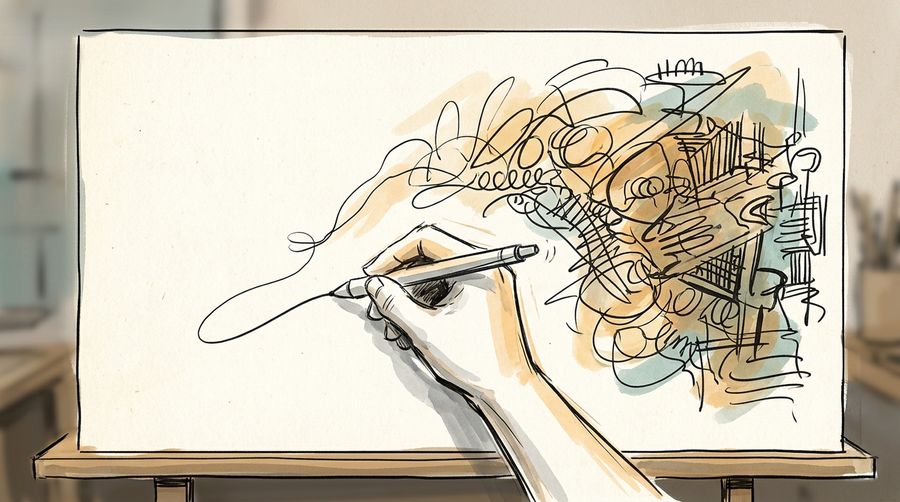
Long freehand strokes render in cached slices so only the moving tip is recalculated — the line stays glued to the cursor no matter how much ink is already on the slide.
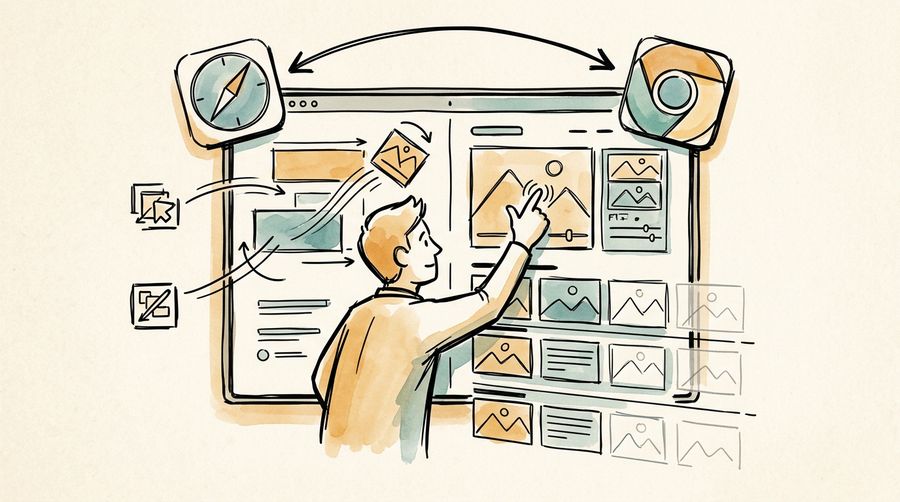
Moving, resizing and rotating run on cached geometry and per-element rendering, heavy image filters pause during a gesture, and offscreen library rows stay unpainted — so the board holds a steady frame rate in every browser.
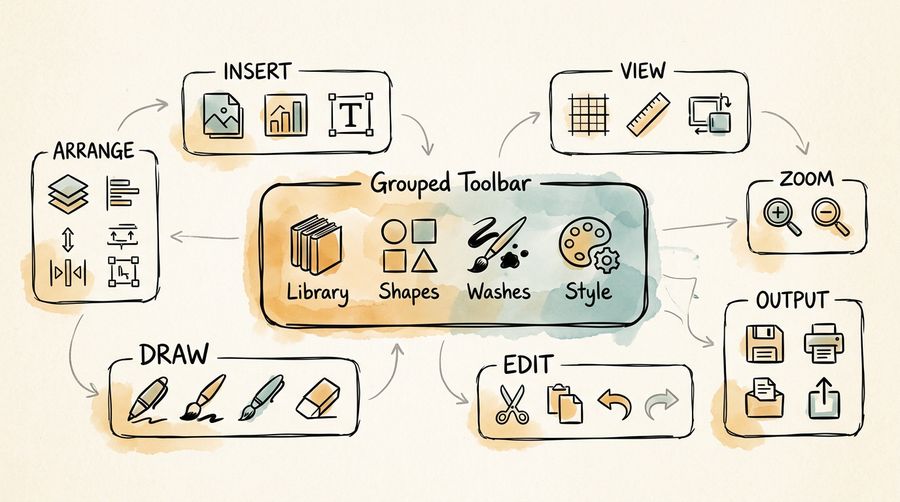
Library, Shapes, Washes and Style sit together in their own highlighted group, with the rest of the tools sorted into Draw, Insert, Arrange, Edit, View, Zoom and Output sections.
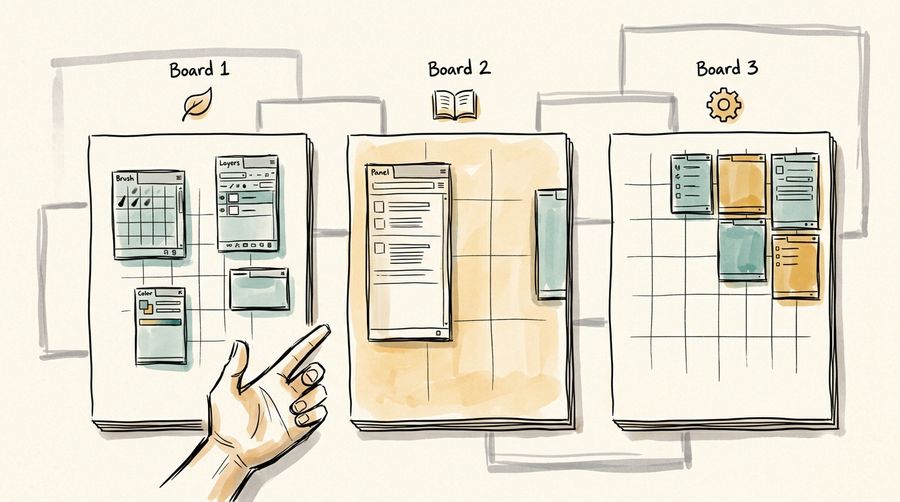
Which panels are open, where they float or dock, your zoom, grid and snapping — all saved per board and restored exactly when you reopen it, even after the window changes size.
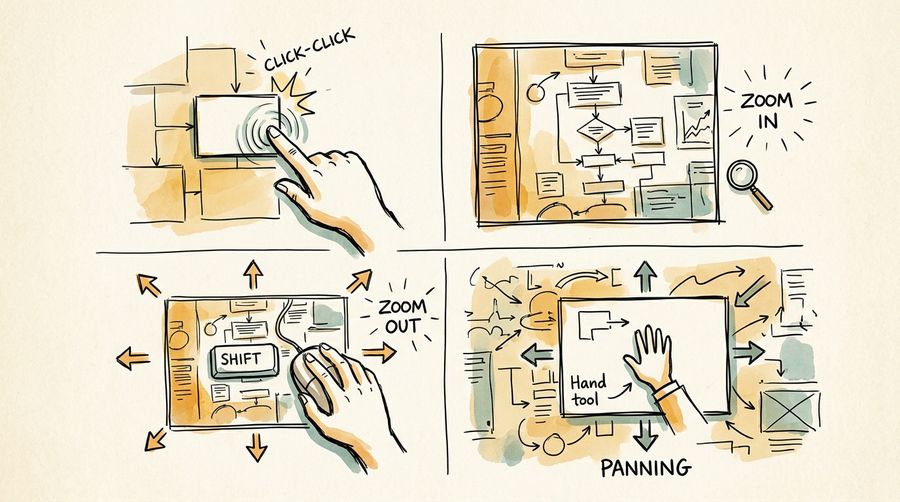
Double-click empty paper to zoom in at that exact point, hold Shift to zoom back out, or pan across a big board with the Hand tool.
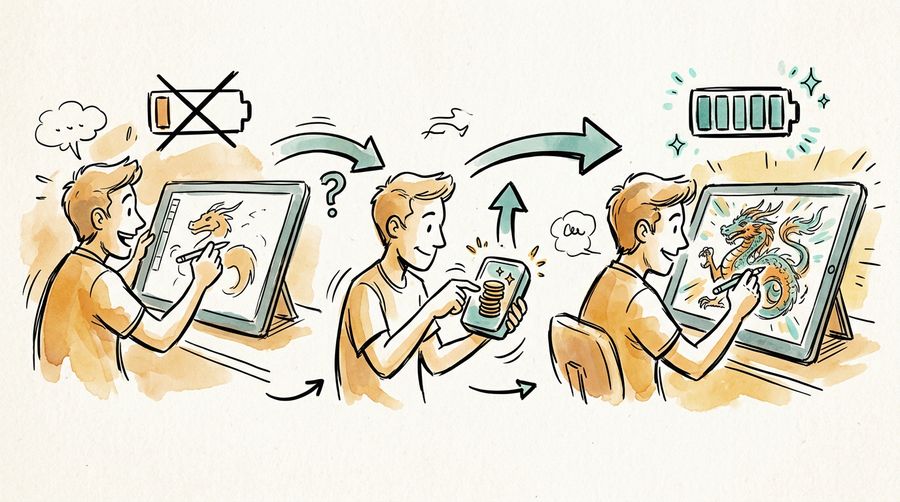
If a burst of AI generation empties your plan's credits, buy a one-off credit pack and keep drawing without changing plans.
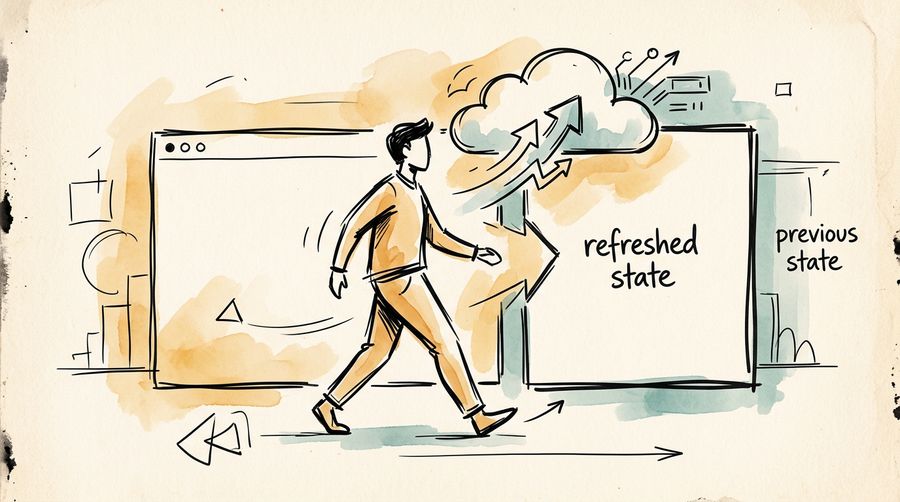
New releases apply themselves the next time you move between pages — no manual refresh, no lost work.
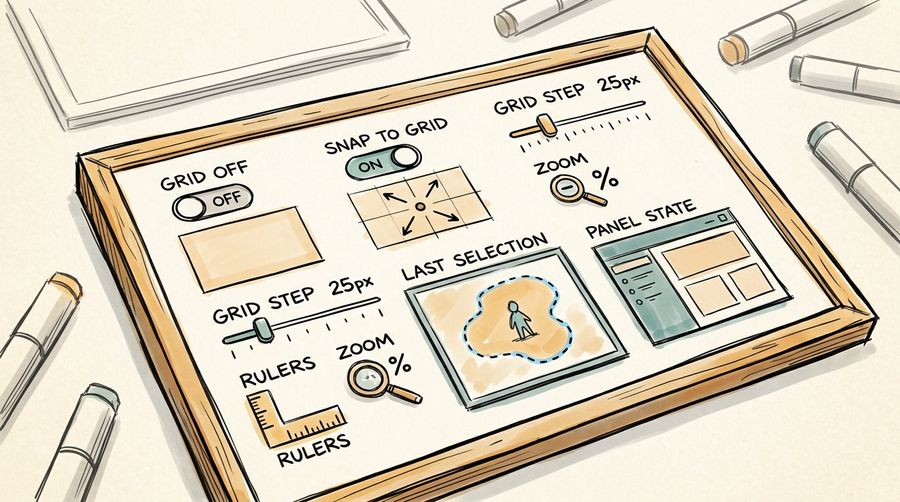
Snap, grid, grid step, zoom, rulers, panel state and even your last selection are remembered for each board, so returning to a board picks up exactly where you left it.
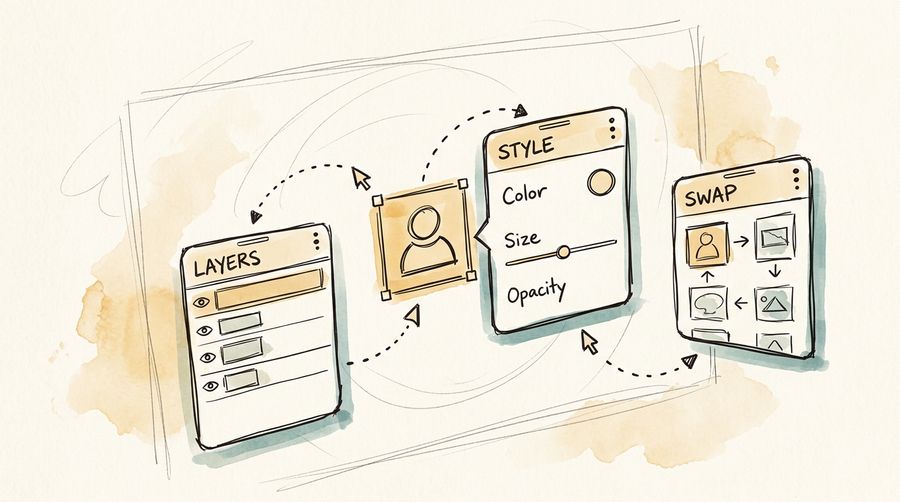
Style, Layers and Swap live in their own draggable panels you can park anywhere — the Style panel opens itself when you select something and shows only the controls that element actually has.
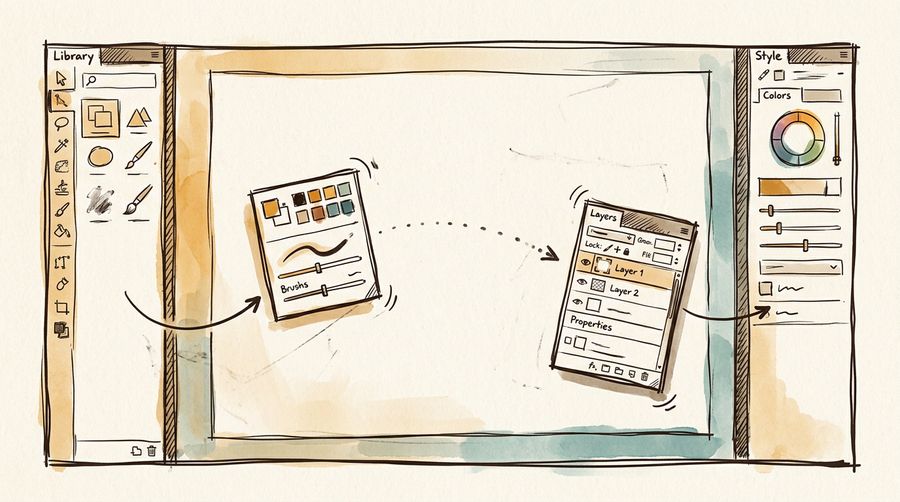
Dock the Style panel to the right edge and the Library to the left so they push the canvas like proper sidebars, or pop them out and drag them anywhere — your choice is remembered per board.
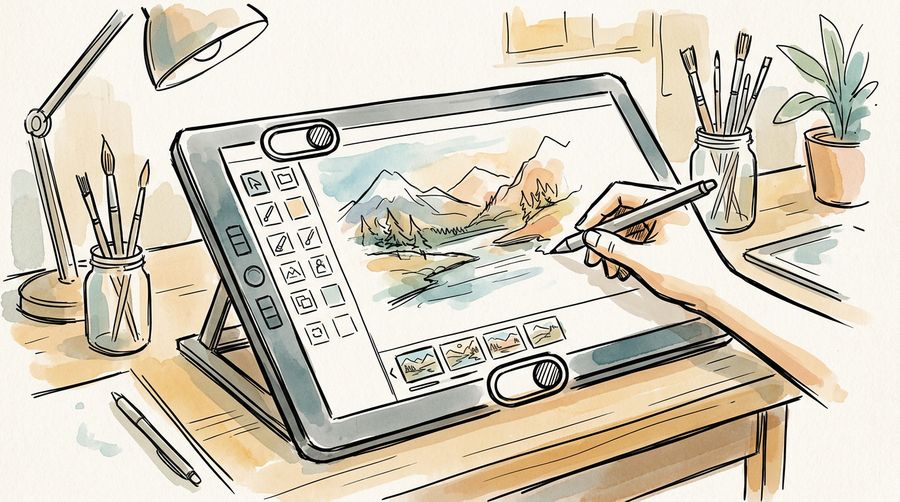
Toggle the library and the slide strip independently for a full-width canvas — each panel has its own switch, so nothing you rely on disappears with it.
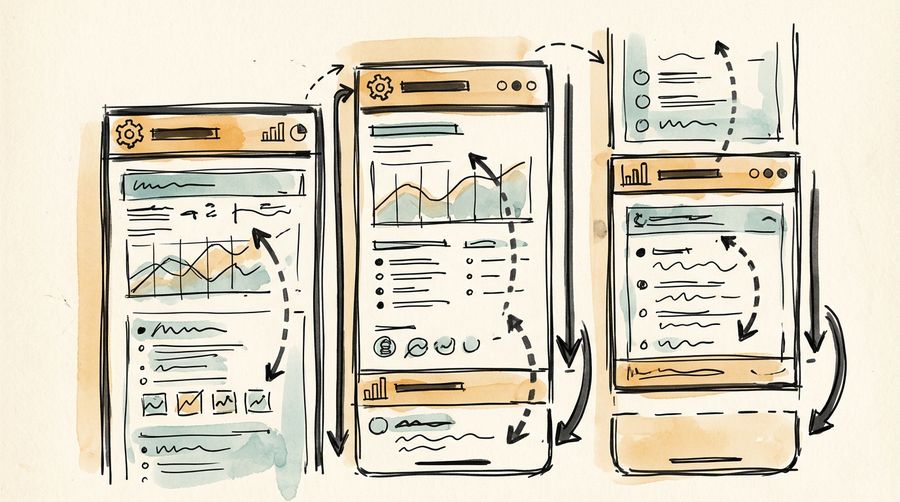
Panels scroll internally with pinned headers, clamp to your screen height and keep a comfortable gap above the toolbar, so no control ever ends up off-screen.
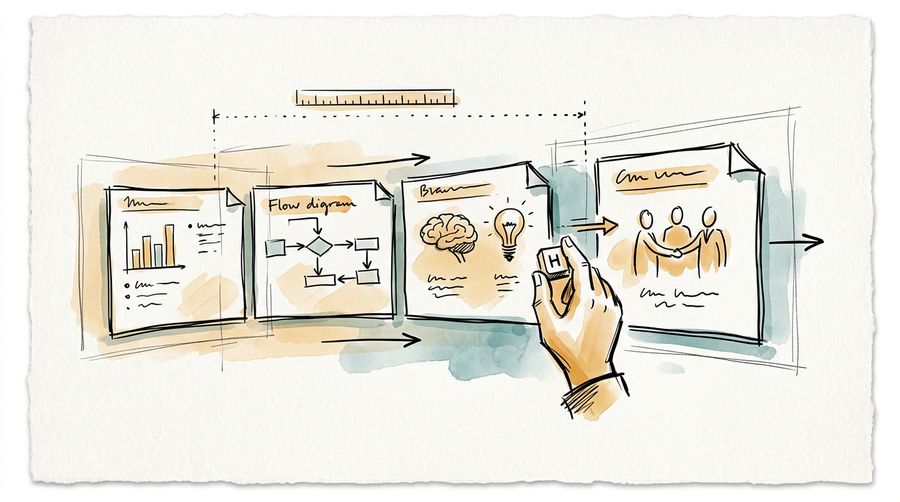
The Hand tool (H) stays available any time the slide overflows the viewport — even at Fit width — and both your zoom and scroll position are kept per board.
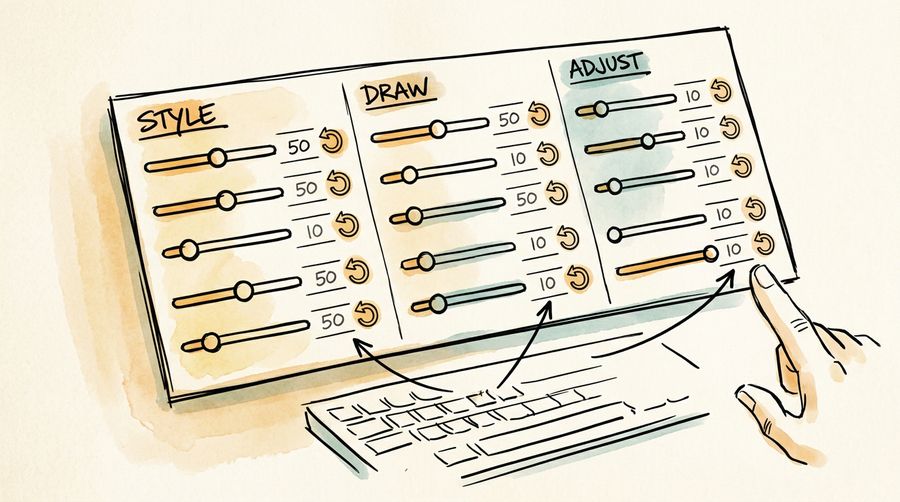
Every slider in the Style, Draw and Adjust panels takes a typed number and carries a reset icon that snaps it back to the default.
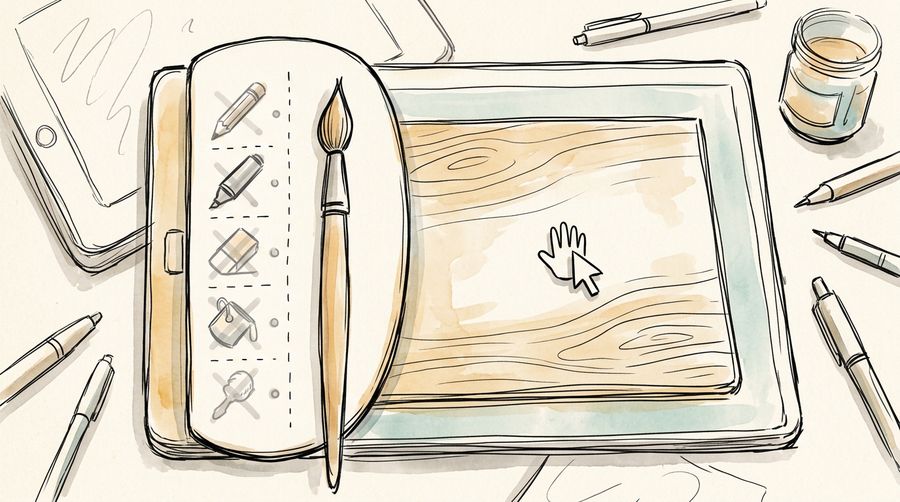
Draw, Marker, Eraser, Fill and Smudge stay available even when an image, shape or text is selected; choosing one clears the object selection and puts you straight into drawing mode.
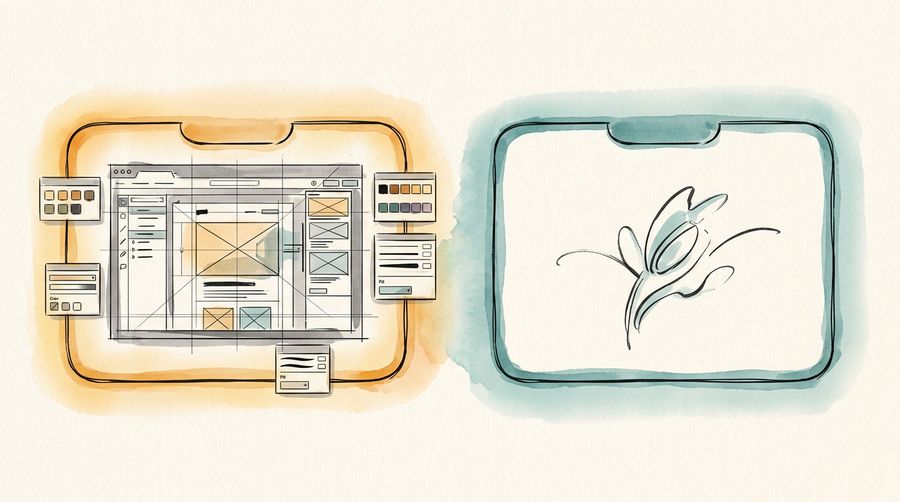
A Design / Draw pill and a soft amber frame around the board tell you at a glance which mode you're in, and the Style controls step aside while you're drawing so a brush stroke never turns into an accidental restyle.
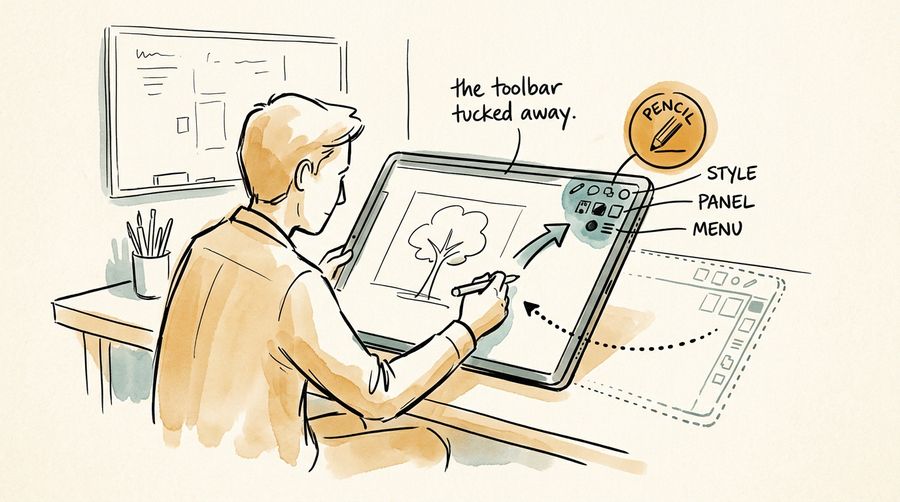
Hide the header and a compact, aligned Style, Panel and Menu cluster stays in the corner, keeping essential controls within reach without covering the board.
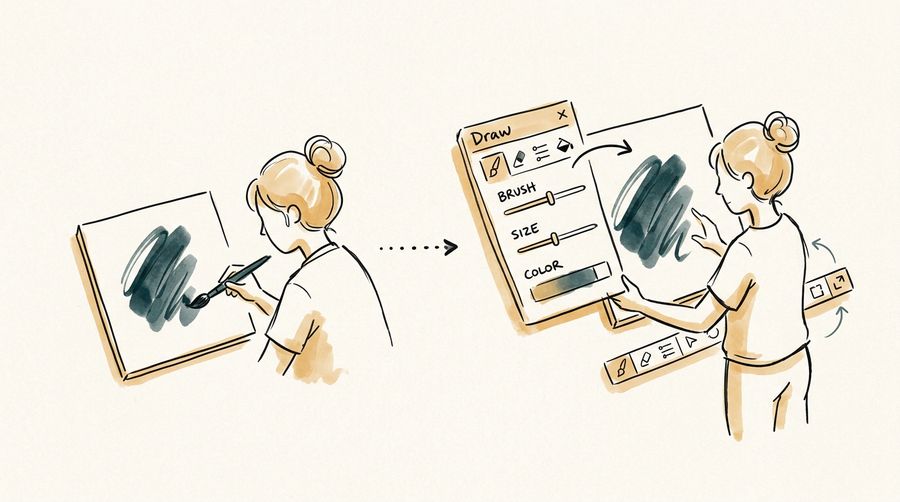
Closing the Draw tools panel keeps your brush, size and colour exactly as they were; reopen it from the toolbar or the corner button whenever you want the controls back.
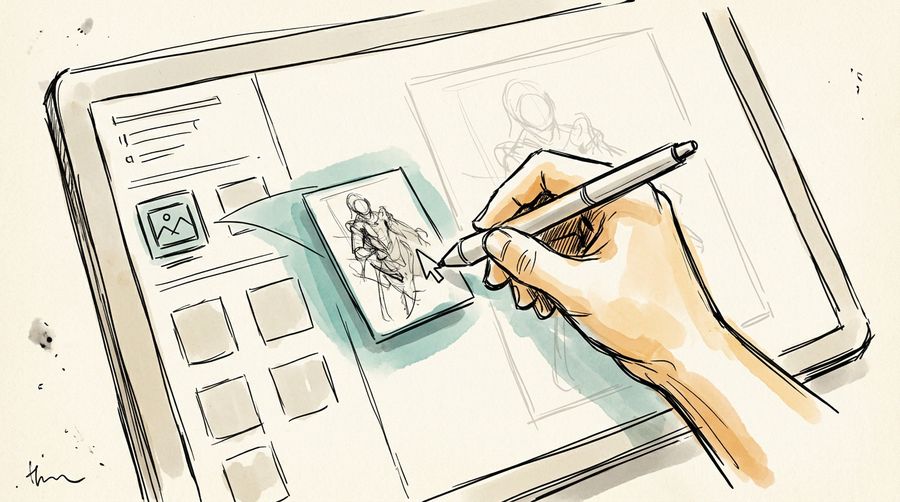
Dragging from the library carries a live thumbnail of the drawing under your cursor, so you can see what you're placing before you let go.
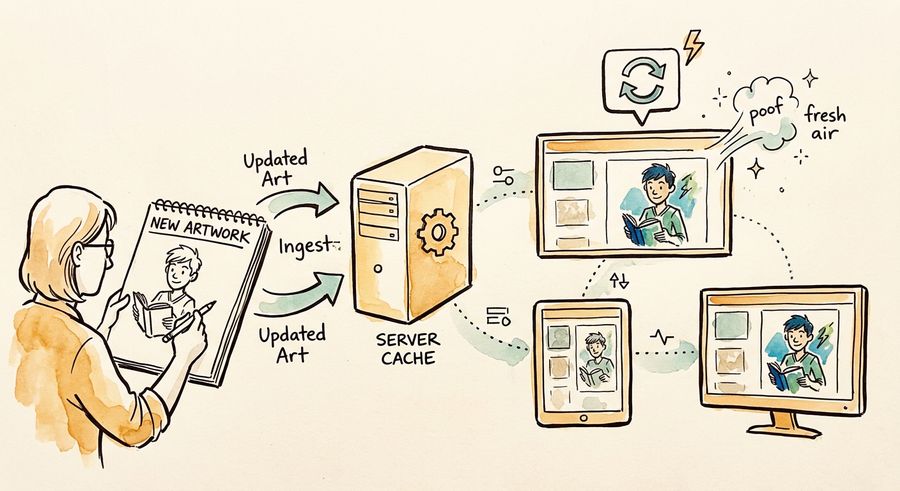
When a library drawing is updated, the cached thumbnail and link are invalidated automatically — you see the new version without a hard refresh.
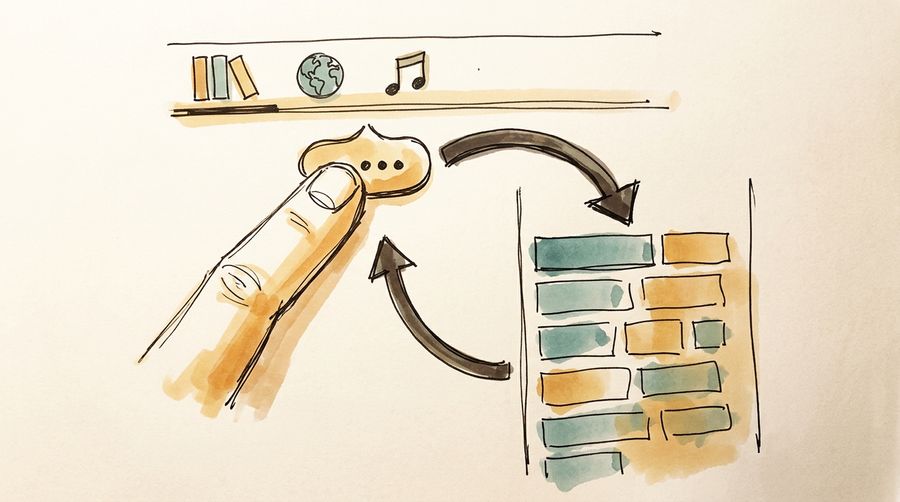
A More… / Less chip expands the category strip when you want the full list and folds it back down when you don't.
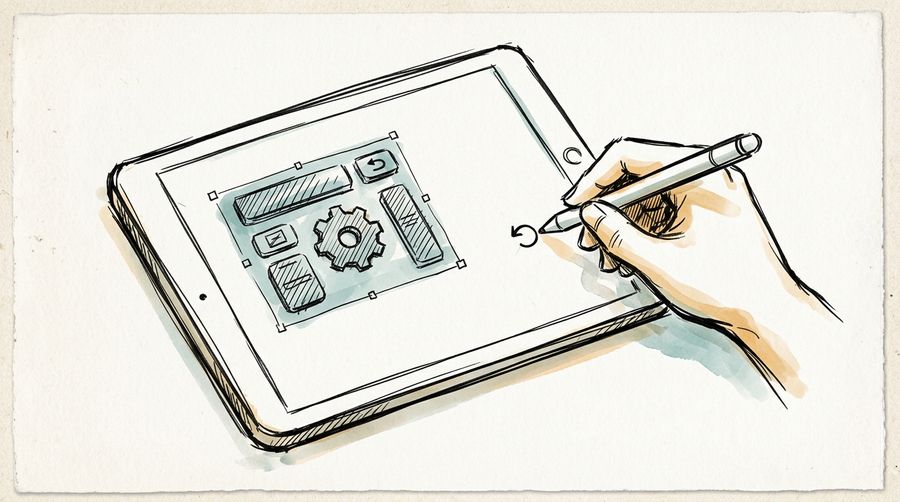
A click anywhere outside your artwork clears the selection, so you never style the wrong element by accident.
Opening a board or a page shows a sketch-style spinner until everything is drawn, so you never stare at a half-rendered board.
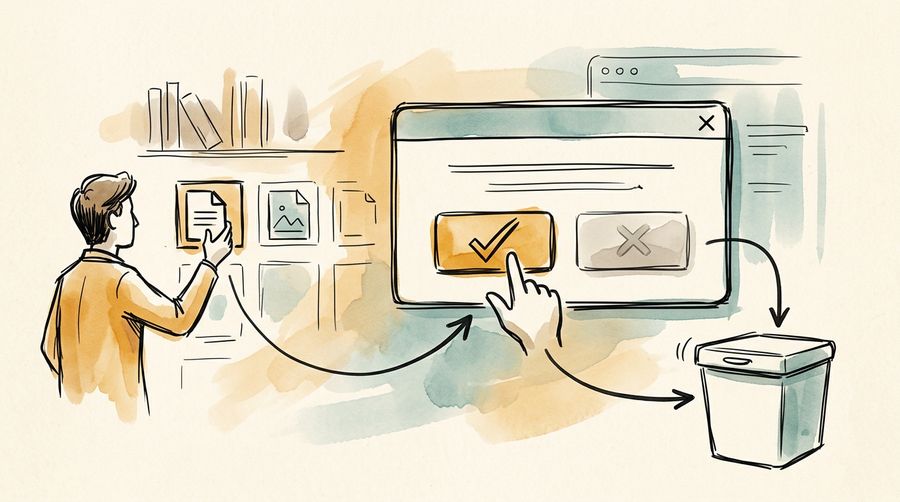
Confirmation dialogs before removing library items or slides, so nothing disappears by accident.
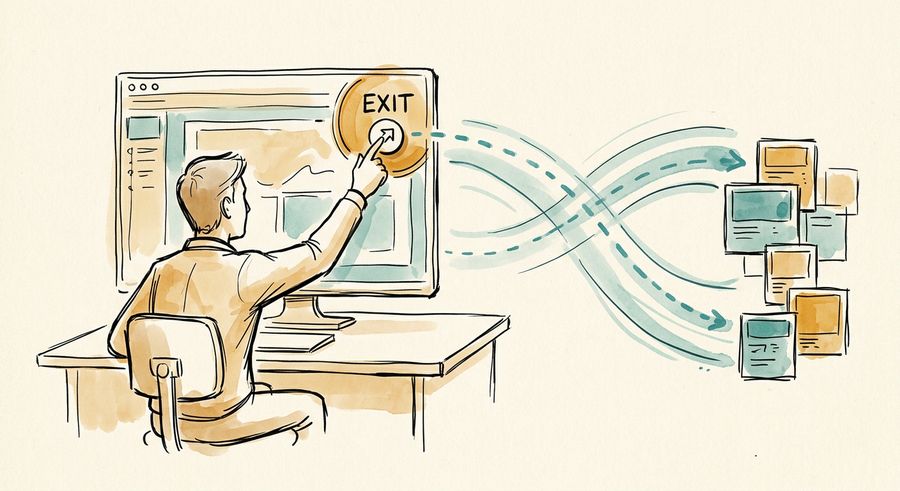
An Exit button in the editor header takes you straight back to your boards, with your work already saved.
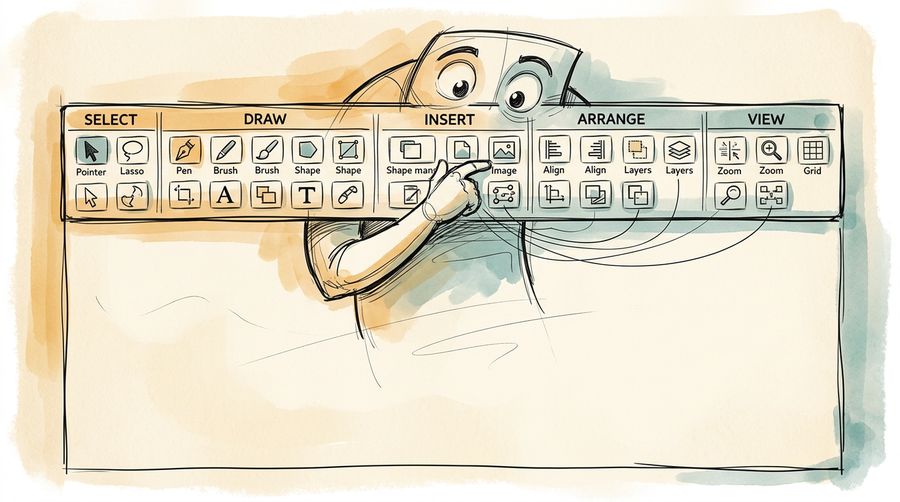
The compact header groups tools into labelled sections — select, draw, insert, arrange, view — with a small label under every button, leaving as much height as possible for the canvas.
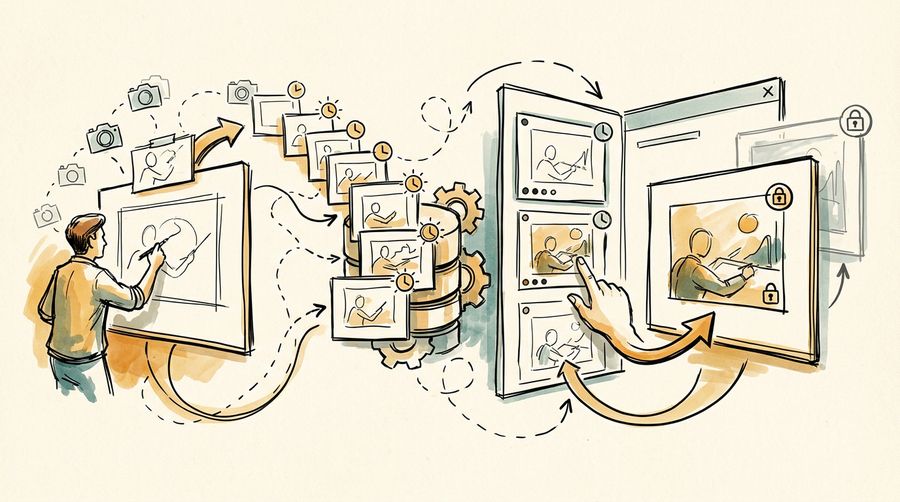
Boards snapshot themselves as you work. Open the history dialog to see every saved version with its time, preview any version before touching it, then restore the one you want — the current state is saved first, so restoring is never a one-way door.
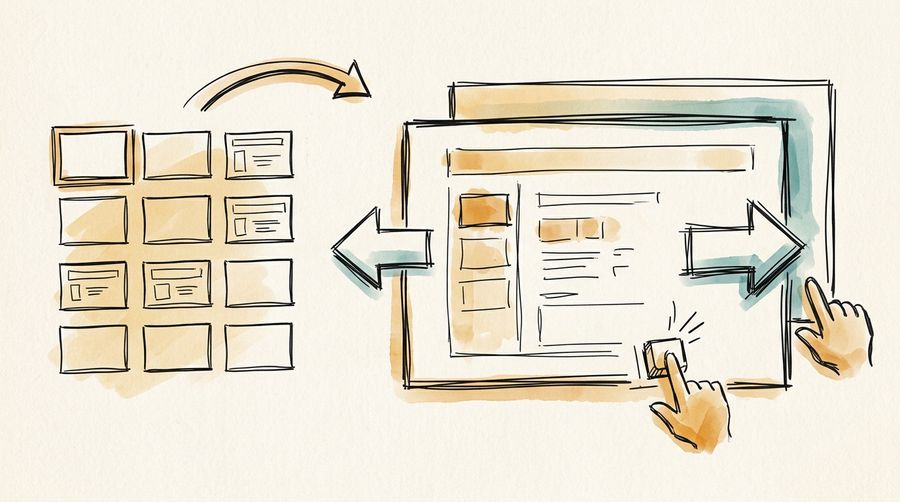
Preview any saved version as a grid of slide thumbnails, or go full-screen and step through its slides one at a time with on-screen arrows or the keyboard — at the canvas size that version was saved in — before you commit to restoring it.
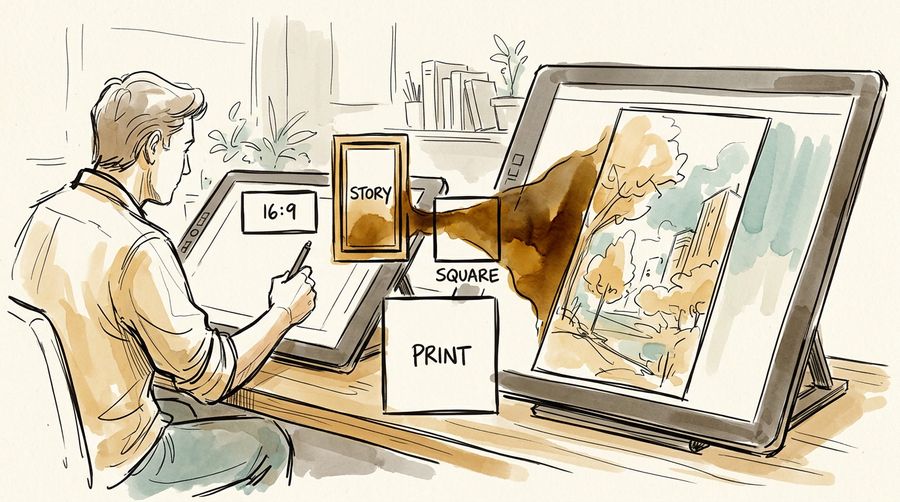
Presentation, widescreen, square, story, print and app-store sizes — pick one and the board switches to it, ready for wherever the slide has to live.
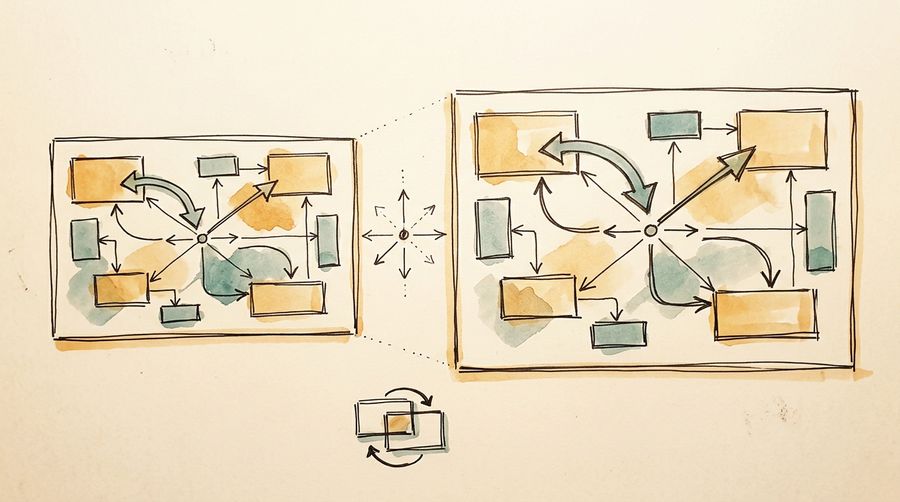
Changing canvas size rescales every element, arrow, wash, stroke and text around the centre in proportion — arrow heads, bends and line weights included — and a Restore button returns the original layout exactly.
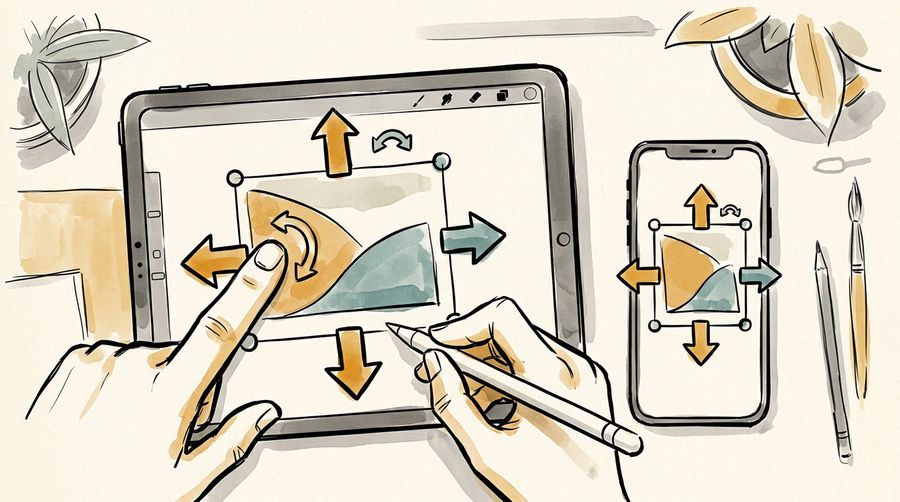
Selection, rotate, bend and arrow handles grow to finger size on touch screens and stay the same size on screen at any zoom, so precise editing works with a fingertip or an Apple Pencil.
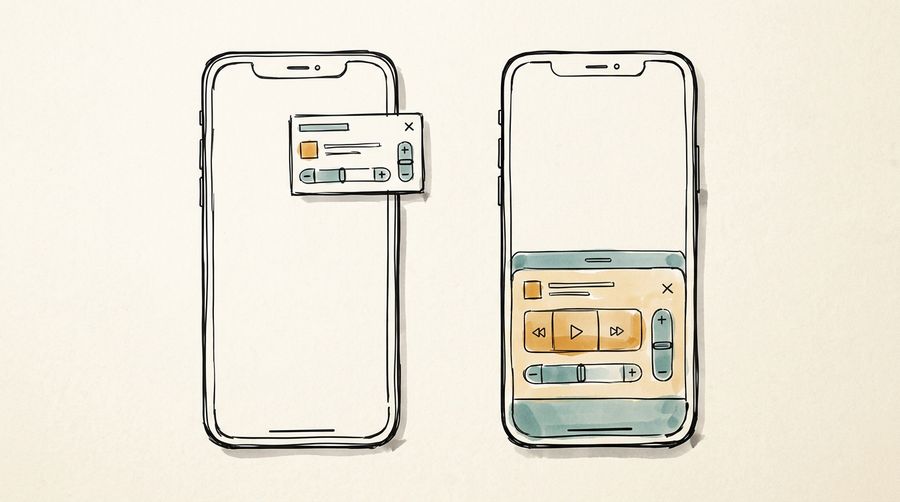
On a narrow phone screen every floating panel turns into a full-width bottom sheet with larger controls, instead of a tiny window you have to drag around.
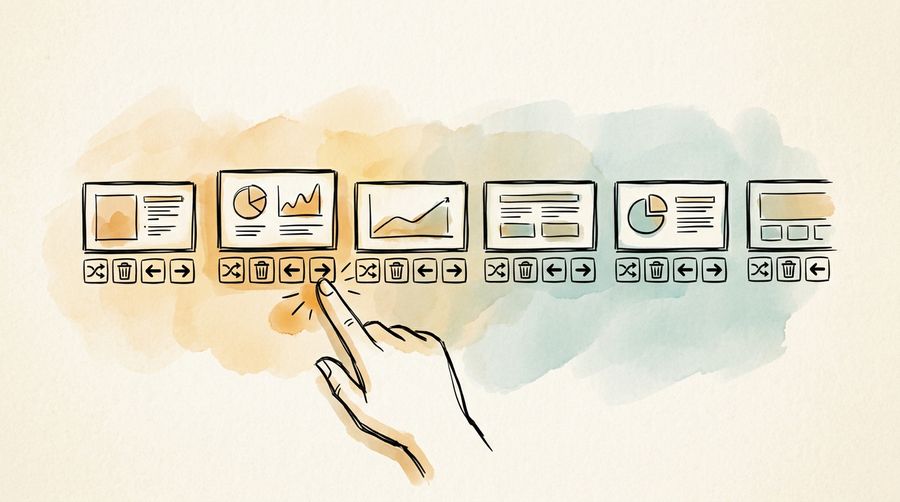
On touch devices slide thumbnails carry always-visible duplicate, delete and move-left/right buttons, because drag-and-drop reordering isn't reliable with a finger.
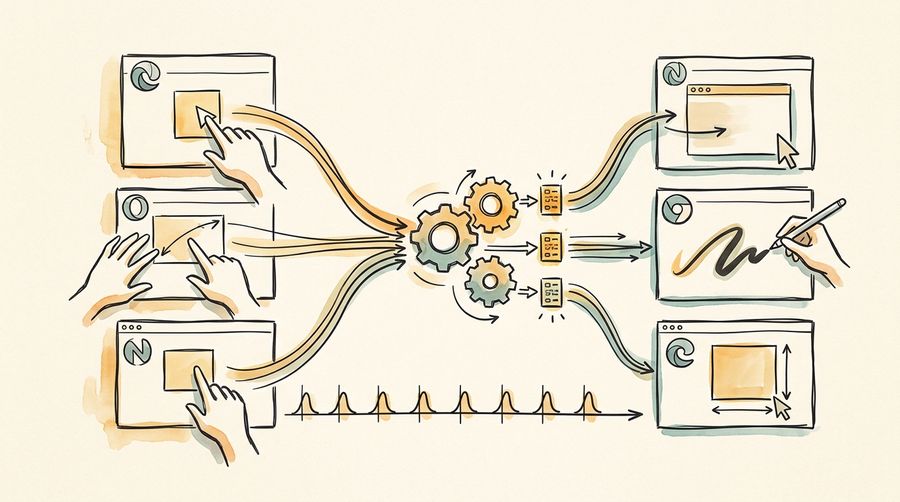
Pointer input is batched to the screen's refresh rate and rendering is memoised per element, so dragging, drawing and resizing stay smooth on Safari, Chrome, Firefox and Edge.
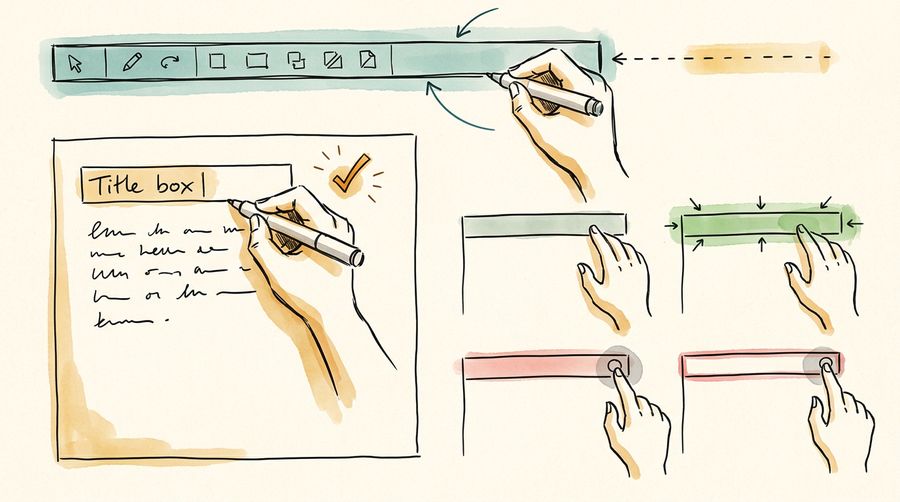
Keep the toolbar always visible, let it auto-hide until you reach for it, or hide it entirely and bring it back with one small button — and board titles save themselves as you type.
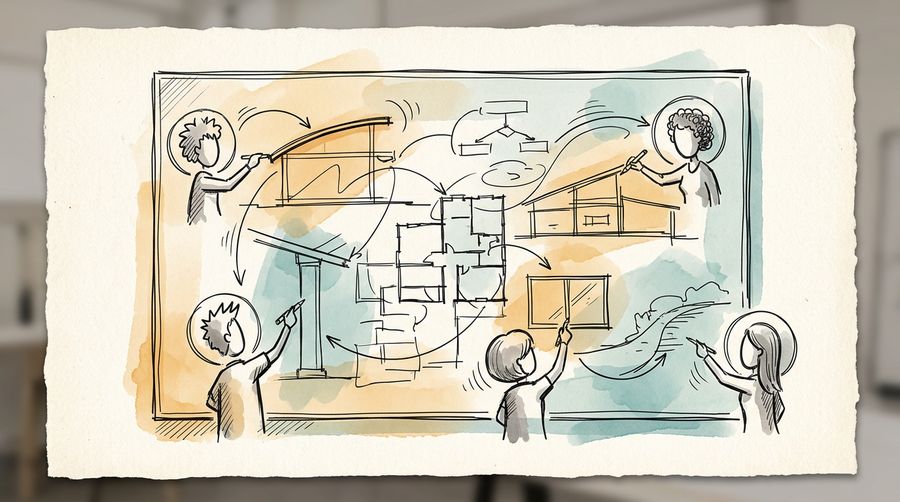
Share a board and build it together — edits stream between everyone in under a couple of seconds, with peer avatars showing who's in the board.
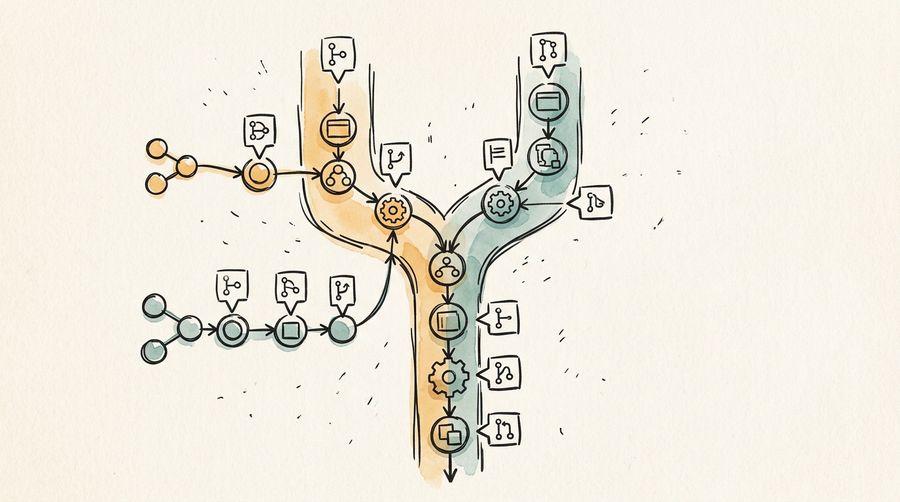
Per-element versioning keeps every collaborator's canvas identical, so nothing jumps, duplicates or reappears after a delete.
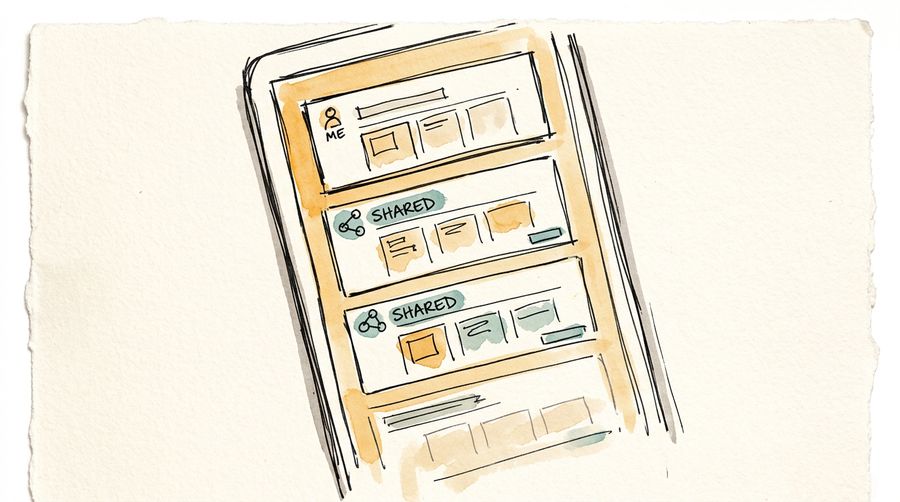
Boards shared with you appear alongside your own on the boards page, marked Shared, and the list updates live as boards are created, renamed or removed.
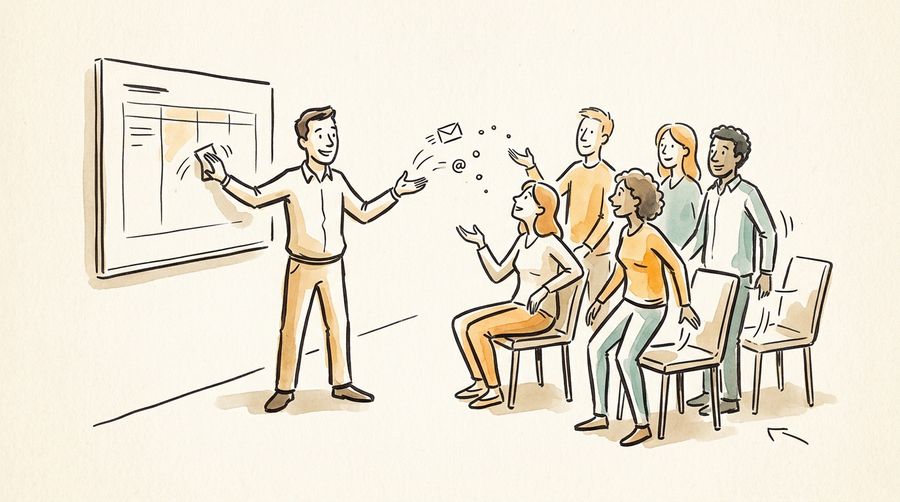
On the Team plan the owner invites up to five teammates by email from a dedicated team page, sees who has claimed a seat, and can free a seat up again at any time.
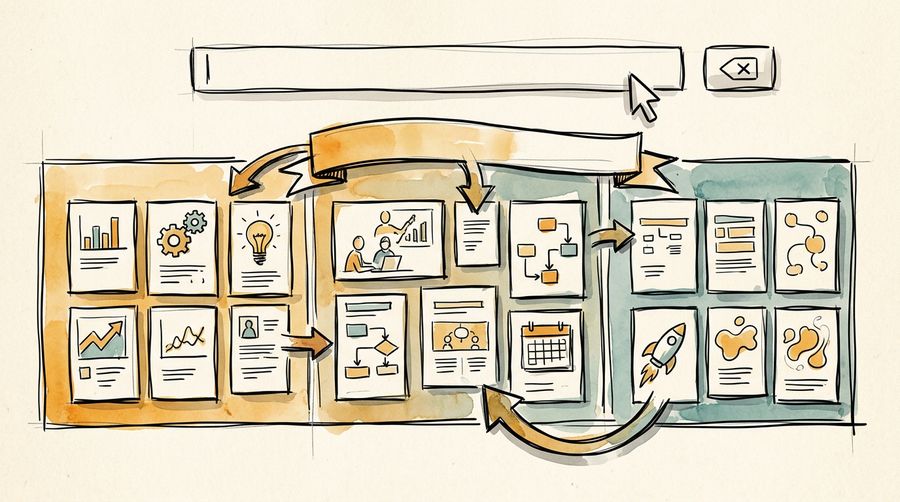
Publish any board to the community gallery across 16 categories — Business, Product, Development, Marketing, Startup, Strategy and more. Every shared design gets its own page and URL, with a search field on top and a one-click clear.
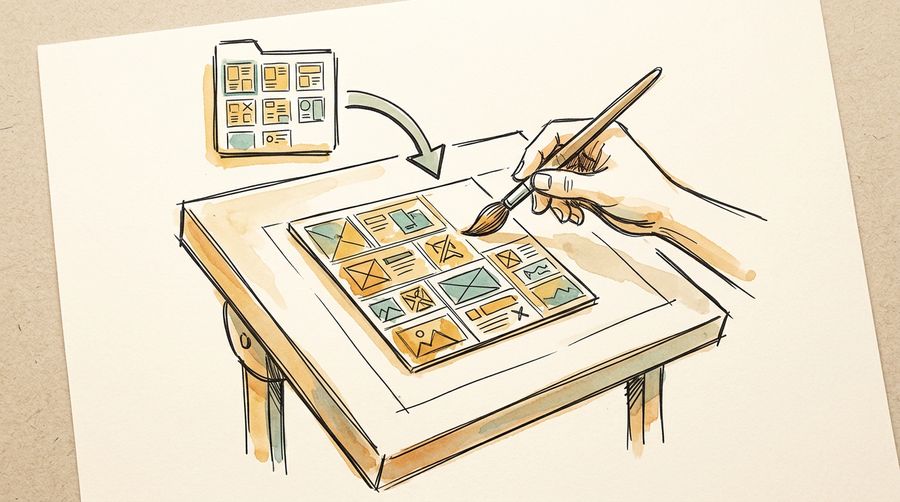
Open a community design and hit Use this template to drop the exact editable layout onto your canvas — every element, colour and wash intact, ready to make your own.
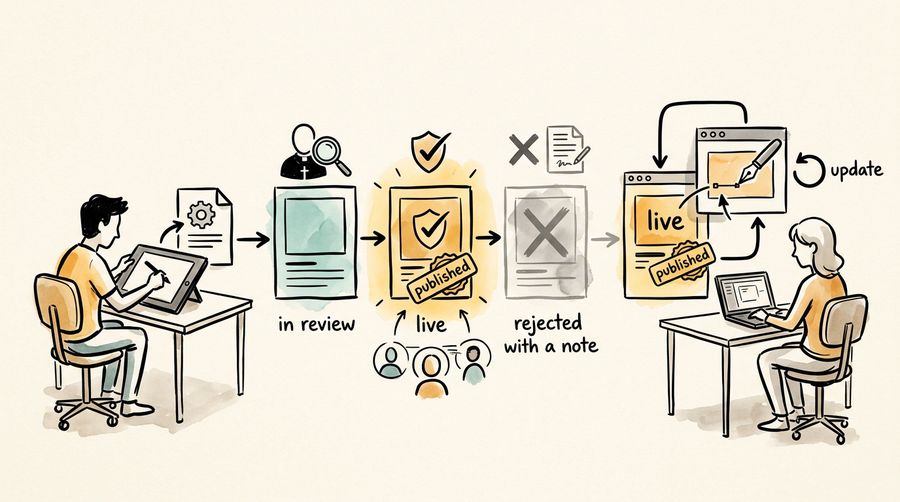
Submissions pass through moderation with live status badges — in review, live, or rejected with a note — and saving edits to a published design updates the listing in place.
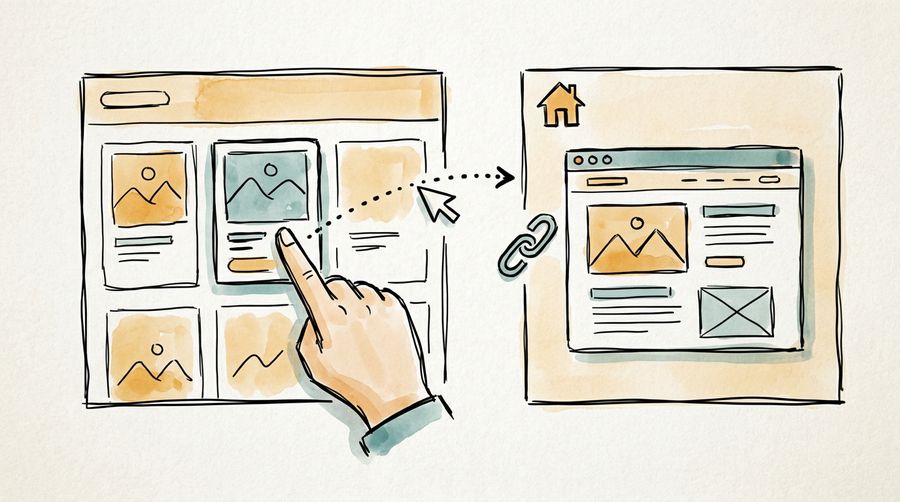
Add a website link to a shared design and visitors can open it straight from the gallery card or its own page.
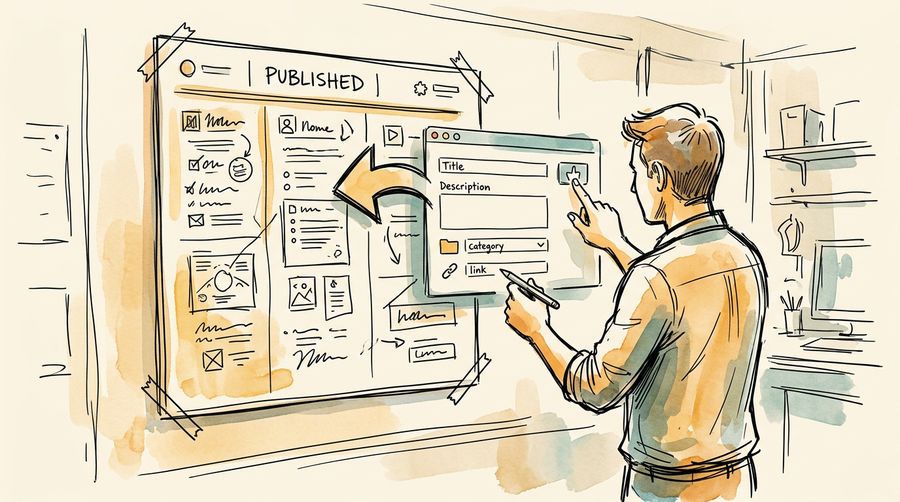
Edit a board you've published and a notice offers to resubmit it, with all your previous title, description, category and link details prefilled.
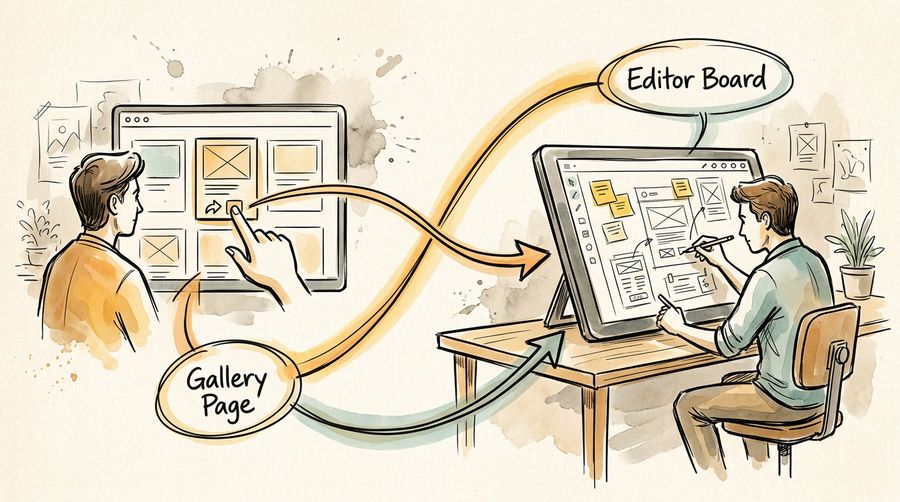
Your own shared designs link straight back into the board editor, so fixing a published template is one click from its gallery page.
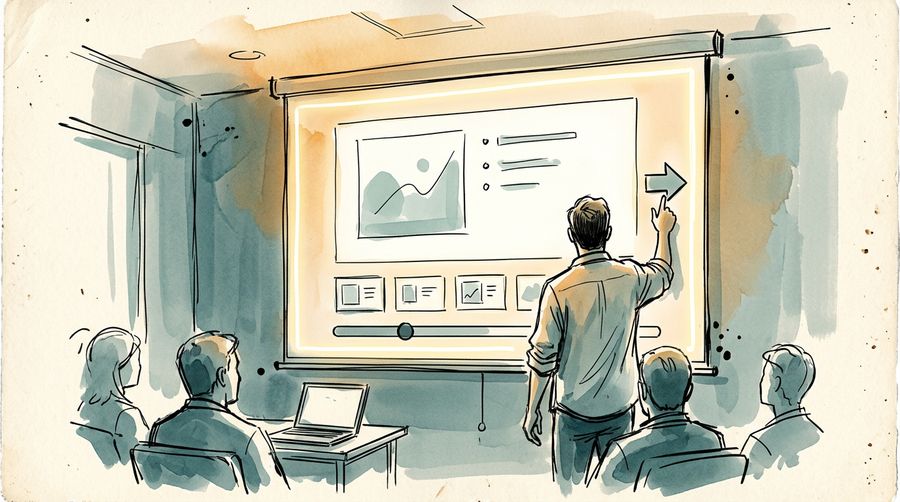
Launch a distraction-free presenter from the editor, with slide thumbnails, progress bar and a click-to-advance stage.
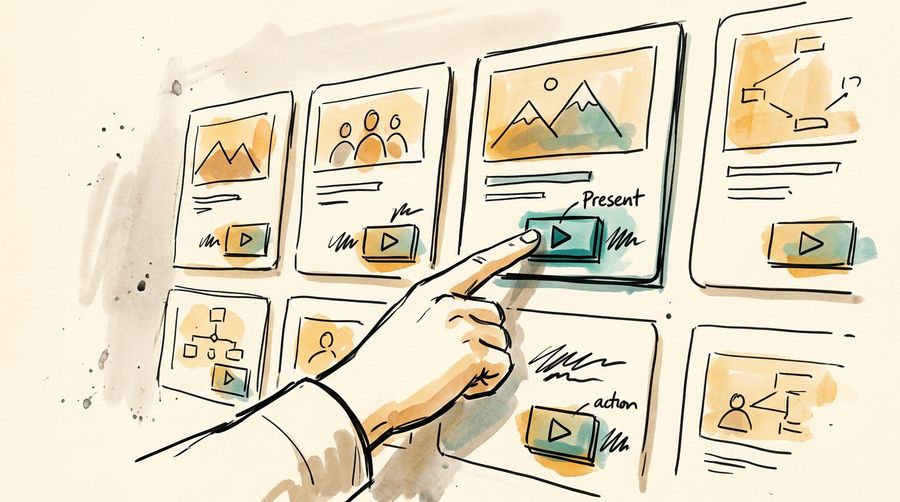
Every board card on your boards page has a Present button, so you can play a board of your own or one shared with you full-screen without opening the editor.
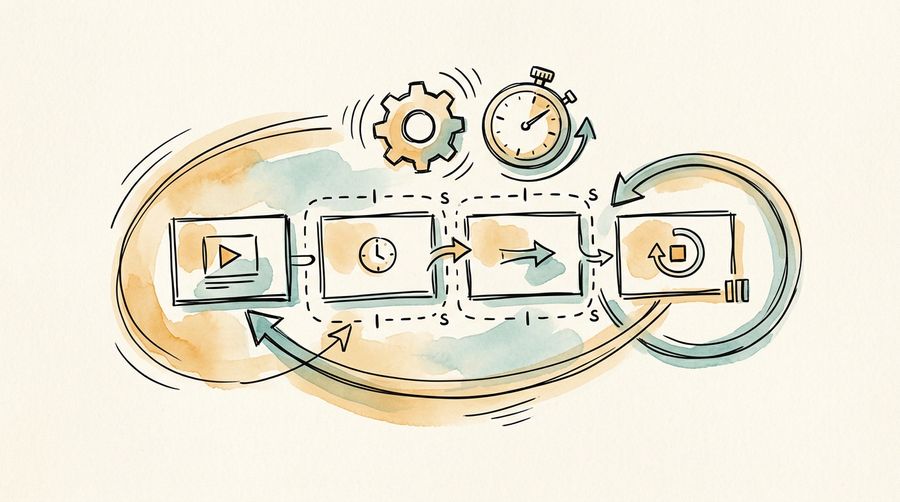
Set the seconds per slide and let the board run itself — looping continuously or stopping at the end.
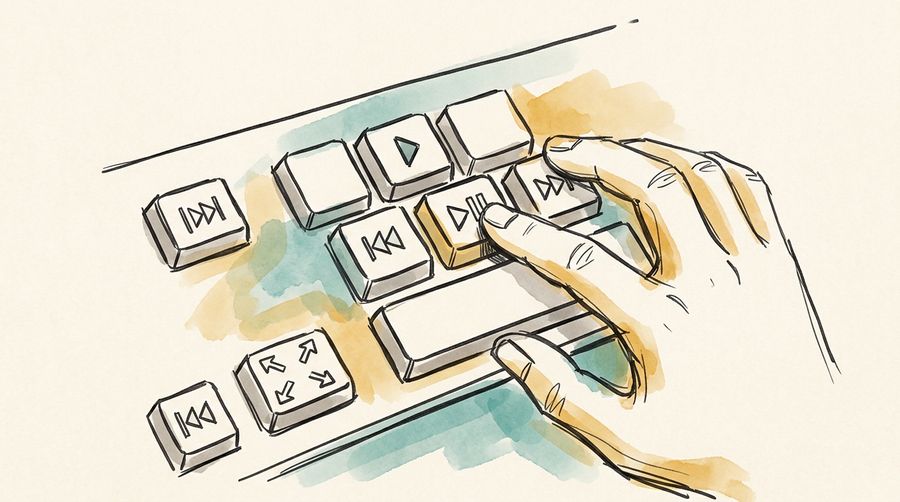
Advance, rewind, play/pause, jump to first or last slide, and toggle fullscreen without touching the mouse.
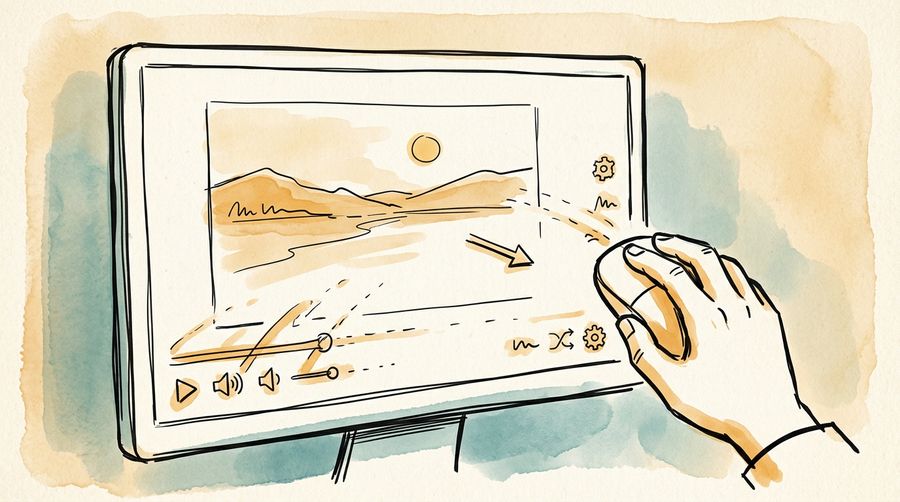
Go fullscreen, then the controls fade away after a moment of inactivity and reappear on mouse move.
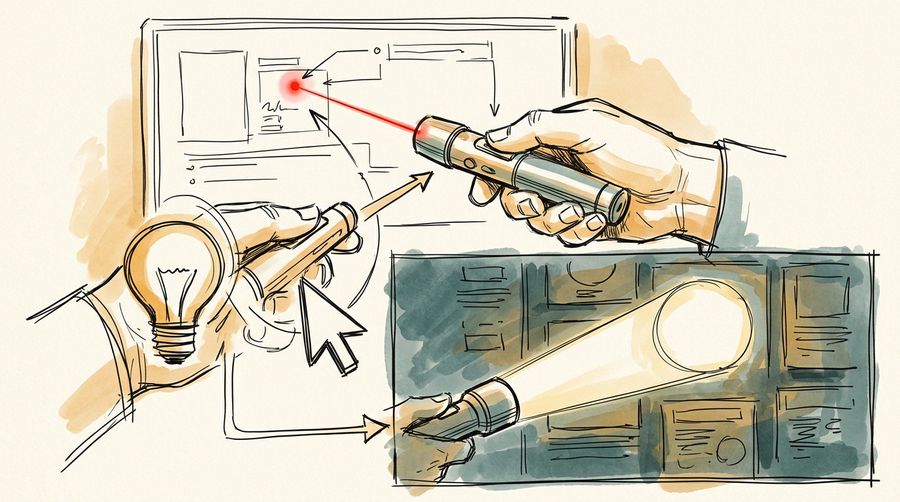
Turn on a glowing laser dot to point at details, or a torch spotlight that dims everything except the part of the slide you're talking about.
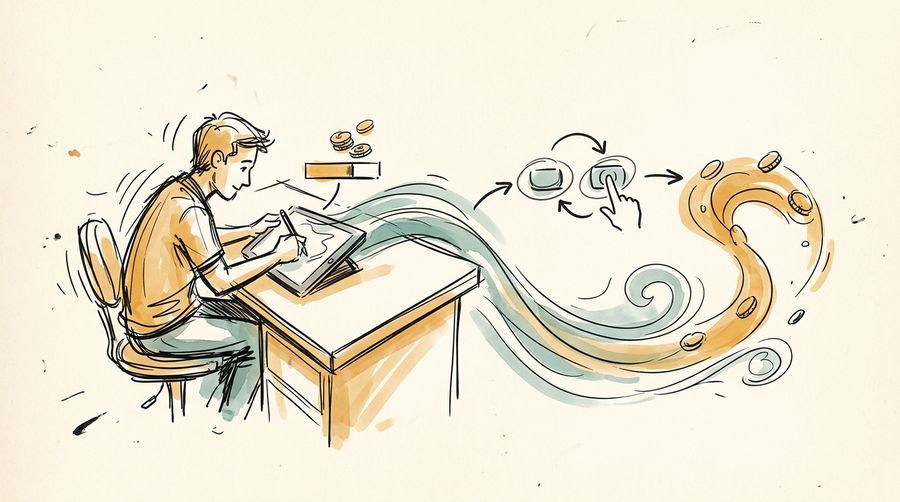
Run out of plan credits mid-project? Buy a credit pack in a couple of clicks and carry on generating — no plan change required.
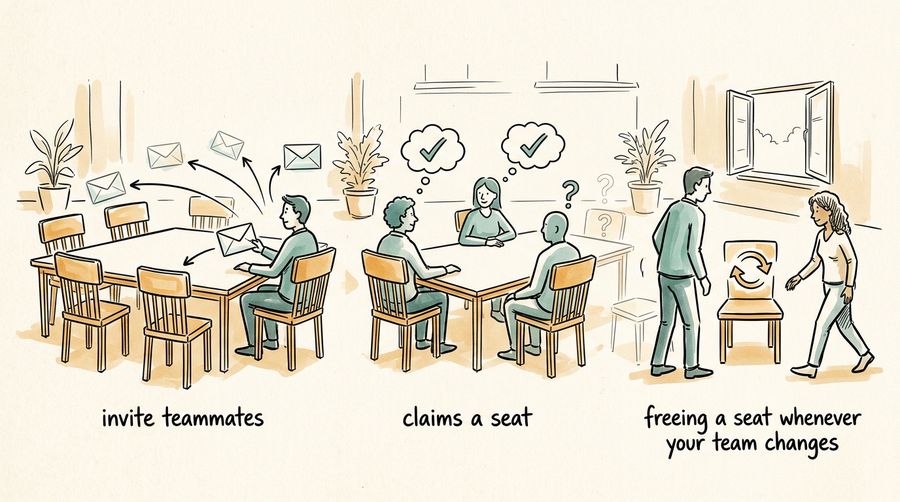
Invite up to five teammates by email, see who has claimed a seat, and free a seat up whenever your team changes.
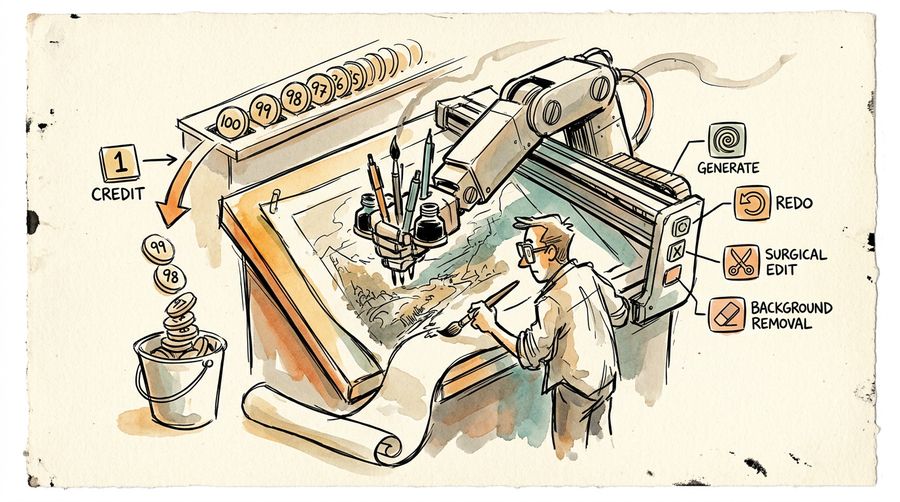
Every AI generation, redo, surgical edit and background removal charges one credit and your balance drops in the corner immediately, so you always know what's left.
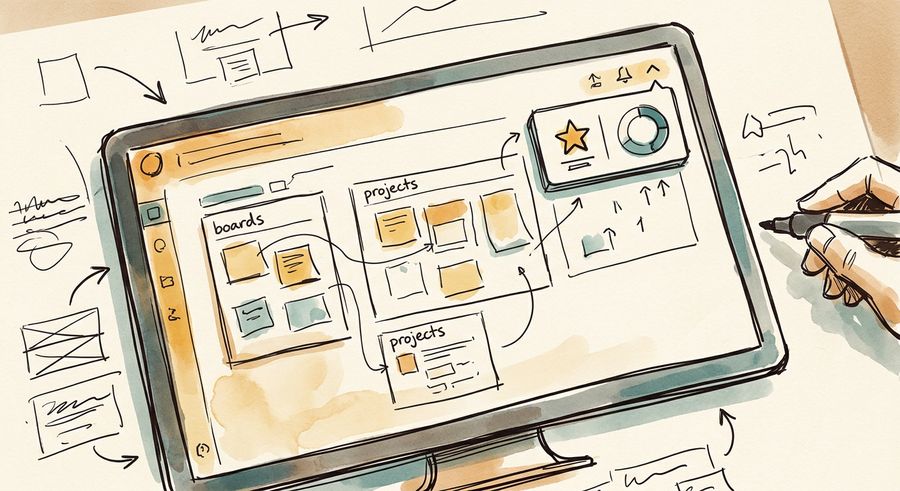
A plan badge in the corner of your boards page shows your tier and remaining credits, and opens straight into upgrades or top-ups.
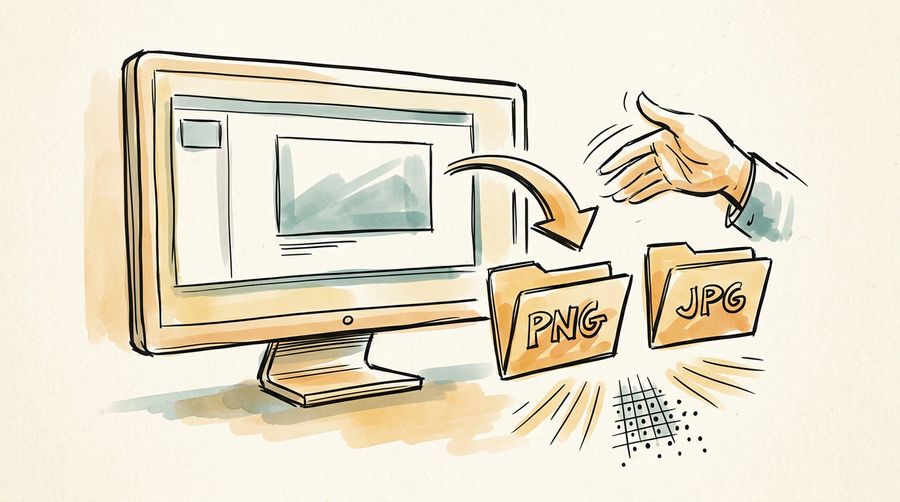
Export the current slide or the whole board as high-quality raster images.
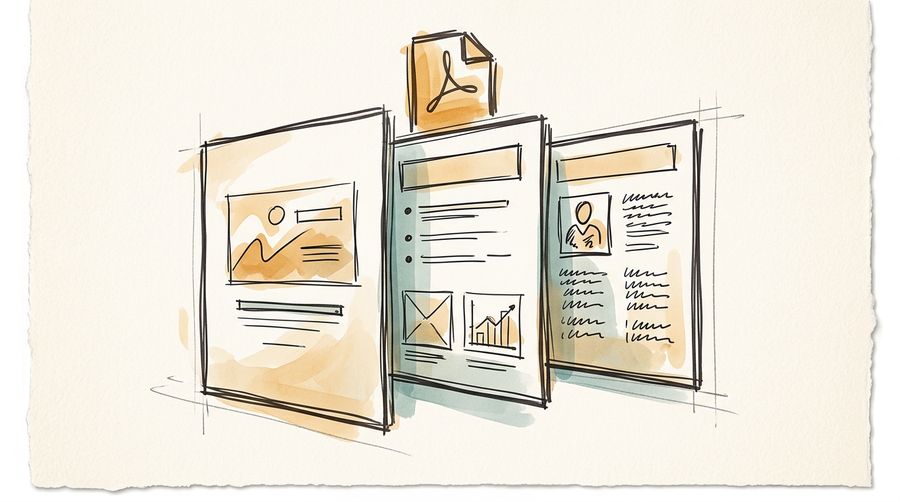
A multi-page PDF with one slide per page, ready to print or email.
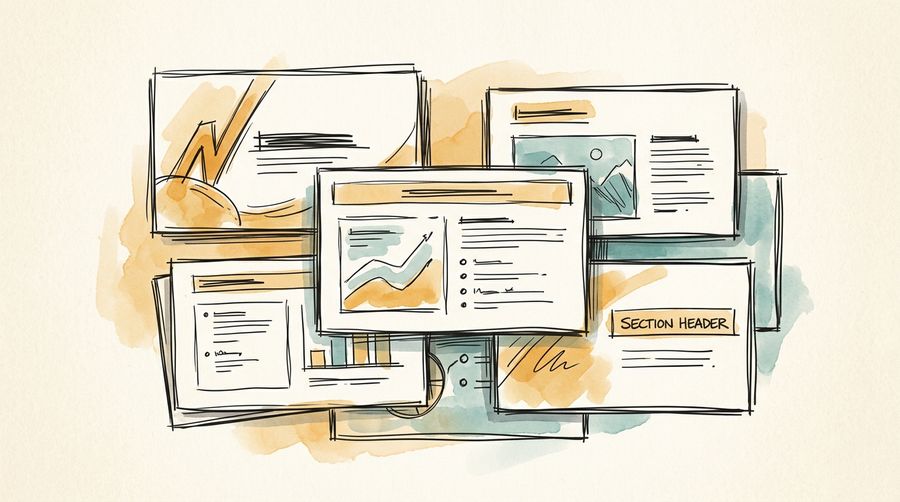
A native PowerPoint file with each slide rendered as a crisp image on the correct layout.
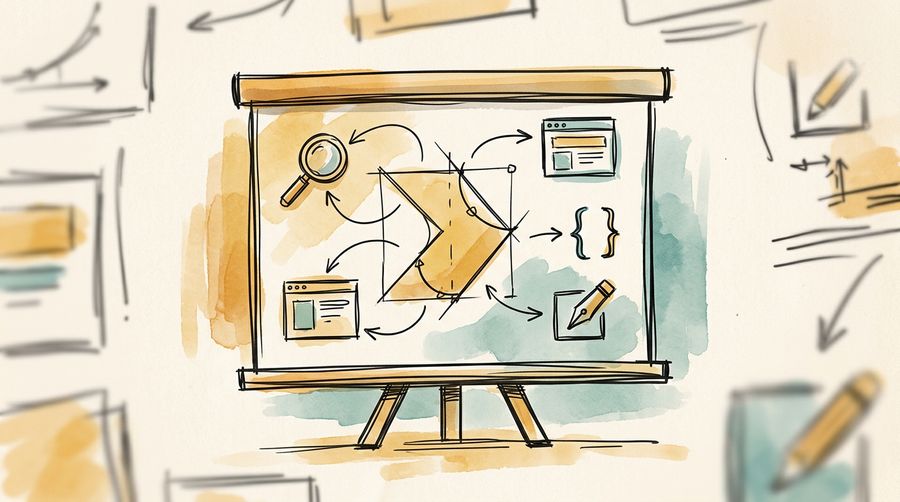
A single slide as a scalable vector graphic for web pages or further editing.
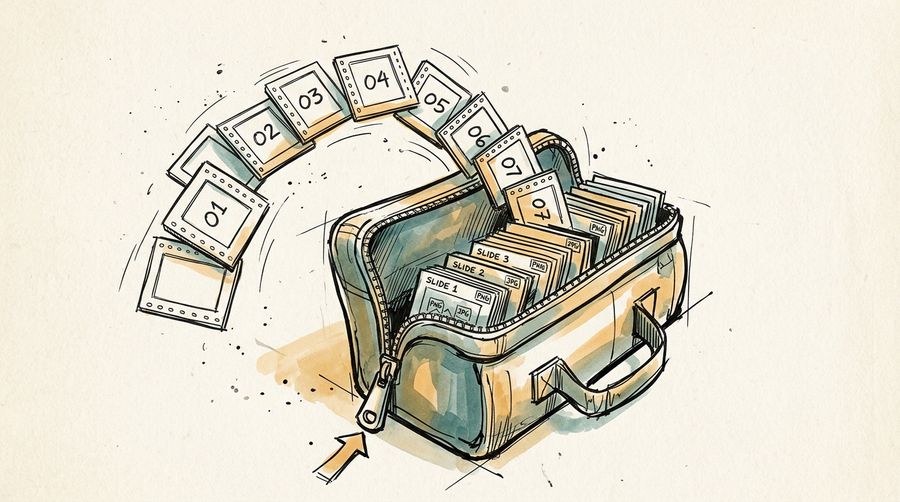
Download every slide as a PNG or JPG inside a ZIP archive, numbered and named.
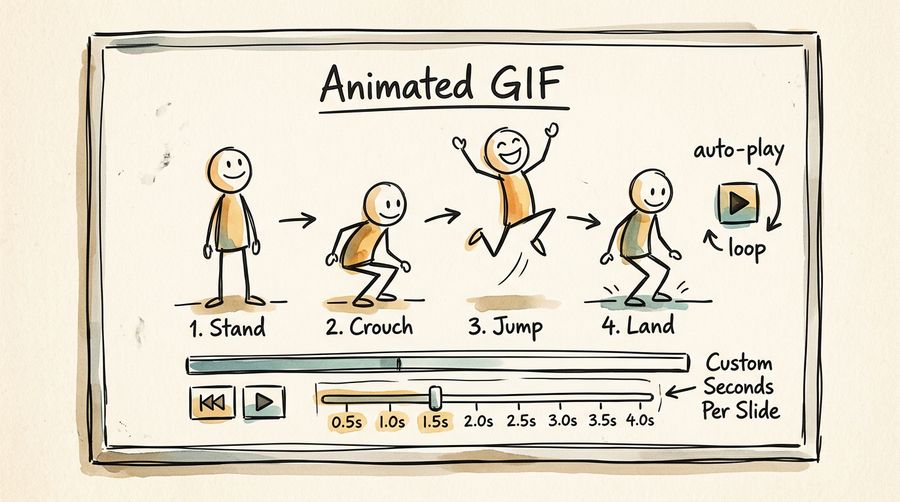
Turn the whole board into an auto-playing GIF with a custom seconds-per-slide timing.
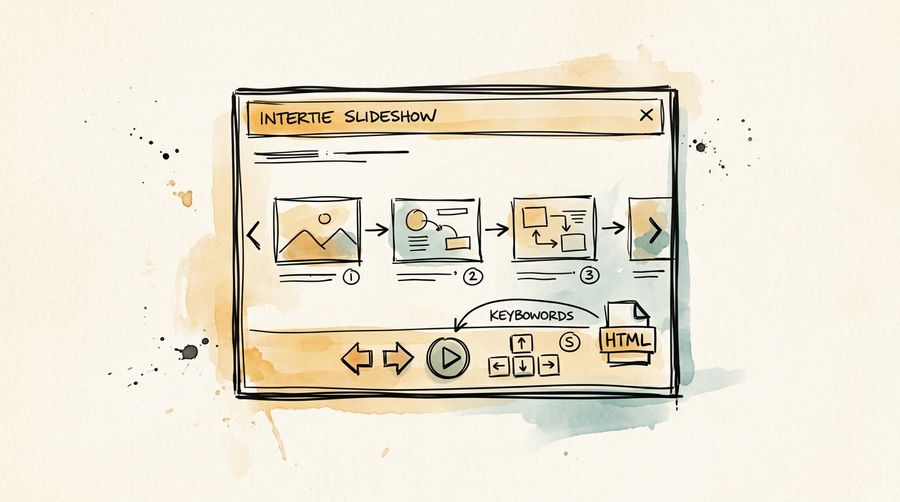
A single HTML file with the board, controls, autoplay and keyboard navigation built in — no server needed.
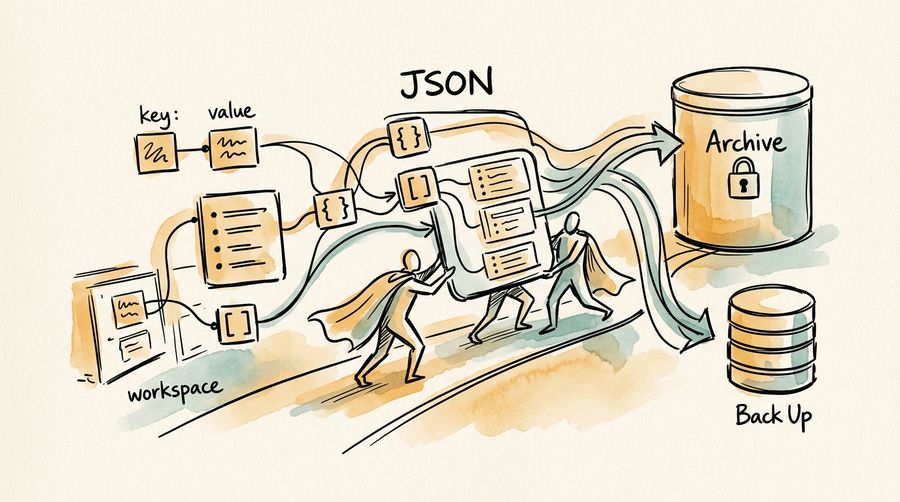
Export the raw board data to archive, back up or import into another workspace.
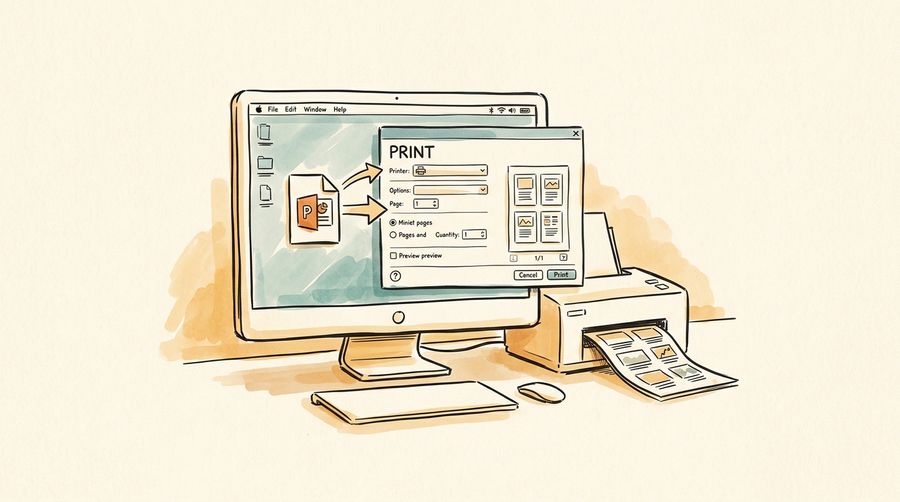
Printing opens your print dialog immediately — no present-mode flash first — with every slide laid out one to a page.
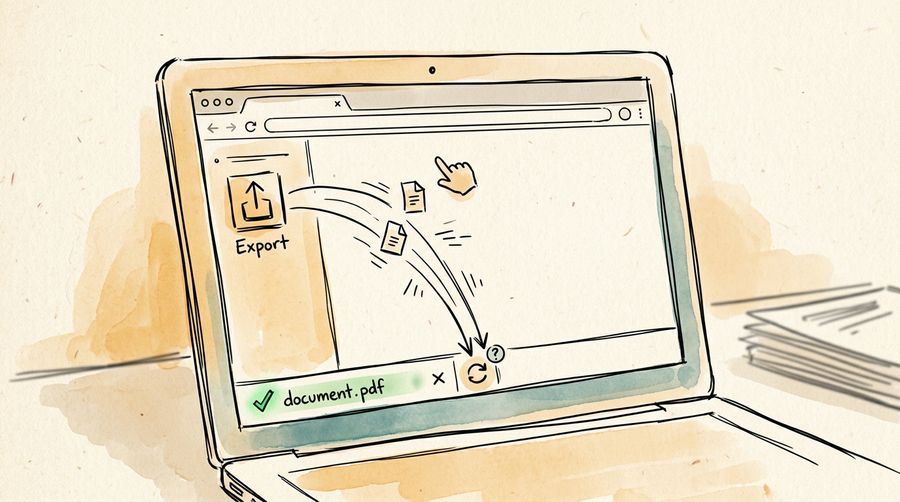
Every export starts downloading when it is ready. If a browser or embedded preview blocks it, a real Save file link and an Open in a new tab fallback remain on screen.
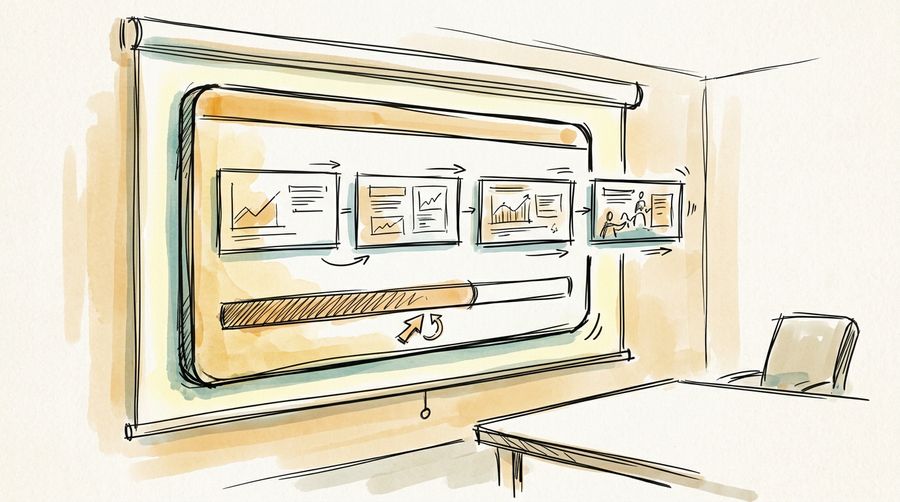
An animated packing dialog shows each slide being rendered so a big board never looks stuck.
SVG and image exports carry brush grain, washes and stroke filters through intact, so the file looks like the board did.
Free to start. No design skills, no stock photos, no fiddling with vector tools.
Start a board free