Real-time collaboration on diagrams: a sketching guide
Discover how to run a productive remote sketch session using real-time collaboration on diagrams to align your team and simplify complex ideas.
· 7 min read
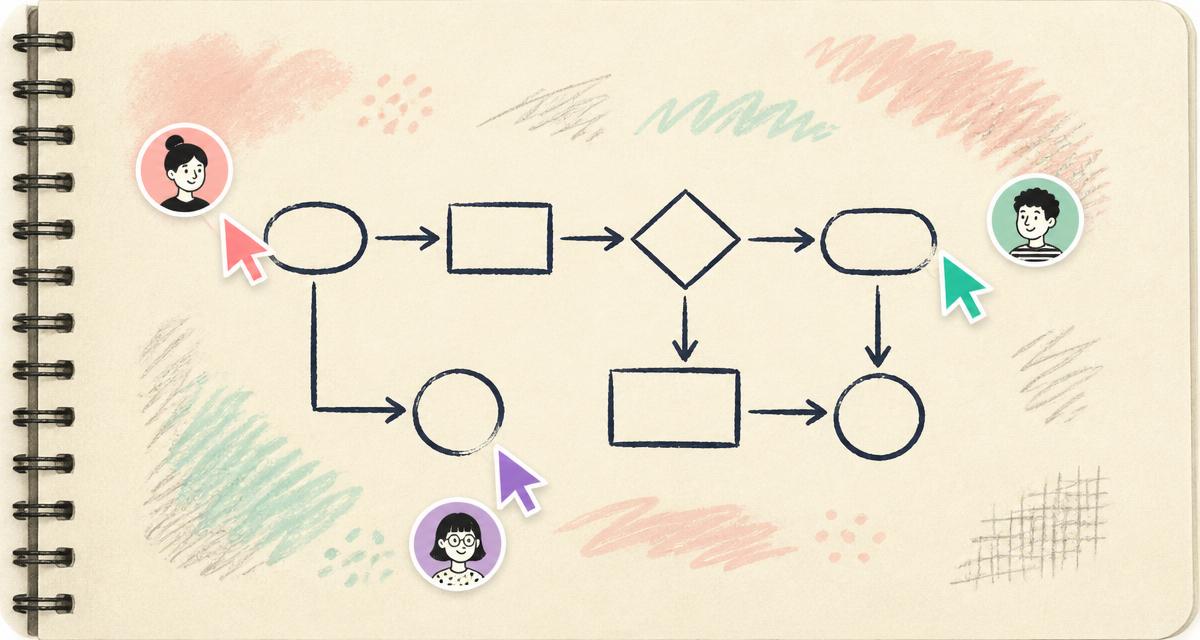
Running a meeting to explain complex systems often leads to glazed eyes and mismatched expectations. When words fail to paint the full picture, teams need a way to build ideas visually without the lag of back-and-forth emails. Real-time collaboration on diagrams turns a passive presentation into a shared workspace where everyone contributes to the final solution.
The value of a shared canvas
Traditional diagramming tools often feel like solo instruments. One person builds a chart, exports a static image, and waits for feedback that arrives hours later. This workflow creates a bottleneck. By shifting to a live environment, you remove the friction between thinking and doing. When your team sees a cursor moving across the screen, it creates a sense of presence that video calls alone cannot replicate.
Sketchboard AI facilitates this by providing a digital surface that feels like a physical whiteboard. Instead of rigid, clinical lines, you use hand-drawn marker illustrations and symbols. This informal aesthetic encourages participation. People feel less intimidated to add a quick sketch or a connector when the environment looks like a brainstorming session rather than a final technical document.
Preparing your sketch session
Great collaboration does not happen by accident. Before you invite the team, you need a loose structure. Start by defining the goal of the session. Are you mapping a user journey, debugging a cloud architecture, or brainstorming a new product feature?
Once the goal is set, choose a starting point. A blank canvas can be daunting for some team members. You might place a few anchor shapes or symbols from the library to give the group a nudge. Sketchboard AI offers 1,000 hand-drawn marker illustrations and 1,000 symbols, so you can easily set a visual theme before the meeting starts.
Setting the stage
- Define the scope: Keep the session focused on one specific problem.
- Invite the team: Ensure everyone has access to the board before the clock starts.
- Establish a key: Use different colours or washes to represent different types of information.
- Enable snapping: Use the grid and rulers to keep the board tidy as it grows.
Facilitating the live flow
During the session, your role as a facilitator is to keep the momentum going. Encourage everyone to grab the marker tool. If someone is struggling to find the right symbol, they can use AI generation to create new illustrations or symbols in the same hand-drawn style. This keeps the visual language consistent without stopping the flow of ideas.
Use grouping and alignment tools to organize the chaos. As the diagram expands, use snapping arrows with elbow routing to connect thoughts. The arrow-to-arrow anchors are particularly useful when you need to branch off a main idea without creating a tangled mess of lines. If a section gets too crowded, you can use the Alt or Option-click stacked element picker to select specific layers without moving everything else by mistake.
| Feature | Best Use Case |
|---|---|
| Hand-drawn Symbols | Visualising specific steps in a process |
| Washes Picker | Highlighting groups or categorising ideas |
| Text with Borders | Adding clear labels and descriptions |
| Elbow Routing | Creating clean paths between complex shapes |
| AI Generation | Creating custom visuals on the fly |
Refining the output
Once the brainstorming concludes, the board might look a bit wild. This is where you transition from ideation to documentation. Use the dedicated Washes picker, which includes nine marker-scribble patches and a free translucent marker, to shade specific areas. This helps the eye focus on the most important parts of the diagram.
For elements that need extra clarity, use text with borders, padding, and rounded corners. This creates a professional yet approachable look. If you are preparing the diagram for a stakeholder presentation, you can use the present mode with autoplay to walk through the logic step-by-step. The final result can be exported in various formats, including SVG, PDF, and even PPTX for internal slide decks.
Common mistakes
- Too many cooks: Avoid having more than 10 people editing the same small area at once.
- Over-polishing: Don't worry about perfect alignment in the first ten minutes; focus on the ideas.
- Ignoring the grid: Turn off snapping only when you need very specific placement, otherwise, the board becomes hard to read.
- Forgetting to group: If you move a set of symbols without grouping them, you risk leaving connectors behind.
- Lack of context: Always add a few text labels to explain what a specific cluster of symbols represents.
How to handle remote friction
Remote teamwork sometimes suffers from a lack of visual cues. In a physical office, you can see someone pointing at a board. In a digital space, you rely on the cursor. Encourage your team to use the "Follow" feature if available, or simply ask them to circle the area they are discussing with a bright wash.
Sketchboard AI makes this transition easier because the tools are intuitive. You don't need a degree in graphic design to move an symbol or change a connector. Because the library is organised by category, finding a database symbol or a user avatar takes seconds, keeping the conversation moving at the speed of thought.
FAQ
How many people can work on a board at once?
Real-time collaboration is built for teams. While there is no hard limit, we recommend keeping active editors to a manageable number so the board remains legible and focused during the live session.
Can I export the diagram to other tools?
Yes, you can export your work to several formats including PNG, JPG, SVG, PDF, and PPTX. You can even export a ZIP or HTML version for web use.
What if I cannot find the specific symbol I need?
If the library of 1,000 symbols doesn't have what you need, use the AI generation tool. It will create a new symbol or illustration that matches the hand-drawn style of the rest of your board.
Try it on your next deck
Ready to see how real-time collaboration can change your meetings? Start a free deck with Sketchboard AI today. You get three decks and access to a massive library of hand-drawn elements to help your team think clearly and build together.
- teamwork
- collaboration
- diagramming
- remote work
- visual thinking


