Exporting Presentations to PDF, PPTX, SVG and GIF
Discover how to maintain a hand-drawn look across multiple export formats like PDF, PPTX, and GIF to ensure your presentation looks great on every device.
· 6 min read
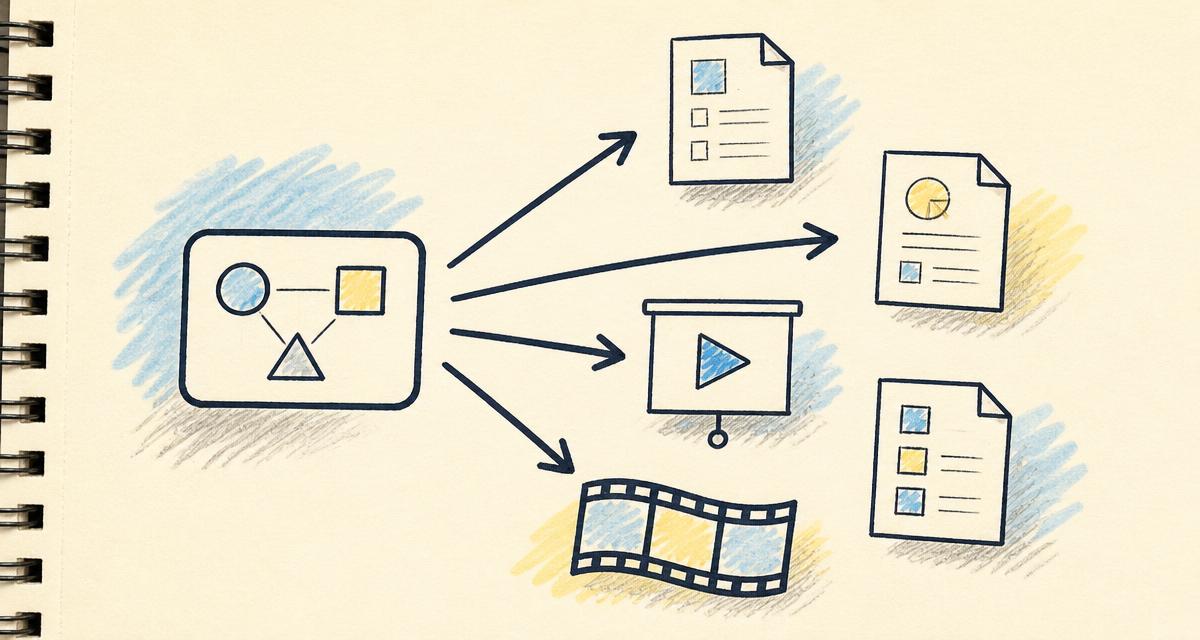
Creating a beautiful, hand-drawn presentation takes time and care. The frustration starts when you try to move that design into a different format, only to find the lines look jagged or the colours have shifted. You need your deck to look as good in a PDF or a PPTX file as it does on your original canvas.
The importance of format versatility
When you share a deck, you rarely know exactly how your audience will view it. One person might open a PDF on their tablet during a train journey. Another might project a PowerPoint file in a large boardroom. A third might see a looped GIF on social media. Each of these scenarios requires a specific file type, but the soul of your design—that warm, organic marker style—should remain consistent across all of them.
Choosing the right export for your audience
Not all export formats are created equal. The choice depends entirely on how the deck will be consumed. If you are sending a document for review, a PDF is the standard because it preserves layout and fonts perfectly. If you are presenting live and need to use a standard office projector setup, a PPTX file is often the safest bet.
For those who need to scale their graphics without any loss of quality, SVG is the gold standard. Since SVGs are vector-based, they remain crisp whether they are on a mobile screen or a giant billboard. On the other hand, if you want to show a quick process flow or a transition between two ideas, a GIF can capture the movement and energy of your presentation in a way that static files cannot.
Maintaining the hand-drawn aesthetic
Sketchboard AI is designed to keep your hand-drawn style intact regardless of the format. When you use the library of 1,000 hand-drawn marker illustrations, you are using assets built to look authentic. Even when converted to a flat image like a PNG or a JPG, the texture of the marker strokes remains visible.
One of the most effective ways to maintain this look is through the use of the Washes picker. By applying marker-scribble patches or using the free translucent marker, you add depth that feels human rather than mechanical. When these elements export, they retain their transparency and layering, which is vital for that organic feel.
| Format | Best Use Case | Benefit |
|---|---|---|
| Distribution and Printing | Fixes layout and fonts across all devices | |
| PPTX | Live Presentations | Works with standard slide software like PowerPoint |
| SVG | High-Res Design | Infinite scaling without pixelation |
| GIF | Social Media & Slack | Shows motion or quick transitions between slides |
| PNG/JPG | Web and Emails | High compatibility and small file sizes |
Streamlining the export workflow
Efficiency matters when you are up against a deadline. You should not have to manually save every single slide as a separate file. A professional workflow allows you to bundle your entire deck into a single ZIP file or a multi-page PDF with one click.
Using rulers and snapping for precision
Before you hit the export button, ensure your layout is tight. Even though the style is hand-drawn, the alignment should be professional. Use the grid and rulers to ensure your elements are balanced. Snapping helps you line up your snapping arrows with elbow routing, ensuring that your flowcharts look intentional rather than messy. When you export to a format like PPTX, these alignments remain locked in place, giving your audience a smooth experience.
Grouping and layering elements
Complex diagrams often involve many small symbols and text blocks. Use the grouping and alignment tools to keep these pieces together. If you find it hard to click a specific element buried under others, the Alt/Option-click stacked element picker is a lifesaver. It allows you to select exactly what you need to adjust before the final export.
Creating movement with GIFs
GIFs are often overlooked in the world of professional presentations, but they are incredibly useful for explaining logic. Instead of showing a static diagram of a complex system, you can export a GIF that shows the progression of a process. This format is particularly useful for internal documentation or developer handovers. Because Sketchboard AI supports GIF export, you can turn your slides into a bite-sized animation that captures the attention of your team in a way a static slide might not.
Formatting text for readability
Hand-drawn styles can sometimes compromise readability if not handled correctly. To prevent this, use text with borders and padding. Adding rounded corners to your text boxes makes them feel friendlier and more aligned with the marker aesthetic. When these export to PDF, the text remains crisp and legible, ensuring your message isn't lost in the design.
Common mistakes in presentation exports
- Over-compressing images: Choosing the lowest file size for a JPG can make your hand-drawn lines look blurry or pixelated.
- Ignoring aspect ratios: Ensure your deck matches the intended screen size before exporting to PPTX to avoid black bars on the sides.
- Forgetting the background: If you export an SVG for a dark-mode website, make sure your marker colours have enough contrast.
- Skipping the proofing stage: Always open your exported PDF to check that no elements have been cut off at the margins.
- Too many elements: Crowding a slide makes it hard to follow once it is shrunk down for a mobile-friendly export.
FAQ
Can I export my hand-drawn symbols to other tools?
Yes. By exporting as an SVG, you can take your hand-drawn symbols and illustrations into other design software while keeping the vector paths perfectly sharp.
Will my collaborators see the same export settings?
Real-time team collaboration ensures that everyone sees the latest version of the deck. However, export settings are usually handled by the individual user at the moment of download.
Does the free plan allow for PDF exports?
The free plan is a great way to start. It includes 3 decks and 3 slides per deck, with access to 100 illustrations and 100 symbols. For full multi-format export capabilities and larger decks, the Pro or Team plans are the best options.
Try it on your next deck
Ready to see your ideas come to life in a professional format? Start your next project with Sketchboard AI and explore how easy it is to move from a rough sketch to a polished PDF or PPTX. You can start a free deck today and see the difference a hand-drawn touch makes.
- presentation design
- export formats
- hand-drawn decks
- visual communication
- presentation tips


