Digital Wash Painting: Master Fluid Watercolor Textures
Learn how to use digital washes and smart marker textures to create depth, soft shadows, and fluid watercolor effects in your hand-drawn sketches and diagrams.
· 6 min read
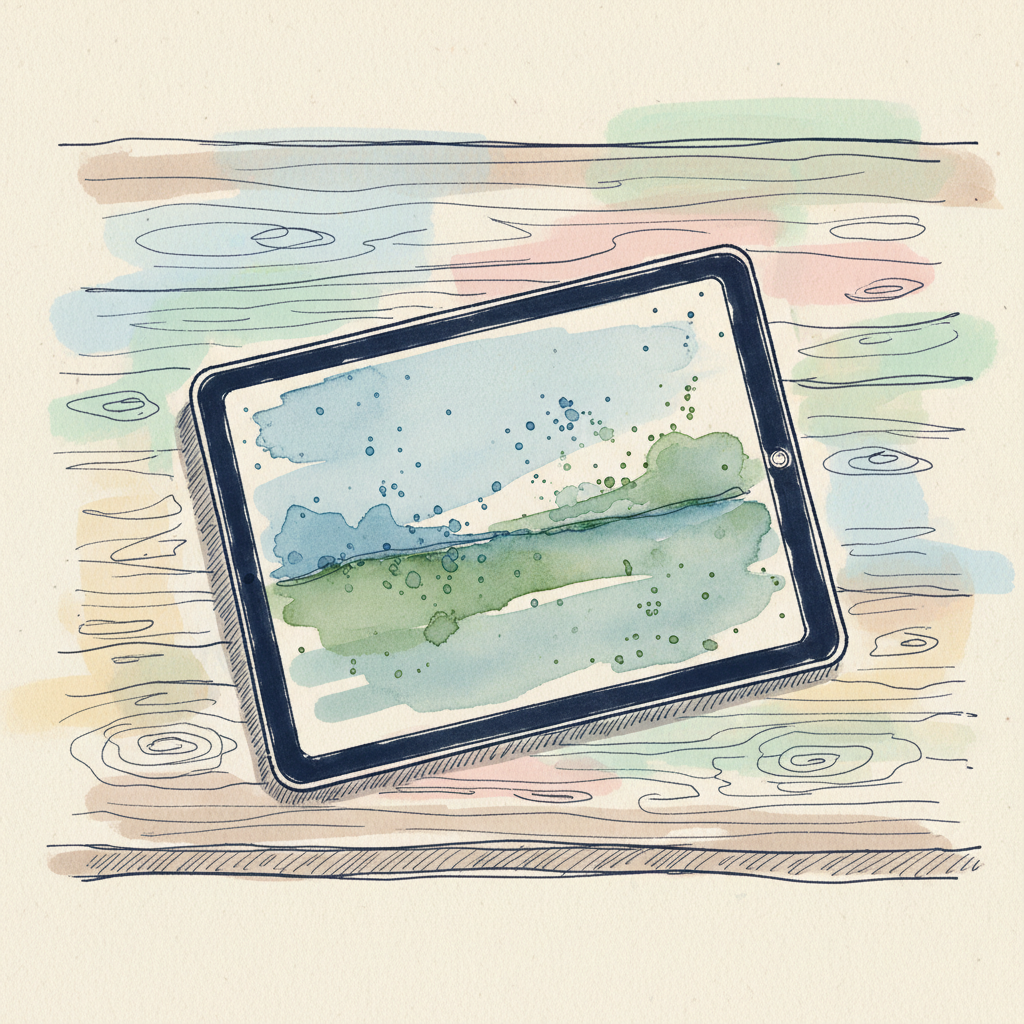
Traditional watercolor is loved for its unpredictability and soft, bleeding edges. Bringing that same fluid feel to a digital canvas often feels rigid or overly clinical. You might struggle to get that authentic 'wet-on-wet' look without the mess of real paint.
Digital wash painting bridges the gap between structured drawing and expressive art. In Sketchboard AI, you can apply these techniques to everything from character sketches to background shading in a presentation. By understanding how to layer transparency and use smart washes, you can add warmth and organic texture to any board.
Understanding the Digital Wash
A wash is essentially a thin, transparent layer of pigment. In a physical sketchbook, you achieve this by diluting ink or paint with water. Digitally, we replicate this using low-opacity brushes and specialized wash tools. The goal is to build up value slowly rather than laying down flat, opaque blocks of colour.
Using a sketch board that responds to your input makes a difference. When you use the brush families in Sketchboard AI, the pressure and velocity response allows you to taper off your strokes. This creates the 'feathered' edge essential for a convincing wash.
Techniques for Building Depth
The Layered Glaze
Start with a very pale hue. Sweep your brush across the area in broad, continuous strokes. Do not lift your pen or mouse until the area is covered. Once you lift and start a new stroke, the overlapping areas will become darker. This mimics the way real paper absorbs multiple passes of wet ink.
Smart Washes and Marker Scribbles
Sometimes you want a textured fill rather than a smooth gradient. The Washes picker offers marker-scribble patches that feel tactile. A particularly useful feature is the smart wash. These are washes shaped to the element behind them. If you have a hand-drawn circle, a smart wash will cling to those boundaries, giving you a perfect fill that still looks like it was coloured in by hand.
Choosing Your Brush Family
Not all brushes are built for washes. While a sharp ink pen is great for outlines, it fails at soft shading. Here is how to pick the right tool for your wash work:
| Brush Family | Effect | Best For |
|---|---|---|
| Gouache | Semi-opaque, heavy texture | Mid-tones and highlights |
| Airbrush | Soft, seamless gradients | Ambient lighting and glows |
| Ink | Fluid, high-contrast | Deep shadows and accents |
| Marker | Overlapping strokes | Traditional sketchbook feels |
| Crayon | Waxy, broken texture | Adding grit to a smooth wash |
Refining with Adjustments and Smudging
Once your washes are down, they don't have to stay static. Non-destructive adjustments allow you to tweak the mood of your wash without redrawing it. Use the HSB (Hue, Saturation, Brightness) panel to shift a warm sunset wash into a cool evening tone instantly.
The smudge tool is your best friend for blending. If two washes meet with a harsh line, use the smudge tool to nudge the strokes together. It picks up the pigment from one area and carries it into the next, just like a damp brush on a canvas. This creates the soft transitions that make watercolor so appealing.
Checklist for a Perfect Digital Wash
- Select a light base colour from the palette.
- Choose a brush with high velocity response for varied stroke ends.
- Keep your stylus pressure light for the initial pass.
- Use the layers list to keep your outlines above your wash layers.
- Apply a subtle Gaussian blur adjustment if the edges feel too digital.
- Use the partial eraser to gently lift colour for highlights.
Common mistakes
- Using 100% opacity: This makes the drawing look flat and loses the 'hand-drawn' charm.
- Over-blending: If you smudge everything, you lose the beautiful texture of the brush strokes.
- Ignoring the background: A bright white background can make washes look thin; try a slight off-white or paper-textured slide background.
- Forgetting highlights: Washes are about the absence of light; remember to leave white space or use the eraser to 'carve out' light.
FAQ
Can I use washes on top of symbols and stickers?
Yes. You can drag symbols from the library and then use the freehand brush tools to paint washes over them. This is a great way to unify different elements into a single artistic style.
How do I make my wash look like real marker ink?
Use the marker brush family and lean into the overlaps. In Sketchboard AI, the marker brushes are designed to darken where strokes cross, creating that classic 'marker-scribble' texture automatically.
What if I want a wash to stay inside a specific shape?
Use the smart wash feature. When you select a shape or a hand-drawn enclosure, the wash tool can generate a fill that respects those boundaries while maintaining a loose, hand-painted aesthetic.
Try it on your next sketch
Digital washes add a level of sophistication that flat colours simply cannot match. Whether you are illustrating a concept or just doodling in your digital sketchbook, the play of light and transparency brings your work to life. Open a new board in Sketchboard AI today. Pick a soft gouache or marker brush, turn down the opacity, and see how much depth you can add to a simple sketch with just a few fluid strokes.
- watercolor
- digital wash
- shading
- texture
- sketching


