Digital Smudge Tool: Mastering Soft Textures
Discover how to use the smudge tool to nudge pigment and blend strokes for realistic textures and soft transitions in your digital sketchbook.
· 6 min read
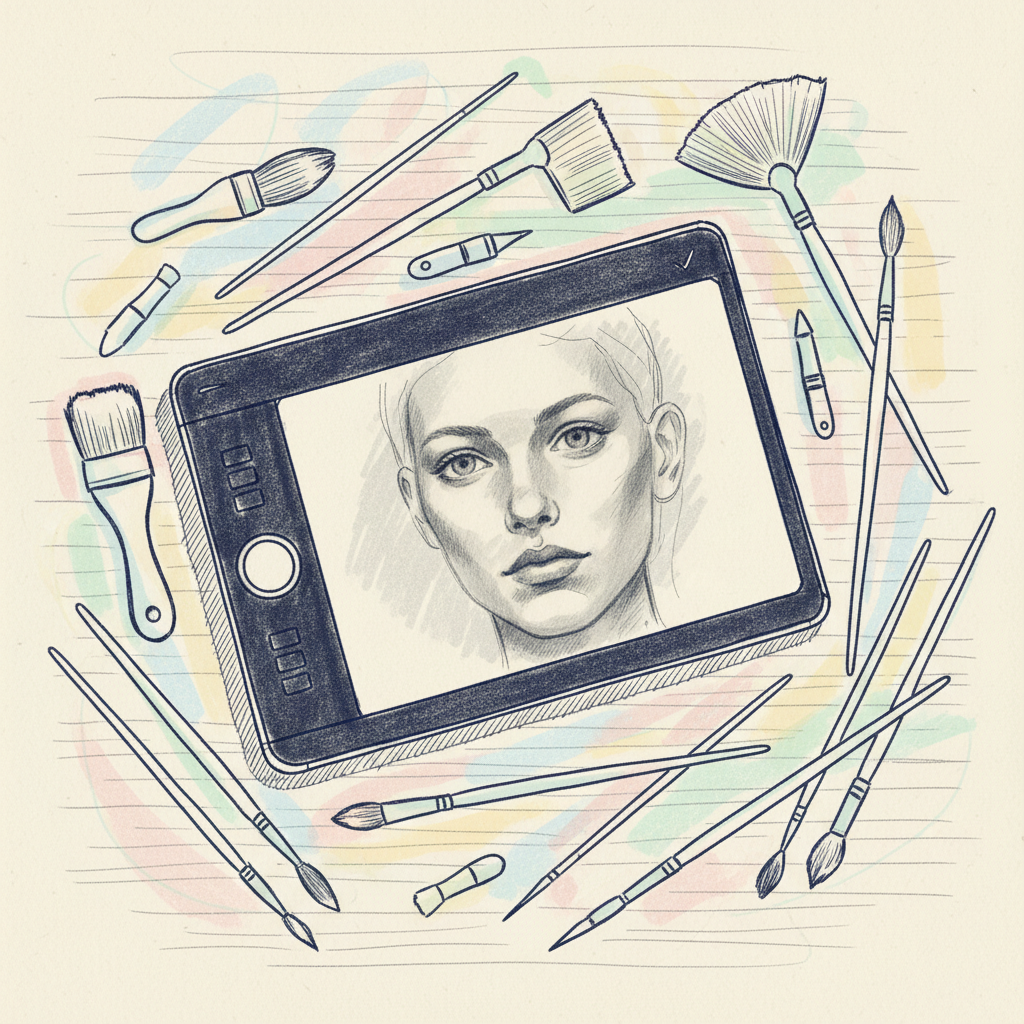
Creating smooth transitions in digital art often feels clinical and artificial. Many artists struggle to move pigment naturally without resorting to flat gradients that lack character. When you want your digital sketches to feel like real paper, you need tools that mimic the tactile experience of nudging lead or ink across a page.
Sketchboard AI is a hand-drawn sketch board that prioritises this organic feel. Instead of just painting pixels, you can interact with your strokes as if they were wet media. The smudge tool is central to this experience, allowing you to soften edges, blend colours, and add a sense of movement to your work.
Understanding the Smudge Physics
Traditional smudging happens when you drag a finger or a tortillon across a graphite line. The tool picks up a portion of the pigment and deposits it further along the stroke. In a digital environment, this requires a tool that understands the volume of the stroke rather than just blurring the pixels underneath.
On this sketch board, the smudge tool responds to your input speed and pressure. A light touch might only slightly blur the outer edge of a marker stroke, while a firmer press can pull a streak of charcoal across the entire canvas. This behaviour makes it invaluable for creating depth without needing a dozen different brush sizes.
Techniques for Realistic Shading
Shading is more than just adding dark shapes to a drawing. It is about how light falls off across a surface. You can use the smudge tool to transform harsh hatch marks into soft, undulating shadows.
The Nudge Method
Start by laying down a few strokes of the charcoal or pencil brush. Instead of drawing the entire shadow, draw only the darkest points. Select the smudge tool and gently push the pigment toward the lighter areas. This creates a natural taper that looks like you have hand-worked the surface. Because the tool nudges the strokes rather than just erasing them, you maintain the rich texture of the original brush family.
Atmospheric Perspective
When sketching landscapes or deep scenes, objects in the distance should appear softer. You can use the smudge tool to knock back the sharp edges of background elements. This mimics the way air and dust scatter light. By smudging the outlines of distant trees or hills, you instantly create a sense of scale that sharp lines cannot achieve.
Softening Digital Ink and Marker
Marker brushes are wonderful for bold concepts, but they can sometimes look too rigid. The smudge tool allows you to 'bleed' the edges of your digital markers. This is particularly effective when using the marker-scribble patches from the Washes picker.
- Apply a marker wash to a shape.
- Use the smudge tool along the boundary where two colours meet.
- Move the tool in a small circular motion to mix the pigments.
- Pull the smudge outward to create a damp, soaked-in look at the edges.
This technique makes your digital diagrams and illustrations look like they were pulled straight from a physical moleskine. It adds a human touch that helps viewers connect with your ideas.
Refining with the Partial Eraser
Smudging can sometimes get messy, just like in real life. If you pull pigment too far out of bounds, you do not have to undo the whole action. The partial eraser is designed to work alongside the smudge tool.
Unlike standard erasers that delete entire objects, the partial eraser only removes the specific area you rub. This allows you to 'carve' highlights back into a smudged area. You can smudge a large block of graphite for a shadow, then use the partial eraser to lift out a sharp rim light or a reflected glow. This interplay between adding, smudging, and subtractive erasing is how professional artists build complex forms.
Digital Smudging Best Practices
| Goal | Brush Pairing | Smudge Pressure |
|---|---|---|
| Skin Tones | Gouache / Airbrush | Low, rhythmic strokes |
| Rough Stone | Charcoal / Ink | High, erratic nudging |
| Motion Blur | Pen / Pencil | Fast, horizontal sweeps |
| Soft Clouds | Crayon / Marker | Medium, circular swirls |
Common mistakes
- Over-smudging: Turning your entire drawing into a blurry mess. Always leave some sharp lines to provide structure and focus.
- Ignoring stroke direction: Smudging against the form of an object can make it look flat. Always follow the contour of the item you are drawing.
- Uniform pressure: Using the same pressure for every smudge creates a repetitive, digital look. Vary your touch to keep the texture organic.
- Forgetting the original pigment: Smudging works best when you have enough 'paint' on the board. If a smudge looks thin, switch back to a brush and add more pigment before blending again.
FAQ
Does the smudge tool work on stickers and symbols?
Yes. While symbols and stickers start as vectors, you can smudge them to integrate them into your hand-drawn scenes. This helps pre-made elements look like they were drawn by hand rather than just dropped onto the page.
Can I smudge non-destructive adjustments?
Adjustments like Bloom or Glitch are applied to the element. If you smudge the element itself, the adjustment will recalculate to fit the new, nudged shape of your drawing.
Is the smudge tool available on the free plan?
Yes, the smudge tool and the partial eraser are core drawing features available to all users. Sketchboard AI ensures that even on the free plan, you have the tactile tools needed to create expressive work.
Try it on your next sketch
Next time you are working on a concept, skip the standard flat fills. Open your sketch board and experiment with the charcoal brush and the smudge tool. Build your shadows, nudge your pigments, and use the partial eraser to refine the light. You will find that your digital work gains a warmth and depth that was previously missing. Whether you are building a professional presentation or just doodling in your digital sketchbook, these tools help you communicate with a personal, hand-crafted style.
- smudge tool
- digital drawing
- blending techniques
- shading
- sketchbook


