Digital Smudge Techniques for Moving Pigment
Learn how to use a digital smudge tool to nudge existing strokes and blend pigment for more organic, hand-drawn results in your digital sketchbook.
· 6 min read
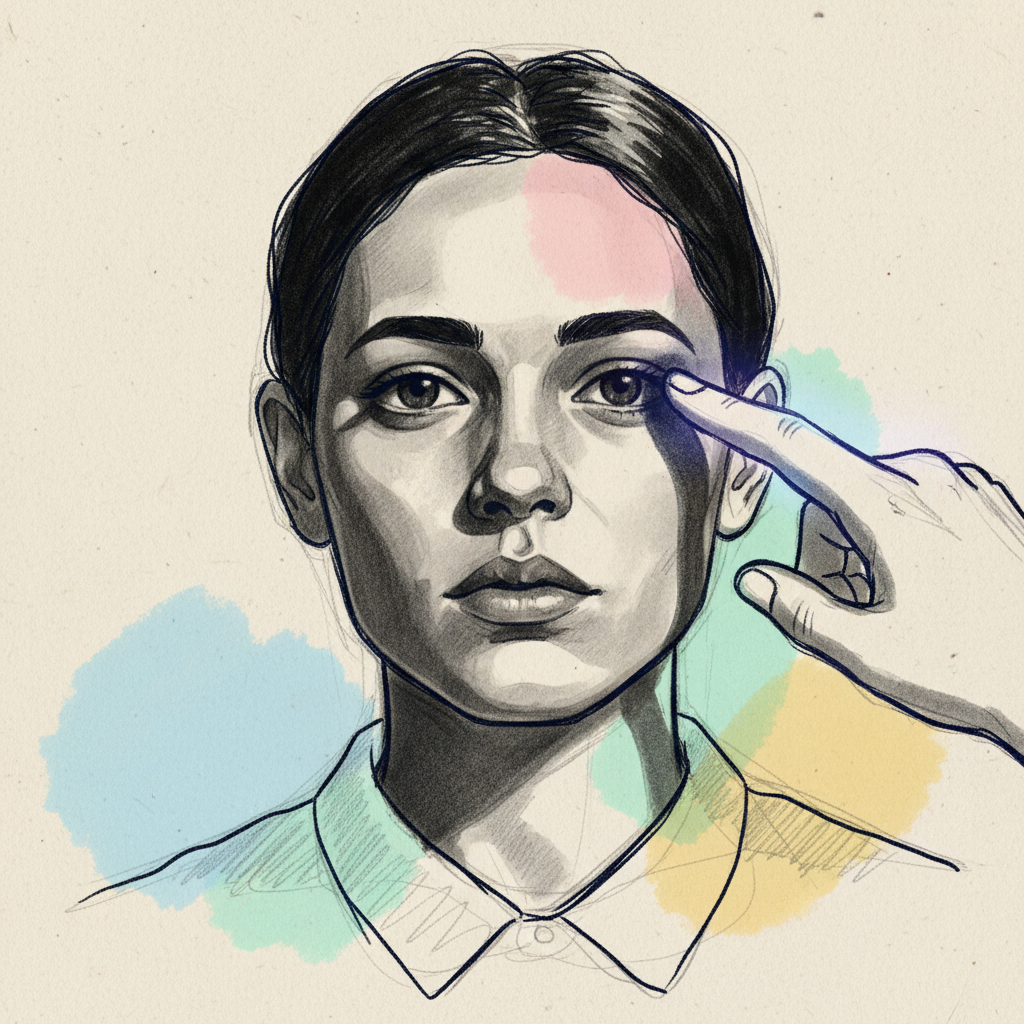
Static lines often feel stiff and clinical in a digital environment. Many artists struggle to achieve the organic fluidity of physical media where graphite or charcoal can be physically manipulated after it hits the page. The challenge lies in making digital marks feel less like fixed data points and more like malleable pigment.
The Logic of Nudging Pigment
Unlike simple blur tools that merely soften edges by averaging pixel values, a smudge tool that nudges strokes mimics the physical act of moving material across a surface. In Sketchboard AI, the smudge tool interacts with the specific brush families you have already applied. If you have laid down a heavy layer of charcoal or a thick stroke of gouache, the smudge tool picks up that pigment and carries it into the negative space of the canvas.
This creates a sense of momentum in your artwork. Instead of drawing every single transition, you can place a bold mark and then pull it into the desired shape. This method is particularly effective for creating soft shadows, atmospheric perspective, or the subtle gradients found in human skin and fabric.
Choosing Your Base Material
The effectiveness of your smudging depends heavily on the initial brush choice. Because the tool picks up the properties of what is already on the board, you should consider your foundation carefully.
- Charcoal and Pencil: These respond beautifully to light nudges. You can create a rough hatch pattern and then use the smudge tool to smooth the transition, leaving just a hint of the underlying texture.
- Gouache and Ink: These provide more "pigment" to move. Smudging these creates a thicker, more painterly look, similar to using a wet-on-wet technique in traditional painting.
- Marker: Smudging markers helps to eliminate the harsh "overlap" lines that sometimes occur when digital markers are layered too quickly.
Techniques for Organic Transitions
The Pull Technique
Place your cursor or stylus in the centre of a dark stroke and drag outward into a light area. This pulls the concentrated colour out, creating a tapered fade. This is the primary way to build depth in a sketch without constantly changing brush opacity.
The Nudge Technique
Instead of long drags, use short, rhythmic taps to slightly displace the edge of a line. This is perfect for giving a hand-drawn sketch a more "lived-in" feel. It breaks up the perfect mathematical straightness that digital tools often impose. Sketchboard AI allows you to manipulate these strokes non-destructively, so you can experiment with the weight of your nudge without losing the original intent of the sketch.
Blending Multiple Colours
When two different colours sit side-by-side, the smudge tool acts as a bridge. By zig-zagging the tool across the boundary of the two colours, you mix the pigments together. This creates mid-tones that feel natural rather than computer-generated.
Tools and Settings Comparison
| Feature | Blur Tool | Smudge (Nudge) Tool |
|---|---|---|
| Primary Action | Softens all pixels equally | Displaces existing strokes |
| Texture | Removes texture detail | Retains and stretches texture |
| Pigment | Stays in place | Moves in the direction of the stroke |
| Control | Uniform | Directional and velocity-sensitive |
Integrating Smudge into Your Workflow
A common mistake is to save smudging for the very end of a drawing. Instead, try treating it as an active part of the construction phase. Draw a rough anatomical shape with a light pencil brush, then use the smudge tool to "push" the edges until the proportions look correct. It is often easier to nudge an existing line than to erase and redraw it five times.
On a Sketchboard AI board, you can also use the smudge tool to soften the edges of marker-style illustrations from the library. This helps stock symbols feel more integrated into your custom freehand work. By gently nudging the edges of a library symbol, you make it appear as though it was drawn with the same hand as the rest of your board.
Common mistakes
- Over-smudging: Doing this too much can make a drawing look muddy or blurry. Always leave some crisp lines to define the form.
- Ignoring Velocity: The tool reacts to how fast you move. A fast flick will move less pigment than a slow, deliberate drag.
- Smudging Empty Space: The tool needs pigment to work. If you try to smudge an area with no strokes, nothing will happen.
- Neglecting Layers: Remember to check which layer you are on. If your pigment is on a different layer than your smudge action, you will not see any movement.
FAQ
Can I undo a smudge if it goes too far?
Yes. Because the tool works on a sketch board that supports non-destructive editing and standard undo shortcuts, you can revert any smudge action immediately. You can also use the partial eraser to clean up any pigment that was nudged outside of your intended boundary.
Does the smudge tool work with AI-generated images?
Yes. If you generate a symbol or illustration using the AI tools in the Images tab, you can use the smudge tool to tweak the edges or blend the AI art into your hand-drawn background. It treats the pixels of the AI generation as paint that can be moved.
How does pressure sensitivity affect smudging?
If you are using a stylus, the pressure you apply determines how much pigment the tool "picks up." Lighter pressure might only move the very edge of a stroke, while harder pressure will drag the entire mass of the stroke across the canvas.
Try it on your next sketch
Open your next board and start with a simple charcoal head study. Instead of focusing on perfect lines, focus on broad shapes. Use the smudge tool to pull the shadows out from the eyes and under the chin. You will find that the drawing feels more like a physical object and less like a digital file. Whether you are building a complex technical diagram or a loose sketchbook page, the ability to nudge and manipulate your marks is what makes a sketch feel truly hand-drawn. Log in to Sketchboard AI today and experiment with the 25 brush families and the smudge tool to see how much life you can add to your work.
- smudge tool
- digital blending
- pigment manipulation
- sketching techniques
- shading


