Digital Smudge Tool for Oil Painting Textures
Discover how to replicate the thick, buttery textures of traditional oil painting using digital smudge tools and pressure-sensitive brushes on your online sketch board.
· 8 min read
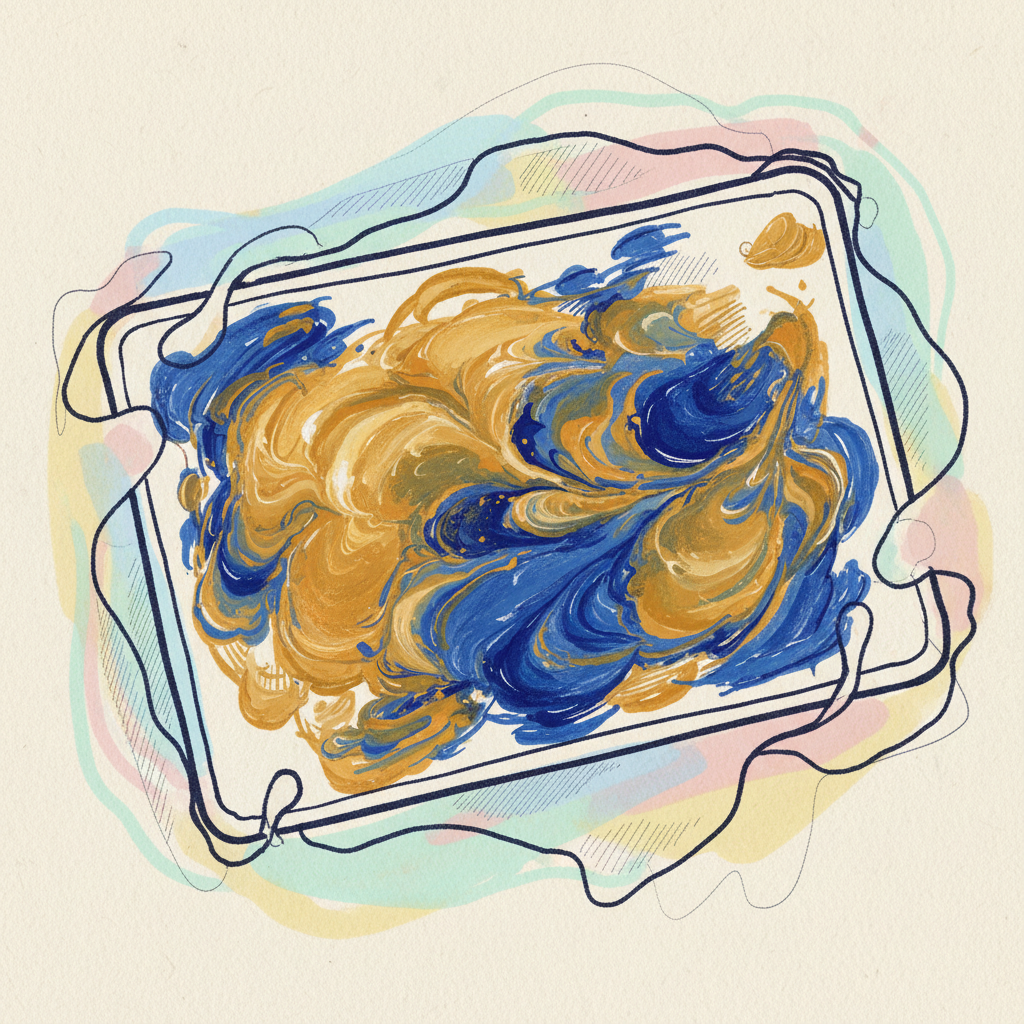
Digital sketching often feels too clean or clinical for artists who love the tactile grit of traditional media. If you miss the way oil paint drags across a canvas or how heavy pigment mingles under a palette knife, you might struggle with standard digital tools. Achieving that rich, buttery transition between colours requires more than just a simple brush; it requires a tool that understands how to move existing pigment around the board.
The Physics of Digital Smudging
Traditional oil painting relies on the physical displacement of wet media. When you push a brush through a fresh layer of paint, you aren't just adding new colour; you are nudging the underlying layers. Sketchboard AI replicates this through a smudge tool that responds to both pressure and velocity.
Instead of a generic blur, this tool acts like a dry brush or a finger, grabbing the 'paint' already on your board and pulling it in the direction of your stroke. If you move quickly, the smudge is light and wispy. If you press harder and move slowly, you create a deep, blended furrow that looks like authentic impasto work.
Choosing the Right Base Brushes
To get the most out of smudging, you need a foundation of varied textures. You cannot smudge what isn't there, and flat digital lines do not provide much character. We recommend starting with a mix of these brush families:
- Gouache and Acrylics: These provide the heavy, opaque coverage needed for the 'base' of your oil study.
- Charcoal and Chalk: These add a grainy tooth to the edges, giving the smudge tool something textured to catch and drag.
- Ink and Marker: Use these for the deepest shadows before smudging them into the mid-tones to create soft, atmospheric transitions.
On Sketchboard AI, you can choose from 25 brush families. For an oil-painting look, avoid the 'Digital' family early on. Instead, lean into the 'Pen' or 'Crayon' tools to establish a physical-looking surface first.
Techniques for Moving Pigment
Creating an oil-like texture is about how you manipulate the layers you have already laid down. The smudge tool is not just for fixing mistakes; it is a primary rendering tool.
The Nudge Technique
Place two distinct colours side by side—perhaps a burnt sienna and a pale cream. Use the smudge tool at a low pressure to gently 'tickle' the border between them. This creates a soft, feathered edge that mimics a wet-on-wet oil technique. It allows the colours to meet without losing their individual identities.
The Drag and Pull
For highlights, place a small dot of a bright colour like titanium white. Use a high-velocity smudge stroke to pull that dot downwards. This creates a streak of light that tapers off naturally, perfect for reflecting light off a metallic surface or a glass bottle. The tool picks up the pigment and exhausts it as the stroke continues, just like a real brush would.
Building Impasto Depth
You can simulate the thickness of oil paint by using the smudge tool to 'sculpt' edges. By dragging the tool along the outer perimeter of a shape, you create a slight displacement that looks like the raised edge of a thick paint stroke. This gives your digital sketches a three-dimensional quality that flat illustrations lack.
Checklist for Realistic Texture
Use this workflow to ensure your digital sketches have the weight and depth of an oil painting:
- Select a canvas preset that matches your intended output (e.g., A4 or 4K).
- Lay down a mid-tone wash using a large, soft brush.
- Map out dark values using the Charcoal or Ink brushes.
- Apply thick, opaque highlights using the Gouache brush.
- Use the Smudge tool to blend the boundaries between dark, mid, and light.
- Apply the 'Bloom' adjustment to the highlights for a subtle oily sheen.
- Use the Partial Eraser to clean up stray marks without losing the core texture.
Non-Destructive Refinements
One of the greatest advantages of working on a digital sketch board is the ability to adjust your 'paint' after it has been applied. If your oil study looks too dull, you do not need to scrape the canvas. You can use HSB (Hue, Saturation, Brightness) adjustments on specific elements to pop the colours.
If the textures look too harsh, applying a subtle Gaussian blur to a specific layer can simulate the look of a background that has fallen out of focus. Because these adjustments are non-destructive, you can experiment with the 'Glitch' or 'Halftone' filters to give your oil-style sketch a modern, mixed-media twist without losing the original brushwork.
Common mistakes
- Over-smudging: Blurring the entire board until all detail is lost. Keep some sharp edges to maintain structure.
- Low Contrast: Oil paintings thrive on the play between light and shadow. If you smudge everything into a grey mid-tone, the image will look muddy.
- Ignoring Velocity: Moving the stylus at a constant speed makes the smudge look mechanical. Vary your speed to get natural-looking tapers.
- Single Layering: Trying to do everything on one level. Use the layers list to keep your background washes separate from your thick foreground 'oil' strokes.
FAQ
Does the smudge tool work with a mouse?
Yes, though it is most effective with a pressure-sensitive stylus. When using a mouse, the tool relies on velocity (the speed of your cursor) to determine the strength of the smudge.
Can I smudge images I have uploaded?
Yes. If you drag an image from the Images tab or generate one with the AI, you can use the smudge tool to blend the edges of that image into your hand-drawn strokes, creating a seamless collage.
Will smudging slow down my board?
Sketchboard AI is designed for high performance. Even with complex smudging and multiple brush families, the board remains responsive, and your floating panels will remember their positions for your next session.
Try it on your next sketch
You don't need a physical studio to experiment with the rich textures of oil paint. Open a new board on Sketchboard AI and start with a simple Gouache stroke. Pick up the smudge tool and see how the pigment reacts to your touch. Whether you are building a fine art study or adding a hand-painted feel to a professional presentation, these tools give your work a soul that standard vector lines cannot match. Start drawing today and feel the difference of a board that moves with you.
- digital oil painting
- smudge tool
- brush textures
- blending techniques
- digital art tips


