Convert Digital Sketches to Slides Efficiently
Turn your raw sketchbook ideas into polished presentation slides without losing the charm of hand-drawn art or the flexibility of digital layers.
· 6 min read
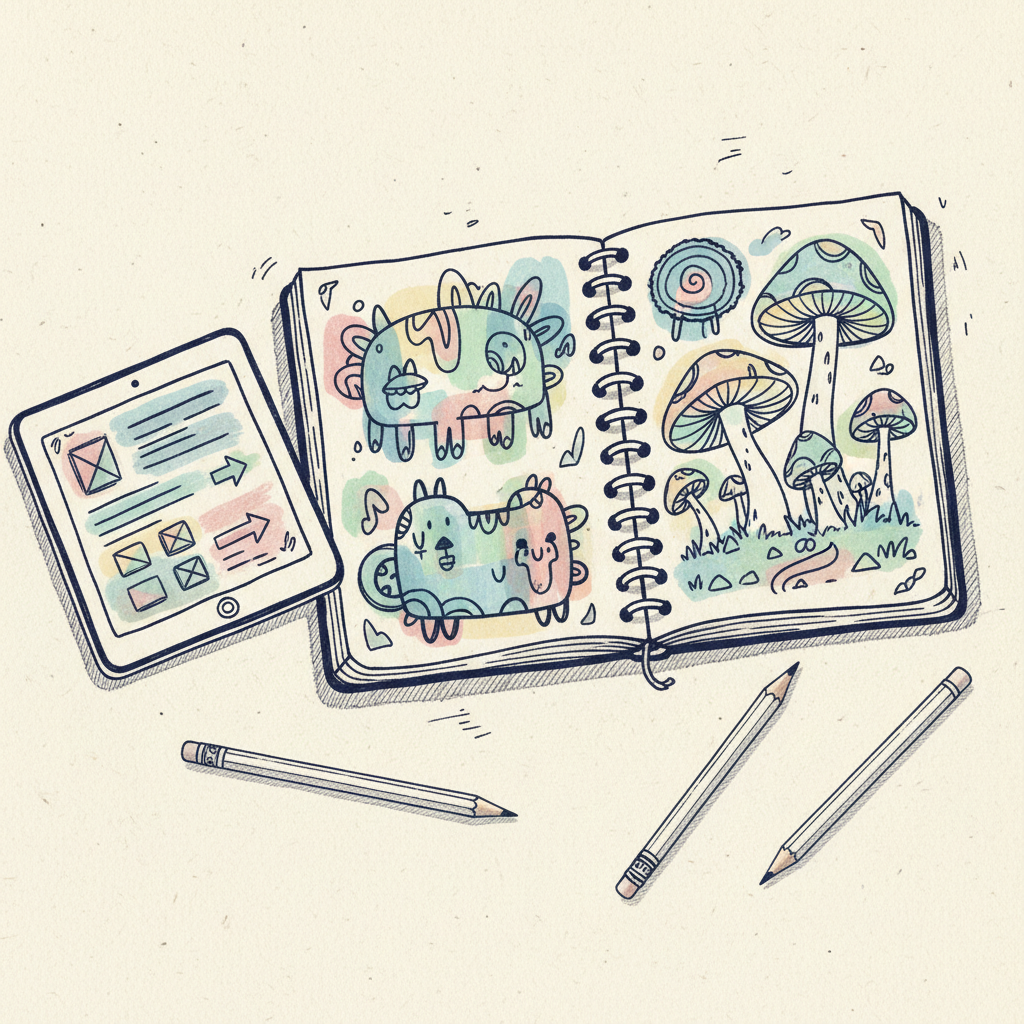
Building a presentation often feels like a chore that drains the life out of your original ideas. You start with a spark in your sketchbook, but by the time you move to a standard slide builder, the personality is gone. The transition from a messy, creative drawing to a structured deck should not be a trade-off between style and clarity.
Sketchboard AI bridges this gap. It is a sketch board that lets you treat your canvas like a living sketchbook while providing the tools to organize those thoughts into professional slides. Here is how to master the workflow from a blank page to a finished presentation.
Starting with the Sketchbook Mindset
Most slide decks feel stiff because they start with templates. Instead, start with a wide-open canvas and your favourite brush family. Whether you prefer the gritty texture of charcoal or the clean line of a digital ink pen, your initial sketches should focus on flow rather than format.
Sketchboard AI responds to your pressure and velocity. This means your quick brainstorms look like real drawings, not clinical vector lines. Spend time in the early stages just drawing your concepts. Use the smudge tool to nudge your strokes or pick up pigment for a softer look. Because this is a sketch board, you have the freedom to be messy before you get organised.
Organising Ideas into Slides
Once your drawings are down, you need to provide structure. Sketchboard AI allows you to define specific areas of your board as slides. This keeps your entire creative process in one place. You can see your rough notes on the left and your polished slide content on the right.
Using Canvas Presets
Do not guess your dimensions. Use the canvas size presets for the platform you need. If you are presenting on a laptop, choose a standard 16:9 ratio. If your slides are destined for a tablet, adjust accordingly. These presets ensure your hand-drawn elements are framed perfectly when you enter present mode.
Layers and Ordering
As your slides become more complex, use the layers list. It helps you manage front and back ordering with simple keyboard shortcuts. If you have a background wash that keeps getting in the way, move it to the back. If you need to select one specific line among many, the right-click picker helps you grab exactly what you need without disturbing the rest of the drawing.
Adding Visual Hierarchy with Marker Washes
Pure line work can sometimes be hard to read from a distance. This is where washes come in. The Washes picker offers marker-scribble patches that give your slides a tactile, handmade feel.
Smart washes are particularly useful. They shape themselves to the element behind them, allowing you to highlight specific text or drawings instantly. By using a light ink setting for text on dark backgrounds, you ensure high contrast and readability without sacrificing the hand-drawn aesthetic.
Enhancing Sketches with Non-Destructive Adjustments
One of the biggest advantages of a digital sketch board is the ability to change your mind. Sketchboard AI features non-destructive Adjustments. You can apply HSB changes, curves, or even a subtle bloom effect to any element on your board.
If a particular illustration feels too flat, try adding a motion blur or a glitch effect to give it energy. If the colours do not match your brand, use a gradient map to unify the palette across all slides. Because these are non-destructive, you can always go back to the original sketch if you overwork the piece.
Creating a Cohesive Visual Language
Consistency makes your presentation look professional. While you can draw everything from scratch, you can also speed up your workflow using the library of over 1,000 hand-drawn marker illustrations and symbols.
| Tool Feature | Benefit for Presentations |
|---|---|
| One-Click Swap | Replace an icon while keeping the same size and style |
| Smart Washes | Automatically frame elements with a marker texture |
| Snap Arrows | Create flow between points that stays connected when moved |
| AI Generation | Create new symbols in your unique style on transparent backgrounds |
If you need a specific symbol that isn't in the library, the AI generation tool can help. It generates new illustrations or symbols in the same hand-drawn style as the rest of your board. Everything comes with a transparent background, so it sits naturally on your slide background colour.
Preparing for the Big Moment
When it is time to present, you don't need to export to another app. The built-in present mode includes a laser pointer and a torch spotlight to help you guide your audience's eyes. If you prefer to share a file, you can export to PDF, PPTX, or even a GIF for social media.
Common mistakes
- Overcrowding the canvas: Just because the board is infinite doesn't mean the slide should be. Keep one main idea per slide area.
- Ignoring the grid: Use the rulers and snapping with amber centre guides to ensure your hand-drawn elements look intentional, not accidental.
- Forgetting to lock elements: If you are finished with a background layer, use the layers list to keep it from moving while you work on the foreground.
- Low contrast: Make sure your marker washes don't make the text hard to read. Use the HSB sliders to maintain high visibility.
FAQ
Can I work with my team on these slides?
Yes. Sketchboard AI supports real-time team collaboration. You can see your colleagues moving through the board as you work together on the drawings.
What happens if I make a mistake with the eraser?
The partial eraser only removes the area you rub. If you need to be more precise, you can also use the smudge tool to nudge strokes back into place rather than deleting them.
Do I need a drawing tablet to use this?
While a pressure-sensitive pen is great for the 25 brush families, you can use a mouse or trackpad. The velocity response still helps create natural-looking strokes based on how fast you move.
Try it on your next sketch
Stop settling for boring, boxy presentations. Start your next project on the Sketchboard AI sketch board and let your creativity lead the way. Whether you are using a free plan to test a single board or a Team plan for a large project, the tools are there to help you draw, refine, and present. Open a new board today and see how much faster your ideas come to life when you can actually draw them.
- sketching
- presentation slides
- digital drawing
- workflow
- visual storytelling


