Digital Liquify Tool: Master Dynamic Sketching Warps
Learn how to use non-destructive liquify adjustments to add movement, fix proportions, and create surreal distortions in your digital hand-drawn sketches.
· 7 min read
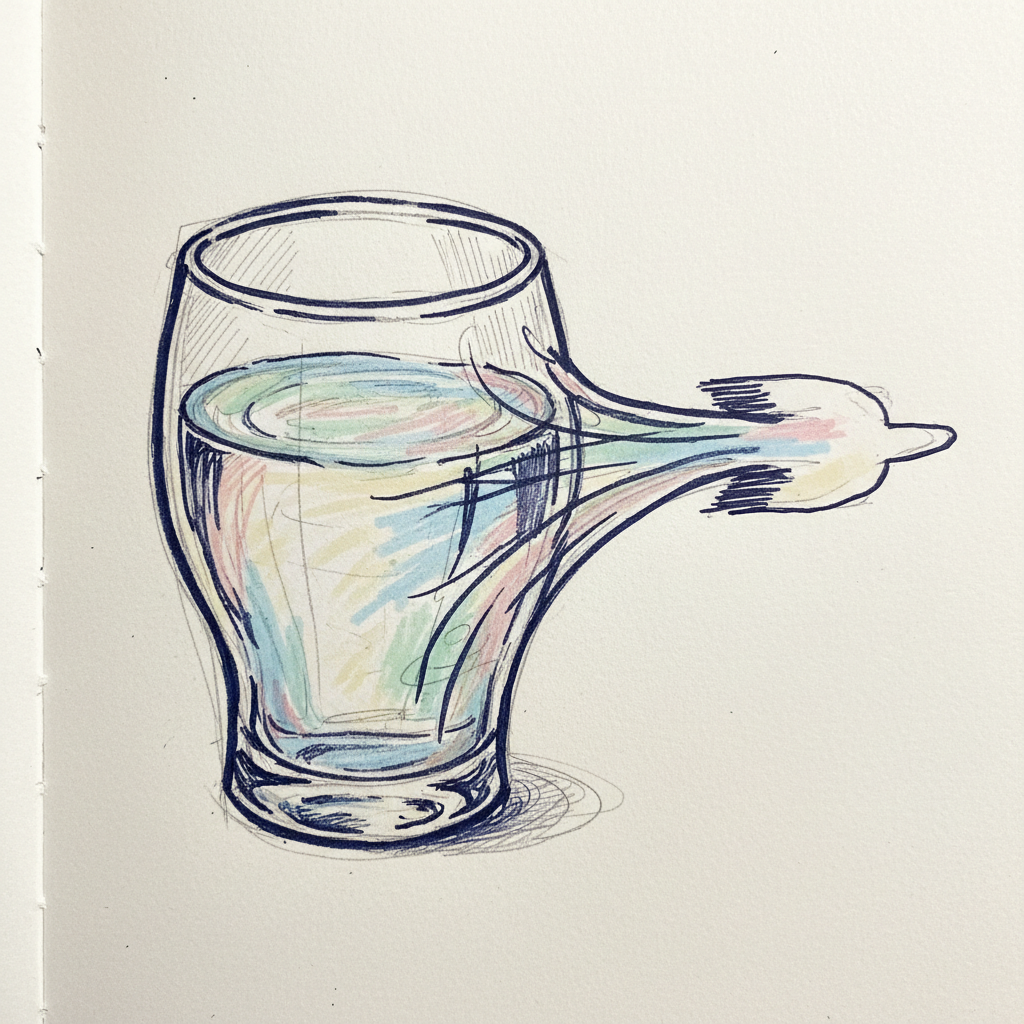
Drawing the perfect curve or getting human proportions right on the first attempt is a challenge for every artist. Sometimes a character's head is slightly too wide, or a flowy garment lacks the necessary swing to feel alive. Instead of erasing your hard work and starting over, you can use digital distortion to nudge your lines into place.
Understanding the Liquify Effect
Liquify is a powerful adjustment that treats your drawing like liquid. It allows you to push, pull, and warp pixels without losing the texture of your brushwork. In Sketchboard AI, this is a non-destructive adjustment. This means your original strokes remain intact underneath the effect. You can toggle it off or tweak the intensity at any time.
While traditional paper limits you to what you have physically marked, a digital sketch board lets you manipulate the geometry of your lines. This tool is not just for fixing mistakes. It is a creative engine for adding character, movement, and surrealism to your sketches.
Preparing Your Sketch for Warping
Before you start warping, consider the brush you used. Texture-heavy brushes like charcoal or crayon respond beautifully to liquify because the grain stretches and compresses, mimicking how real materials might react to physical pressure.
Grouping Your Elements
If you are working on a complex figure, ensure the strokes are grouped. Sketchboard AI allows you to apply adjustments to individual elements or entire groups. By grouping your linework, you ensure that the highlights, shadows, and outlines all warp together, maintaining the integrity of your drawing.
Using the Layers List
Use the layers list to keep your background separate. You usually want to warp the subject of your sketch without distorting the grid or the slide background. Keeping your elements organised makes it easier to select the right target for the liquify adjustment.
Techniques for Natural Movement
Liquify is most effective when used subtly. High-intensity warps can make a sketch look blurry or digital. The goal is to retain the hand-drawn feel while enhancing the composition.
- Nudging Proportions: Use small distortions to shift the position of a feature. If an eye is too high in a portrait, a gentle downward nudge aligns it without requiring a redraw.
- Creating Flow: In fashion sketches or concept art, use the tool to add 'S' curves to hair or fabric. This mimics the physics of wind and movement.
- Tapering Ends: You can use distortion to pinch the ends of strokes, making ink lines look more calligraphic and tapered.
- Exaggerating Perspective: Warp the further edges of an object inward to create a forced perspective look, making the drawing feel more three-dimensional.
Creative Distortions for Concept Art
Beyond fixing errors, liquify is a staple for character design. It allows you to experiment with silhouettes rapidly. You can widen shoulders, lengthen limbs, or create bulbous, alien features in seconds.
In Sketchboard AI, you can combine this with the smudge tool. While the smudge tool nudges strokes and picks up pigment to blend colours, the liquify adjustment changes the underlying path of the element. Using them together creates a highly tactile, painterly result that looks like wet gouache being moved across a board.
| Feature | Best For | Result |
|---|---|---|
| Small Nudge | Facial features, minor alignment | Corrected proportions |
| Wide Warp | Fabric, hair, water | Fluid movement |
| Pinch | Perspective, tapering | Depth and focus |
| Twirl | Stylised clouds, magic effects | Surreal textures |
| Expand | Caricature, emphasis | Impactful silhouettes |
Applying Adjustments Non-Destructively
One of the best ways to use liquify on a sketch board is to stack it with other adjustments. Because these effects are non-destructive in Sketchboard AI, you can see how a warp looks when paired with a halftone filter or a color-shifting gradient map.
If the warp feels too aggressive, use the slider to type in a lower value. You can reset the adjustment with a single click if you decide the original sketch was better. This freedom encourages experimentation that you simply cannot get with traditional pens or pencils.
Common mistakes
- Over-warping: Pushing the pixels too far until the brush texture disappears into a blur.
- Ignoring the background: Accidentally warping the grid or nearby symbols when you meant to only target a single illustration.
- Neglecting groups: Warping an outline but forgetting to warp the marker wash behind it, leading to misaligned colours.
- Forgetting the original: Not saving a version of the sketch before applying heavy distortions.
FAQ
Does liquify work on uploaded images?
Yes, you can apply the liquify adjustment to your own uploads and AI-generated images in the Images tab. It works the same way as it does on hand-drawn strokes.
Can I undo a specific part of a warp?
Since the adjustment is applied to the whole element or group, you adjust the overall intensity. To fix specific spots, it is often better to use the smudge tool for manual, localized nudging.
Will the liquify effect show up in a PDF export?
Yes, all adjustments, including liquify, curves, and blurs, are preserved when you export your board to PNG, JPG, or PDF. The visual result remains exactly as it appears on your screen.
Try it on your next sketch
Open a new board and select your favourite brush family. Draw a quick character or a landscape, then open the Adjustments panel. Experiment with the liquify settings to see how you can transform your static lines into something dynamic. Whether you are fixing a small mistake or building a surreal masterpiece, these tools help your creativity flow. Get started on Sketchboard AI today and see how digital tools can enhance your hand-drawn style.
- liquify tool
- digital sketching
- drawing techniques
- hand-drawn effects


