Digital Lighting Techniques Using HSB Adjustments
Discover how to transform the mood of your hand-drawn digital sketches by mastering HSB adjustments to control light, shadow, and atmospheric depth.
· 6 min read
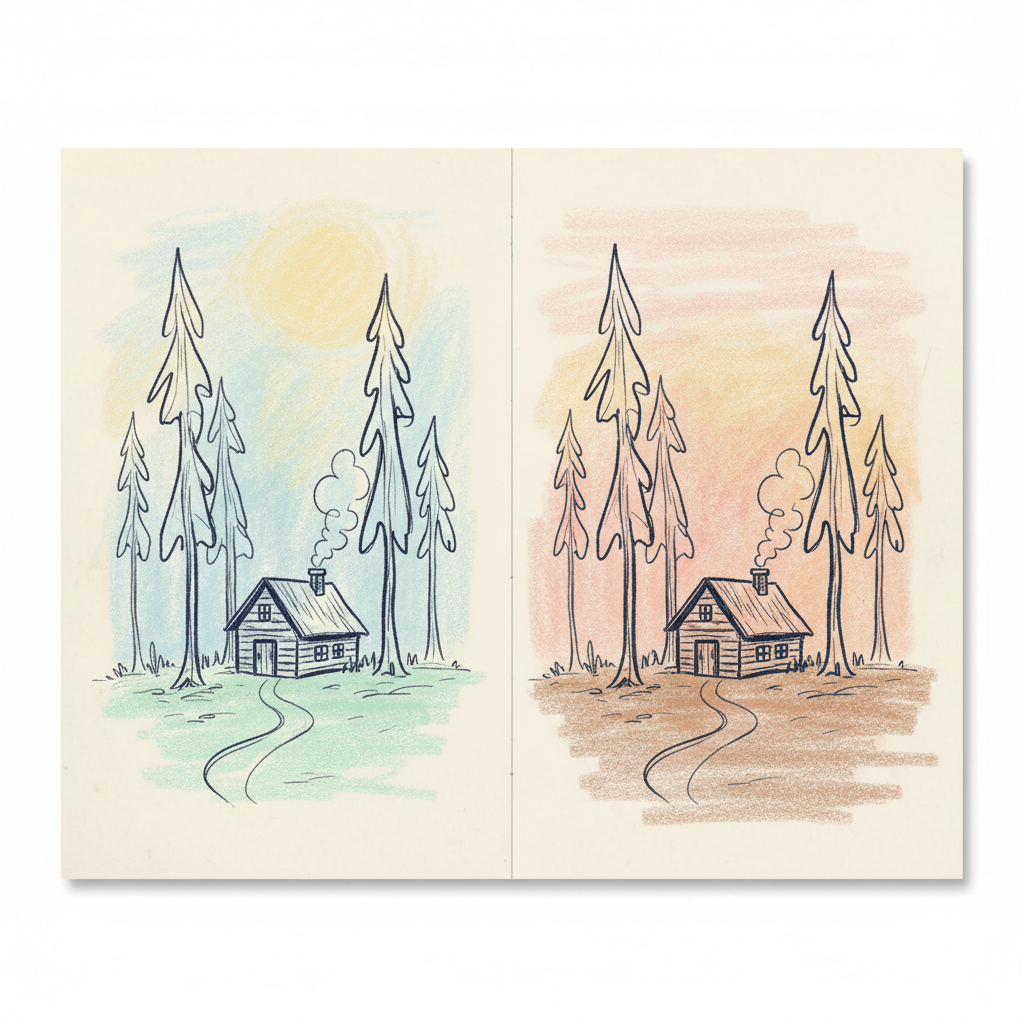
Digital sketching often feels flat when we rely solely on picking new colours from a palette. You might find your highlights look chalky or your shadows feel muddy because you are simply choosing a lighter or darker version of the same base tint. Creating realistic depth requires a firm grasp of how light actually interacts with surfaces through hue, saturation, and brightness.
In Sketchboard AI, you do not have to repaint an entire section to fix the lighting. By using non-destructive HSB adjustments, you can fine-tune the atmospheric feel of your work after the strokes are down. This approach mimics how traditional painters glaze over their work to shift the temperature and tone of a scene.
Understanding the HSB Model
To master lighting, you must move beyond simple RGB sliders. The HSB model—Hue, Saturation, and Brightness—aligns more closely with how our eyes perceive the world.
- Hue represents the actual colour or tint. When light hits an object, it often shifts the hue slightly toward the colour of the light source, such as warm yellow or cool blue.
- Saturation dictates the intensity. Intense light often washes out colour, while deep shadows can either desaturate an object or make colours appear richer depending on the ambient bounce.
- Brightness is the perceived lightness. This is your primary tool for defining form and volume.
Using these three pillars together allows you to create a sense of three-dimensional space on a two-dimensional board.
Creating Atmospheric Depth
Lighting is the most effective way to lead a viewer's eye through a sketch. In a landscape or a complex character drawing, you can use HSB adjustments to create aerial perspective. Objects further away generally become lighter in value, less saturated, and shift toward a cooler hue like blue or grey.
On your sketch board, you can select background elements and dial down the saturation while slightly increasing the brightness. This immediately pushes those elements into the distance, making your foreground subjects pop. Because Sketchboard AI uses non-destructive adjustments, you can experiment with these values without losing the original pigment of your digital ink or pencil strokes.
Using HSB for Dynamic Shadows
One of the biggest hurdles for beginners is using black for shadows. In nature, shadows are rarely just a darker version of the object. They usually contain reflected light from the sky or surrounding environment.
The Shadow Workflow
- Sketch your object using your preferred brush family, such as the charcoal or ink pen.
- Duplicate the element or select a specific area you wish to shade.
- Open the Adjustments panel and navigate to HSB.
- Lower the brightness to deepen the tone.
- Slightly increase the saturation to keep the shadow from looking grey and lifeless.
- Shift the Hue slider toward a cooler temperature (like purple or blue) to simulate natural ambient light.
Lighting Comparison Table
Use this quick reference to decide how to adjust your HSB sliders based on the lighting condition you want to achieve:
| Lighting Goal | Hue Shift | Saturation Adjustment | Brightness Adjustment |
|---|---|---|---|
| Direct Sunlight | Shift toward Yellow/Orange | Increase Saturation | Increase Brightness |
| Deep Shadow | Shift toward Blue/Purple | Variable (often Increase) | Decrease Brightness |
| Overcast Day | Neutral/No Shift | Decrease Saturation | Moderate Brightness |
| Moonlight | Shift toward Cyan/Blue | Decrease Saturation | Decrease Brightness |
| Neon Glow | Shift toward Pink/Green | Maximize Saturation | High Brightness |
Fine-Tuning with the Smudge Tool
Once you have adjusted the HSB values of your strokes, the lighting might feel a bit too clinical or sharp. This is where the smudge tool becomes invaluable. It does more than just blur; it nudges the strokes and picks up the newly adjusted pigment.
By lightly smudging the edges where a high-brightness stroke meets a low-brightness stroke, you create a soft transition known as a penumbra. This mimics how real light wraps around an object. Sketchboard AI allows you to maintain the hand-drawn texture of the brush while blending these tonal values, ensuring your sketch remains organic and expressive.
Common mistakes
- Over-saturating highlights: Pushing saturation too high on bright areas can make them look radioactive rather than illuminated.
- Ignoring Hue shifts: Only changing brightness makes shadows look like grey dirt rather than natural occlusion.
- Global adjustments only: Forgetting to adjust elements individually, which leads to a flat, uniform look across the whole board.
- Neglecting the light source: Adjusting HSB values randomly without deciding where the sun or lamp is positioned in the scene.
FAQ
Can I reset my HSB adjustments if I don't like them?
Yes. The sliders in Sketchboard AI can be reset with a single click, returning the element to its original drawn state. This encourages experimentation without the risk of ruining your work.
Should I adjust HSB before or after using the Smudge tool?
It is usually best to adjust HSB first to establish your primary light and dark values. Once the colours are correct, use the smudge tool to blend the transitions for a smoother finish.
Does HSB work on the marker illustrations in the library?
Absolutely. You can drag any illustration from the library onto the board and use HSB adjustments to change its colour and tone to match your specific lighting setup.
Try it on your next sketch
Lighting is the difference between a flat diagram and a living drawing. Next time you are working on your sketch board, try dedicated HSB passes. Pick a light source, select your elements, and play with the hue and saturation instead of just the brightness.
Whether you are using the free plan with a single board or collaborating on a Team plan, these non-destructive tools give you the professional control needed for high-quality visual storytelling. Open a new board in Sketchboard AI today and see how a few HSB tweaks can bring your sketches to life.
- digital lighting
- hsb adjustments
- sketching techniques
- color theory
- digital art tips


