Retro Effects for Digital Sketching: Halftone and Glitch
Discover how to blend classic hand-drawn brushwork with modern digital adjustments like halftone and glitch to create sketches that stand out from the crowd.
· 6 min read
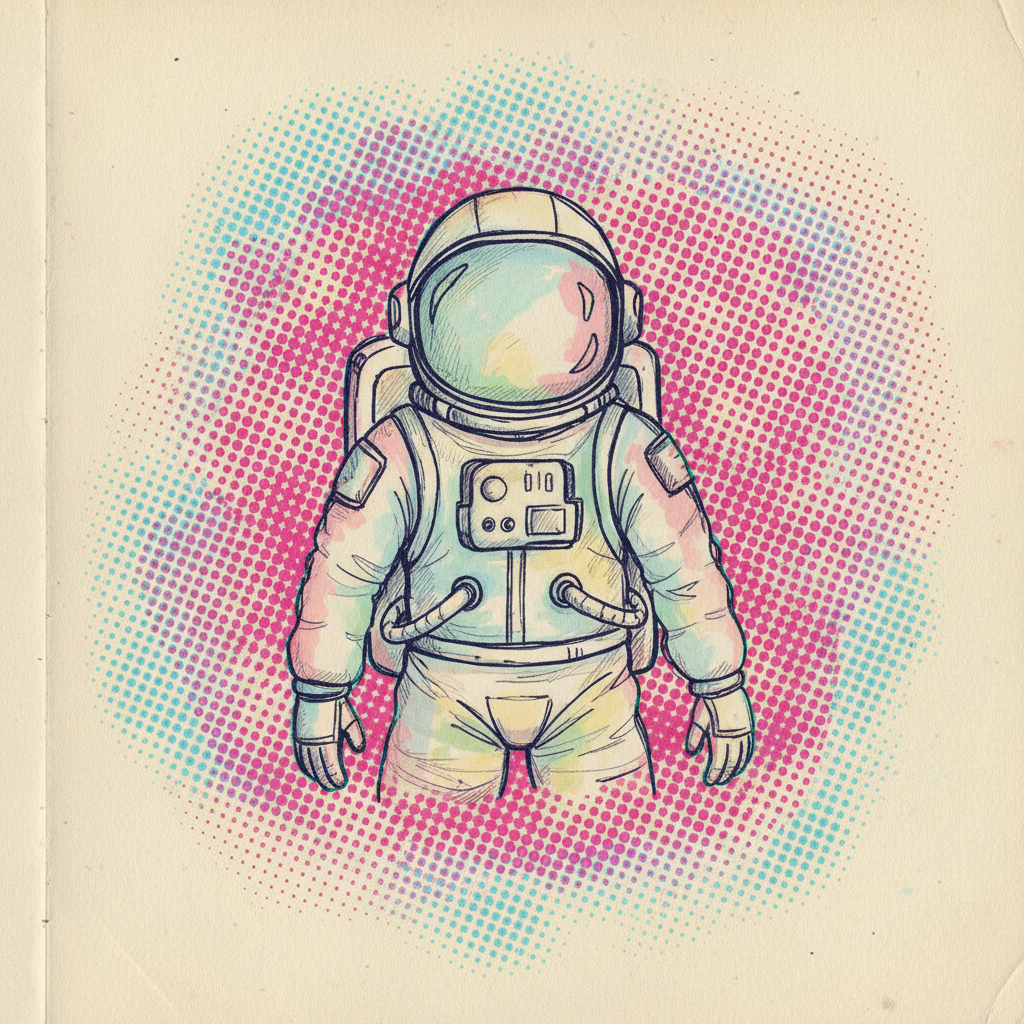
Digital sketches often feel too clean or clinical when compared to physical paper. You might find that your drawings lack the grit of old comic books or the high-energy vibration of modern digital art. Bridging the gap between traditional hand-drawn marks and bold visual effects is the key to creating sketches that capture attention.
The Power of Non-Destructive Adjustments
When you work on a physical sketchbook, an ink splash or a screen-tone application is permanent. In a digital environment, you have more freedom. Sketchboard AI uses a non-destructive system for adjustments. This means you can apply a complex effect to a single brush stroke or a whole group of elements without permanently changing the original drawing.
If you decide a halftone pattern is too dense, you don't need to hit undo fifty times. You simply open the adjustment panel and slide the values back. This encourages experimentation. You can draw with the pencil brush to get your structure right, then layer on bold digital effects to see how they transform the mood of the work.
Master the Digital Halftone Effect
Halftone is the classic technique of using dots of varying sizes to simulate a continuous tone. It is the hallmark of vintage newspapers and pop art. In a digital sketch board, halftone adds a tactile, printed quality to your drawings.
Creating Depth with Dot Patterns
Instead of using a standard grey wash to create a shadow, try applying a halftone adjustment to a black ink stroke. This breaks the solid colour into a rhythmic pattern that feels lighter and more intentional. It is especially effective for:
- Adding texture to large background areas without making them feel heavy.
- Creating a vintage comic book aesthetic for your character sketches.
- Differentiating between foreground subjects and background scenery.
Adjusting Scale and Intensity
You can type exact values into the adjustment sliders to control how prominent the dots are. A small scale creates a subtle texture that looks like high-quality print, while a large scale creates a bold, graphic look suitable for posters or high-impact presentation slides.
Using the Glitch Adjustment for Energy
The glitch effect mimics digital artifacts and chromatic aberration. It is the perfect counterpoint to the organic feel of hand-drawn brushwork. By adding a slight glitch to a sharp pen drawing, you introduce a sense of motion and vibration.
- Draw your subject using the marker or pen brush family.
- Select the element and open the Adjustments panel.
- Navigate to the Glitch tool.
- Adjust the horizontal shift to separate the colour channels.
- Use the vertical jitter to add a sense of digital corruption.
This technique works brilliantly for technology-themed sketches, sci-fi concepts, or simply to make a header on a team board feel more dynamic. Because the adjustment is isolated to the element, you can keep your text perfectly readable while the illustrations behind it seem to vibrate with energy.
Combining Effects with Brush Textures
The real magic happens when you layer these digital adjustments on top of specific brush families. Sketchboard AI offers 25 brush families, each responding to pressure and velocity. When you combine a charcoal brush—which already has a grainy, porous texture—with a halftone filter, the result is a complex, multi-layered look that is difficult to achieve in simpler drawing apps.
| Effect Combination | Best Brush Choice | Intended Mood |
|---|---|---|
| Halftone + Ink | Pen / Ink | Vintage Comic / Pop Art |
| Glitch + Digital | Digital / Airbrush | Cyberpunk / Modern Tech |
| Bloom + Crayon | Crayon / Gouache | Dreamy / Soft Illustration |
| Motion Blur + Pencil | Pencil / Charcoal | Action / Speed Sketches |
Managing Your Layers and Order
As you begin to use these adjustments, your board can become complex. Use the layers list to keep track of your elements. You can move adjusted elements to the front or back using keyboard shortcuts, ensuring your glitch effects don't obscure important labels or symbols. If you find yourself selecting the wrong element in a crowded sketch, the right-click picker allows you to see a list of every overlapping item, making it easy to grab exactly what you need.
Remember that Sketchboard AI remembers your panel positions and visibility per board. If you prefer to keep your Adjustments panel floating on the right side of the canvas while you work, it will be there exactly where you left it the next time you log in.
Common mistakes
- Over-applying the glitch effect to the point where the original drawing is unrecognisable.
- Using halftone on very thin, light pencil lines, which can make the drawing look like it has vanished.
- Applying heavy motion blur to text, making your board difficult for teammates to read.
- Forgetting to group elements before applying an adjustment, leading to inconsistent looks across a single character or object.
- Neglecting the 'reset' button on sliders when a look isn't working, rather than just starting fresh.
FAQ
Can I apply these effects to the 1,000+ marker illustrations in the library?
Yes. Any illustration, symbol, or sticker dragged onto the board can be modified using the non-destructive adjustment panel, including halftone and glitch.
Do these adjustments export to PDF and PNG?
Absolutely. All HSB, curves, and filter adjustments are preserved when you export your board to any format, including high-resolution PNG, SVG, or PDF.
Will adding these effects slow down real-time collaboration?
No. Because the adjustments are calculated on the fly as part of the element's properties, your teammates will see your stylistic choices update in real-time without lagging the board.
Try it on your next sketch
Ready to add some digital grit to your hand-drawn work? Open a new board and experiment with the intersection of organic brushes and digital filters. Start with a free plan to test the charcoal and ink families, then try the Pro plan for unlimited boards and the full suite of non-destructive adjustments. Whether you are sketching for yourself or building a presentation for a client, these retro effects will give your work a professional, polished edge that standard digital boards can't match.
- digital sketching
- halftone pattern
- glitch effect
- sketching techniques
- non-destructive editing


