Mastering Digital Dry Media Layering and Texture
Discover how to combine digital dry media like charcoal and crayon to create rich, multi-layered textures that mirror the feel of a traditional physical sketchbook.
· 6 min read
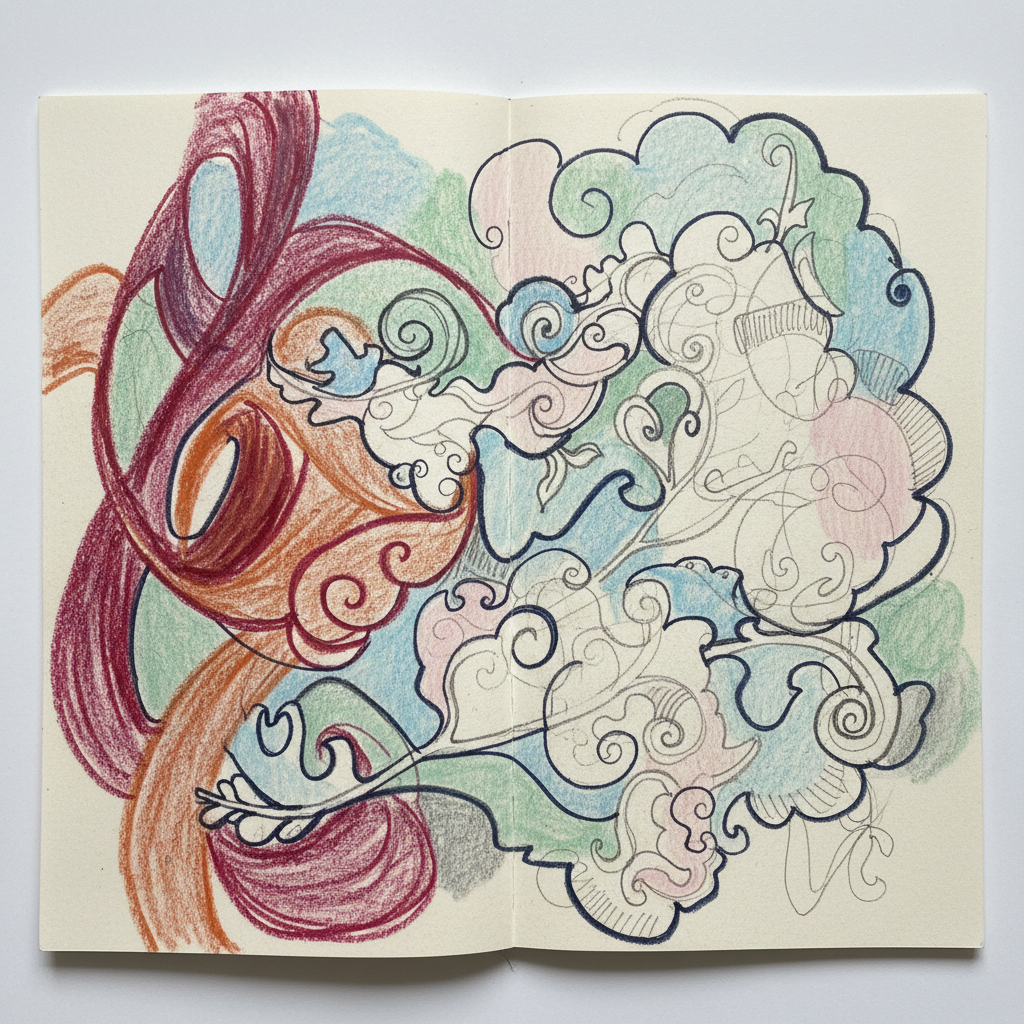
Creating depth in a digital sketch often feels difficult because pixels can look flat and clinical. Traditional artists rely on the physical buildup of graphite, charcoal, and wax to create interest, but replicating that tactile grit on a screen requires a specific approach to layering. By understanding how different dry media interact, you can transform a simple sketch into a rich, professional illustration.
The Logic of Dry Media Interaction
In a physical sketchbook, dry media behave differently based on their hardness and pigment load. A hard pencil will indent the paper, while a soft charcoal stick will sit loosely on the surface. When working on a digital sketch board like Sketchboard AI, you can replicate this by using the 25 brush families to stack textures purposefully.
Dry media layering is about building from the most stable, fine details toward the most expressive, volatile textures. If you start with a heavy crayon, your fine pencil work will get lost in the grain. Instead, treat your digital canvas like a piece of high-tooth paper that absorbs pigment in stages.
Establishing the Graphite Foundation
Every great dry media piece starts with a structural foundation. Use the pencil family to map out your initial forms. Because Sketchboard AI responds to both pressure and velocity, you can vary your line weight just by changing how fast or hard you move your stylus.
Building the Sketch
- Initial block-in: Use a light, thin pencil stroke to find your proportions. Keep your pressure low to ensure these lines remain subtle.
- Defining edges: Increase your velocity for sharper, more confident lines on the focal points of your subject.
- Hatching: Use the pencil to create a base level of value. This provides a 'grip' for the heavier textures you will add later.
Layering Charcoal for Depth and Shadow
Once your structure is set, it is time to introduce the charcoal family. Charcoal provides the deep blacks and gritty mid-tones that graphite cannot achieve alone. This is where you move from linear drawing to tonal massing.
Apply charcoal in broad strokes over your pencil work. The beauty of this layer is the grain; it fills the 'valleys' of your digital canvas. If you find the charcoal is too heavy, the partial eraser is your best friend. Instead of deleting the whole stroke, you can gently rub away specific areas to let the graphite peek through, creating a complex, multi-layered look that feels authentic.
Adding Wax and Grit with Crayon
To finish a dry media sketch, you need the unique texture of the crayon family. Crayon acts as a high-contrast finisher. Because it has a waxy, thick appearance, it sits 'on top' of the charcoal and graphite.
Use the crayon brush for highlights or to add pops of saturated colour. The way the crayon skips across the digital grain adds a level of realism that makes the viewer forget they are looking at a screen. You can even use the smudge tool to nudge these waxy pigments into the charcoal below, creating a blended, painterly transition that maintains the dry media feel.
A Quick Guide to Dry Media Tools
| Tool Family | Primary Use | Layering Position | Effect |
|---|---|---|---|
| Pencil | Structure & Hatching | Bottom Layer | Precise, light, builds value slowly |
| Charcoal | Value & Mass | Middle Layer | Gritty, dark, covers large areas |
| Crayon | Highlights & Texture | Top Layer | Waxy, high-contrast, tactile grain |
| Smudge | Transitions | Between Layers | Blends pigments, softens harsh edges |
Using Adjustments to Enhance Texture
Digital sketching allows you to refine your textures in ways traditional paper cannot. Sketchboard AI features non-destructive Adjustments that you can apply to any element. If your charcoal layer feels a bit flat, try applying a slight Halftone effect to exaggerate the grain.
If the values are not quite right, open the Curves or HSB panels. You can darken your charcoal shadows or shift the temperature of your crayon highlights without redrawing a single stroke. These panels stay open and draggable, so you can tweak the look of your sketch in real-time as you add more layers.
Common Mistakes
- Over-smudging: Using the smudge tool on every layer can lead to a muddy, blurry mess. Keep some edges sharp to maintain the 'dry' feel.
- Ignoring pressure: Pressing equally hard for every stroke eliminates the natural variation that makes dry media beautiful.
- Layering out of order: Putting fine pencil marks over heavy crayon usually looks unnatural, as the wax would naturally repel the lead.
- Flat blacks: Using a single solid black for all shadows. Instead, layer charcoal and pencil to create 'living' darks with internal texture.
FAQ
Can I layer dry media over AI-generated images?
Yes. You can generate a base symbol or illustration using the AI tools in the Images tab and then use charcoal or pencil brushes to draw directly over it. This is a great way to add a hand-drawn touch to generated assets.
How do I keep my textures from looking too digital?
Focus on velocity. Fast strokes with the charcoal brush tend to leave more 'skip' marks, which mimics the way a physical stick of charcoal catches on the bumps of textured paper.
What if I make a mistake in a heavy texture layer?
Use the partial eraser. It allows you to rub out only the specific area you touch, rather than deleting the entire stroke. This lets you sculpt your textures rather than just drawing and deleting them.
Try it on your next sketch
Ready to get your hands dirty without the mess? Open a new board on Sketchboard AI and experiment with these layering techniques. Start with the free plan to explore 100 illustrations and symbols, or upgrade to a Pro or Team plan for unlimited boards and advanced collaboration. Grab your stylus, pick a charcoal brush, and start building rich, tactile layers on your own digital sketch board today.
- dry media
- digital sketching
- layering techniques
- brush textures
- sketchbook art


