Dry Brush Techniques for Weathered Digital Textures
Discover how to master digital dry brush techniques to add authentic weathered textures, grit, and aged character to your hand-drawn digital sketches and illustrations.
· 7 min read
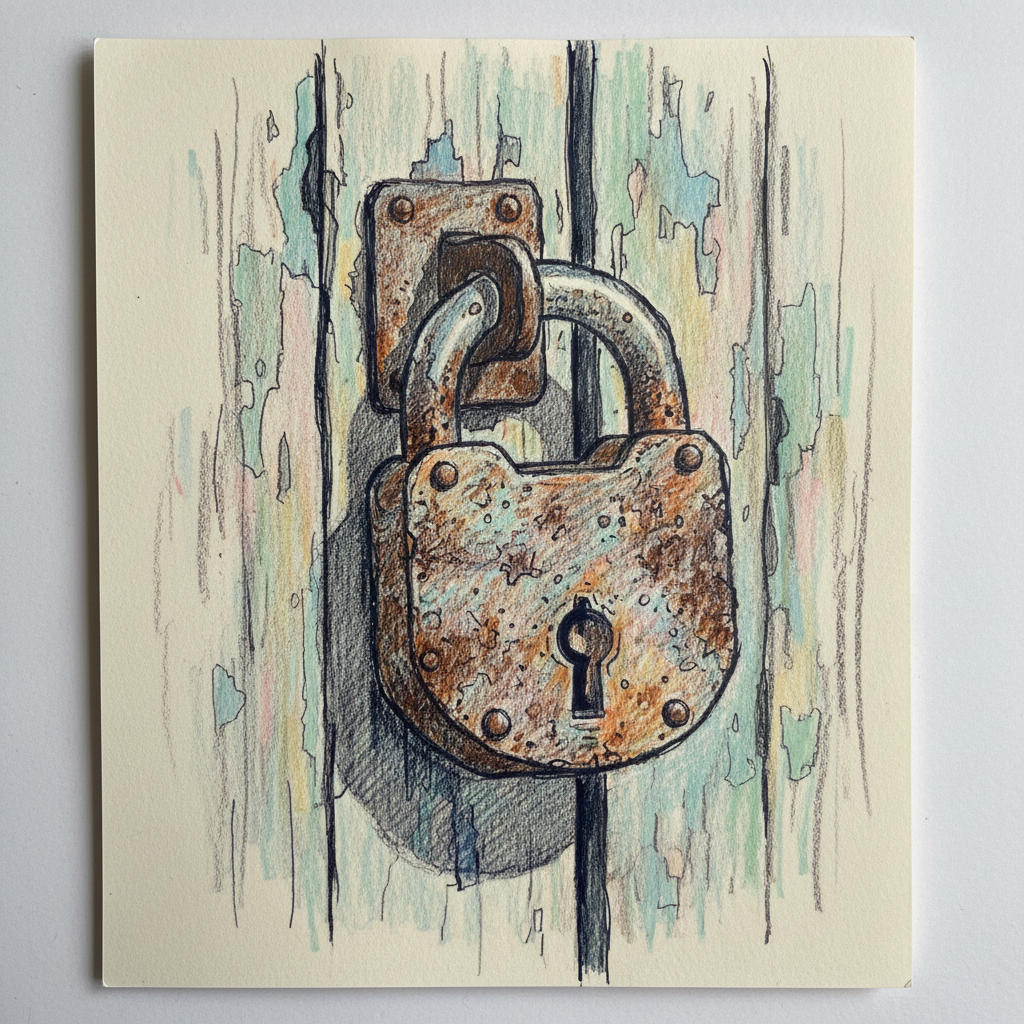
Capturing the look of aged wood, rusted metal, or peeling paint can be difficult when working digitally. Most standard brushes feel too smooth or synthetic to replicate the gritty, unpredictable nature of physical weathering. Without the right approach to texture, your sketches can end up looking flat and overly clinical.
Creating weathered effects requires a combination of specific brush dynamics and a hands-on approach to pigment manipulation. By using a sketch board like Sketchboard AI, you can access brush families that react to how you move your hand, allowing you to build up grit and character just as you would on a physical canvas.
The Physics of Digital Dry Brushing
Dry brushing is a technique where the brush holds very little pigment and moisture. When you drag it across a textured surface, the bristles only catch the highest points of the material. This creates a broken, scratchy effect that is perfect for simulating wear and tear. In a digital environment, this is achieved by using brushes that respond to both pressure and velocity.
When you move your pen quickly with light pressure, the Sketchboard AI engine creates thinner, more transparent deposits of pigment. This mimics the way a real brush skips across a rough surface. To get the best results, look for the charcoal, chalk, or rough ink brush families. These have built-in grain that interacts with your stroke speed to produce that signature 'toothy' look.
Building Layers of Grit
Weathering is rarely a single layer. It is a history of damage and exposure. To create a convincing aged surface, you need to work in stages. Start with your base material, then gradually introduce signs of environmental stress.
- The Base Layer: Use a broad, flat brush like a gouache or thick marker to lay down the primary colour of your object. Keep the opacity slightly varied to avoid a plastic look.
- Surface Stress: Switch to a charcoal or dry ink brush. Choose a slightly lighter or darker version of your base colour. Drag the brush quickly over areas that would naturally see friction, such as corners or handles.
- Deep Pitting: Reduce your brush size and increase the pressure. Add small, dark dots and irregular lines to represent cracks or deep rust spots.
- Highlights: Use a bright, contrasting colour with a very fine pencil or ink brush to add 'nicks' where the light catches the edge of a scratch.
Using the Smudge Tool for Wear
The smudge tool in Sketchboard AI is unique because it doesn't just blur pixels; it nudges the strokes and picks up the pigment you have already placed. This is essential for weathering. If you have drawn a streak of rust, you can use the smudge tool to gently pull that pigment downwards, simulating how rain would wash rust down a metal plate over time.
Creating Specific Weathered Materials
Different materials weather in different ways. Understanding these patterns helps you choose the right digital tool for the job. Below is a guide on which brush families to use for common textures.
| Material | Primary Brush Family | Smudge Tool Use | Adjustment Effect |
|---|---|---|---|
| Aged Wood | Charcoal / Pencil | Pull along the grain | HSB for desaturation |
| Rusted Iron | Airbrush / Crayon | Nudge edges for grit | Halftone for pitted feel |
| Peeling Paint | Ink / Pen | Don't smudge; keep edges sharp | Motion Blur for falling flakes |
| Cracked Concrete | Chalk / Digital | Use to soften deep cracks | Curves for high contrast |
| Dusty Glass | Airbrush | Lightly cloud the surface | Gaussian Blur for depth |
Non-Destructive Adjustments for Age
Sometimes the drawing itself is perfect, but the colours look too new. Sketchboard AI allows you to apply non-destructive adjustments to any element on your board. This means you can experiment with the 'age' of your drawing without losing your original linework.
Use the HSB (Hue, Saturation, Brightness) sliders to knock back the saturation. Real-world objects lose their vibrant colour as they sit in the sun. If you are drawing an old sign, decreasing the saturation while slightly shifting the hue toward yellow or grey can instantly make it look decades older. The Curves adjustment is also powerful here; by crushing the blacks or lifting the whites, you can simulate the faded contrast of an old photograph or a sun-bleached poster.
Common Mistakes to Avoid
- Over-weathering: Don't cover the entire object in grit. Leave some areas relatively clean so the viewer has a point of reference for the original material.
- Uniformity: Weathering is chaotic. Avoid repeating the same scratch pattern or using the same spacing for rust spots. Turn off snapping if you need more organic placement.
- Ignoring Light: Even a scratch has a shadow side and a highlight side. If your texture looks flat, you likely forgot to add a thin highlight to the 'up' edge of the texture.
- Soft Edges Only: Many artists rely solely on the airbrush for dirt. Real grime often has hard, crusty edges. Mix your soft airbrushing with sharp, high-velocity ink strokes.
FAQ
Can I save my custom textured brushes?
Sketchboard AI remembers your most recently used brush settings, including pressure and velocity response. While the 25 brush families provide the base, your unique way of handling the smudge and partial eraser tools creates a personal style that stays consistent across your board.
How do I make the grain look larger or smaller?
Texture scale is usually controlled by your zoom level and stroke speed. For finer grit, zoom in and use short, fast strokes. For larger, coarser textures like heavy wood grain, zoom out and use slower, more deliberate movements with the charcoal brush.
Does the smudge tool work on AI-generated images?
Yes. If you use the Images tab to generate a base illustration or symbol, you can use the smudge tool to hand-distress the edges or blend your own hand-drawn dry brush strokes into the AI generation for a seamless, hybrid look.
Try it on your next sketch
Texture is what separates a sterile diagram from a living drawing. Next time you are working on your sketch board, pick an object and try to make it look one hundred years old. Use the charcoal brush for the base grit, the smudge tool to create environmental wear, and a Curves adjustment to fade the history of the piece. Open Sketchboard AI today and start building character into your digital sketchbook through the art of the dry brush.
- dry brush
- weathered texture
- digital sketching
- smudge tool
- brush families
- illustration


