Digital Crayon Drawing: Master Wax and Pastel Textures
Discover how to recreate the tactile, vibrant feel of wax crayons and oil pastels using the professional drawing tools and pressure-sensitive brushes in Sketchboard AI.
· 6 min read
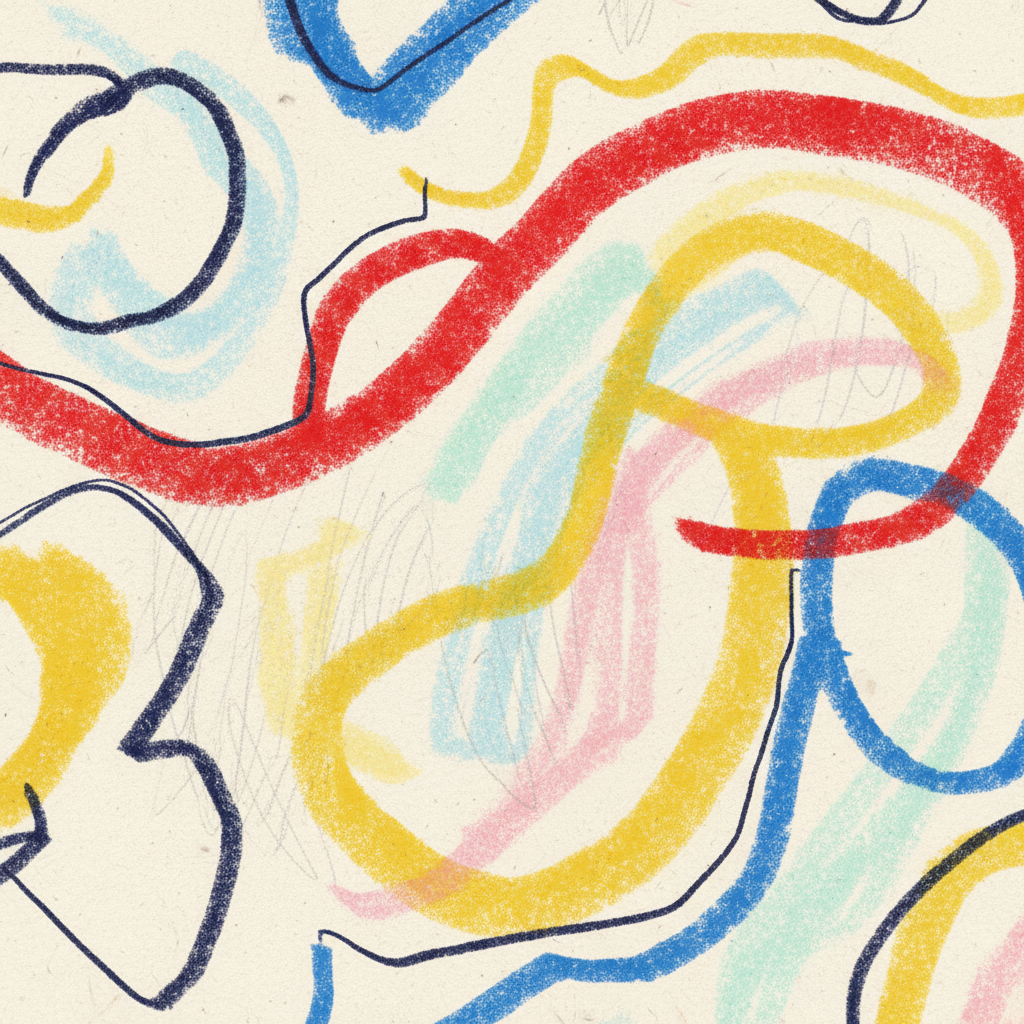
Digital drawing often feels too clean or clinical. If you miss the tactile friction of a real wax crayon or the rich, buttery spread of an oil pastel, you are not alone. Achieving that specific gritty texture while maintaining control over your composition is a common challenge for digital artists.
The appeal of the crayon aesthetic
Crayons and pastels offer a unique visual language. They represent playfulness, boldness, and a lack of preciousness that helps overcome creative blocks. The heavy grain allows for beautiful layering where the colours underneath peek through the texture of the top stroke. This creates a vibration in the image that flat digital fills simply cannot match.
On a versatile sketch board like Sketchboard AI, the Crayon brush family is designed to mimic this physics. It responds to both the pressure of your stylus and the velocity of your stroke. If you draw quickly, you get a lighter, more textured line. If you press harder and slow down, you get the deep, opaque saturation typical of a fresh wax stick.
Setting up your digital sketchbook
Before you start your first stroke, consider your canvas. In the physical world, crayons work best on paper with a 'tooth' or grain. While digital screens are smooth, you can simulate this environment by adjusting your background.
- Canvas Presets: Choose a canvas size that matches your intended output, whether it is a social post or a print-ready A4 sheet.
- Background Colour: Pure white can be harsh. Use the background picker to select a soft cream or a light grey. This helps the waxy texture of the digital crayon stand out.
- Grid and Rulers: Turn on the grid if you are planning a structured illustration, but keep the snapping optional to maintain a hand-drawn, organic feel.
Master the layering technique
One of the secrets to great crayon art is building up pigment. Because these brushes are semi-translucent at lower pressures, you can mix colours directly on the board. Start with your lightest hues to map out the basic shapes. Then, layer darker or more vibrant tones on top.
If a layer becomes too heavy, you do not have to delete it. Sketchboard AI uses non-destructive Adjustments. You can select your crayon strokes and open the Adjustments panel to tweak the HSB (Hue, Saturation, Brightness) or apply a Curves adjustment to deepen the shadows without redrawing a single line.
Using the Smudge and Partial Eraser
Crayons are notoriously messy, which is part of their charm. In a digital environment, you have much more control over this mess. The Smudge tool is your best friend for creating soft transitions or 'melting' two crayon colours together. It nudges the existing strokes and picks up the pigment, allowing you to drag a sharp edge into a soft, hazy blur.
When it comes to corrections, the partial eraser is a game-changer. Unlike a standard digital eraser that deletes a whole element, the partial eraser only removes the specific area you rub. This allows you to 'carve' into your crayon blocks, creating sharp highlights or cleaning up edges while leaving the rest of the texture intact.
Tools for Crayon Illustration
| Tool | Best Use Case |
|---|---|
| Crayon Brush | Primary drawing, bold outlines, and filling large textured areas. |
| Smudge Tool | Blending edges, creating shadows, and softening harsh transitions. |
| Partial Eraser | Adding highlights, sharpening silhouettes, and detail work. |
| HSB Adjustment | Changing the mood of a drawing without re-colouring. |
| Bloom Effect | Making bright wax highlights appear to glow or catch the light. |
Adding depth with non-destructive effects
Once your basic sketch is complete, you can use the built-in effects to add professional polish. The 'Liquify' adjustment is particularly useful for crayon work; it allows you to slightly warp your waxy strokes to imply movement or fluid shapes.
If your drawing feels too flat, try the 'Gaussian Blur' on a background layer of crayon scribbles to create a shallow depth of field. Because these adjustments are non-destructive, you can always toggle them off or change the intensity later if you decide the original sketch looked better.
Integrating hand-drawn elements
Sometimes you need a specific shape to ground your drawing. You can drag and drop from a library of 1,000 hand-drawn marker illustrations or symbols. If these do not match your crayon style perfectly, use the one-click swap feature to keep the size while you experiment with different styles, or use them as a tracing guide for your own freehand crayon work.
Common mistakes
- Over-smoothing: Trying to make every edge perfect ruins the 'hand-drawn' charm of the crayon texture.
- Ignoring pressure: Drawing with a mouse or a static-pressure setting makes crayon strokes look like flat ribbons rather than waxy sticks.
- Forgetting layers: Putting everything on one layer makes it harder to use the front/back ordering shortcuts later.
- Excessive blurring: Using the smudge tool on everything can make the drawing look muddy rather than textured.
FAQ
Can I use crayons for professional diagrams?
Yes. Using the crayon brush for 'washes' or highlighting specific areas of a flowchart adds a warm, human touch to otherwise dry technical documents. It makes the board feel like a collaborative sketchbook.
How do I get a sharp point with the crayon tool?
Increase your zoom level (double-click to zoom to a point) and reduce the brush size. The Crayon brush maintains its grain, but at smaller sizes, it acts more like a sharpened wax pencil.
What if I want to change the colour after I have finished?
You do not need to redraw. Select the element and use the 'Gradient Map' or 'HSB' adjustment to shift the entire colour palette instantly while keeping the waxy texture visible.
Try it on your next sketch
Ready to bring some grit and texture to your digital canvas? Whether you are illustrating a new concept or just doodling during a break, Sketchboard AI gives you the tools to create something that looks and feels authentic.
Start with the free plan to explore the first 25 brush families. You can export your finished masterpiece to PNG or SVG, or even a high-quality PDF for printing. Grab your stylus, select the Crayon brush, and see what you can create on your own infinite sketch board today.
- digital drawing
- crayon texture
- sketchbook tips
- illustration techniques
- creative workflow


