Digital Charcoal Sketching for Urban Landscapes
Master the gritty textures of urban environments using digital charcoal brushes and smudge tools to create atmospheric architectural sketches with depth.
· 7 min read
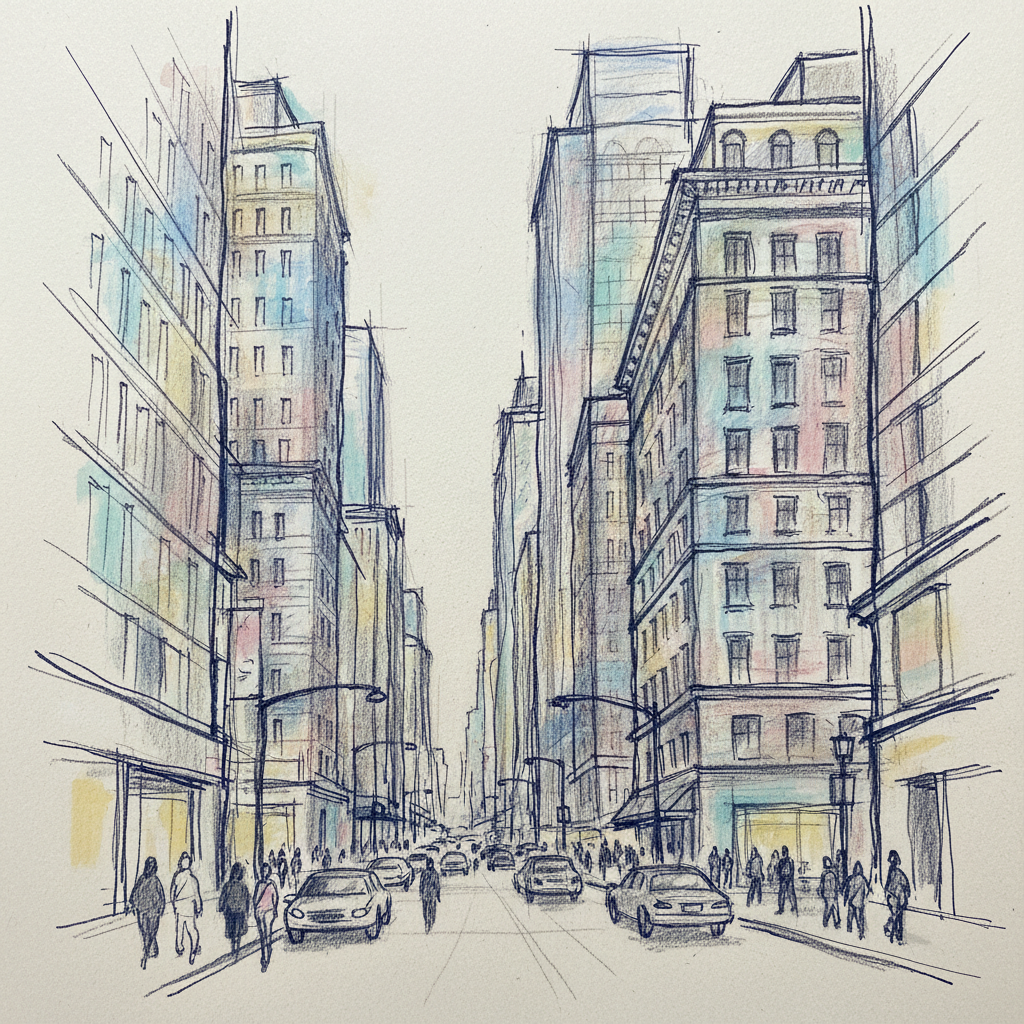
Capturing the raw energy of a city requires more than just straight lines. Most digital tools make urban scenes look too sterile or overly calculated. If you struggle to translate the gritty, tactile feeling of brick and pavement into your digital work, you need a softer, more traditional approach.
Digital charcoal sketching offers the perfect middle ground between technical drawing and expressive art. By using a hand-drawn sketch board like Sketchboard AI, you can harness the unpredictability of charcoal while keeping the flexibility of a digital canvas. This guide explores how to build an urban landscape from the first rough shapes to the final atmospheric details.
Choosing Your Charcoal Brushes
Not all charcoal brushes are the same. In a city scene, you need a variety of edges to define different structures. The Sketchboard AI brush library includes specific charcoal options that respond to your touch. When you press harder, the stroke becomes wider and darker, mimicking the way a physical vine charcoal stick crumbles against paper.
Start with a light, thin charcoal brush for your horizon line and vanishing points. Use a broader, textured charcoal brush for large areas of shadow, such as the sides of buildings or the underside of bridges. The natural grain of these brushes adds an immediate sense of history and wear to your structures, preventing them from looking like brand-new plastic models.
Building Architectural Form with Tone
Urban sketching is less about drawing every window and more about defining how light hits a volume. Charcoal excels here because it is fundamentally a tonal tool. Instead of focusing on outlines, try to block in the dark side of a building first.
Creating Depth with Atmospheric Perspective
In a city, objects further away appear lighter and less detailed. Use a lower pressure on your charcoal brush for distant skyscrapers. As you move toward the foreground, increase the pressure and the size of your strokes. This creates a natural sense of scale and depth. You can also use the Smudge tool to soften the edges of distant buildings, making them recede into the haze.
Adding Structural Details
Once your main shapes are in place, switch to a sharper charcoal or ink brush for foreground details. Draw the jagged lines of a fire escape or the silhouette of a street lamp. Because Sketchboard AI uses a non-destructive layer system, you can keep these sharp foreground elements on a separate layer from your soft background tones. This allows you to adjust the transparency or position of the buildings without losing your fine detail work.
Mastering the Smudge and Nudge
One of the best parts of charcoal is how it moves across the page. Digital smudging should feel just as intuitive. The smudge tool in Sketchboard AI doesn't just blur pixels; it nudges the strokes and picks up the charcoal pigment as you rub the screen. This is essential for creating realistic stone textures and soft shadows on pavement.
| Smudge Technique | Best Used For | Effect |
|---|---|---|
| Circular Rubbing | Stone and Brick | Creates a mottled, weathered texture |
| Long Vertical Pulls | Reflections on Rain | Stretches pigment to mimic wet surfaces |
| Light Dabbing | Smoke or Haze | Softens edges without losing the core shape |
| Edge Tapering | Soft Shadows | Transitions a dark shadow into a light highlight |
If you over-smudge, use the partial eraser. Unlike a standard digital eraser that leaves a white hole, a partial eraser allows you to thin out the charcoal gradually. It mimics the action of a kneaded eraser, lifting just enough pigment to create a highlight on a window sill or the top of a parked car.
Enhancing Mood with Adjustments
Urban scenes are defined by their lighting. After you have finished your charcoal work, you can use Adjustments to fine-tune the mood. Charcoal usually looks best in high contrast, but sometimes a softer, greyscale look is more evocative.
Try applying a Bloom effect to your light sources, such as street lamps or shop windows. This gives the charcoal a glowing quality that contrasts beautifully with the dark, dusty textures. If the scene feels too flat, use the Curves adjustment to deepen the blacks and brighten the whites. Because these adjustments are non-destructive, you can experiment with the glitch or halftone filters to give your urban sketch a more modern, lo-fi aesthetic.
Common Mistakes to Avoid
- Over-detailing the background: If every brick in the distance is sharp, the drawing will feel flat. Keep the charcoal soft and blurry in the back.
- Ignoring the paper grain: Digital charcoal looks best when you let the background texture show through. Avoid filling every white space.
- Using only one pressure: If your lines are all the same thickness, the city will look like a wireframe. Vary your stroke velocity to add life.
- Forgetting the smudge tool: Hard edges are rare in charcoal. Always blend your shadows slightly to create a more natural look.
FAQ
Can I mix charcoal with other brushes?
Yes. A common technique is to use charcoal for the main atmosphere and then use the Pen or Ink brushes from the Sketchboard AI library for fine architectural lines and signage. This creates a compelling contrast between soft and hard textures.
How do I handle mistakes in charcoal?
Use the partial eraser to lift pigment slowly rather than deleting a whole stroke. If you don't like the shape of a shadow, the smudge tool can nudge the existing charcoal into a new position without you having to redraw it.
What canvas size should I use for urban sketches?
It depends on where you want to share it. Sketchboard AI offers canvas size presets for various platforms. If you plan to print your sketch, choose a high-resolution preset to ensure the charcoal grain remains crisp when it hits the paper.
Try it on your next sketch
Ready to capture the spirit of the city? Open a new board on Sketchboard AI and select one of the charcoal brush families. Start with a quick gesture drawing of a street corner, focus on the weight of the shadows, and use the smudge tool to blend the grit. Whether you are building a professional architectural visualization or just sketching for fun, the tactile response of digital charcoal will bring your urban landscapes to life. Start your first board today and see how the grain of the charcoal changes your creative process.
- charcoal sketching
- urban landscape
- digital drawing
- architectural sketching
- smudge tool
- atmospheric perspective


