Digital Charcoal Drawing: Best Techniques and Tips
Learn how to replicate the tactile feel of physical charcoal in a digital space using pressure-sensitive brushes and advanced smudging tools.
· 5 min read
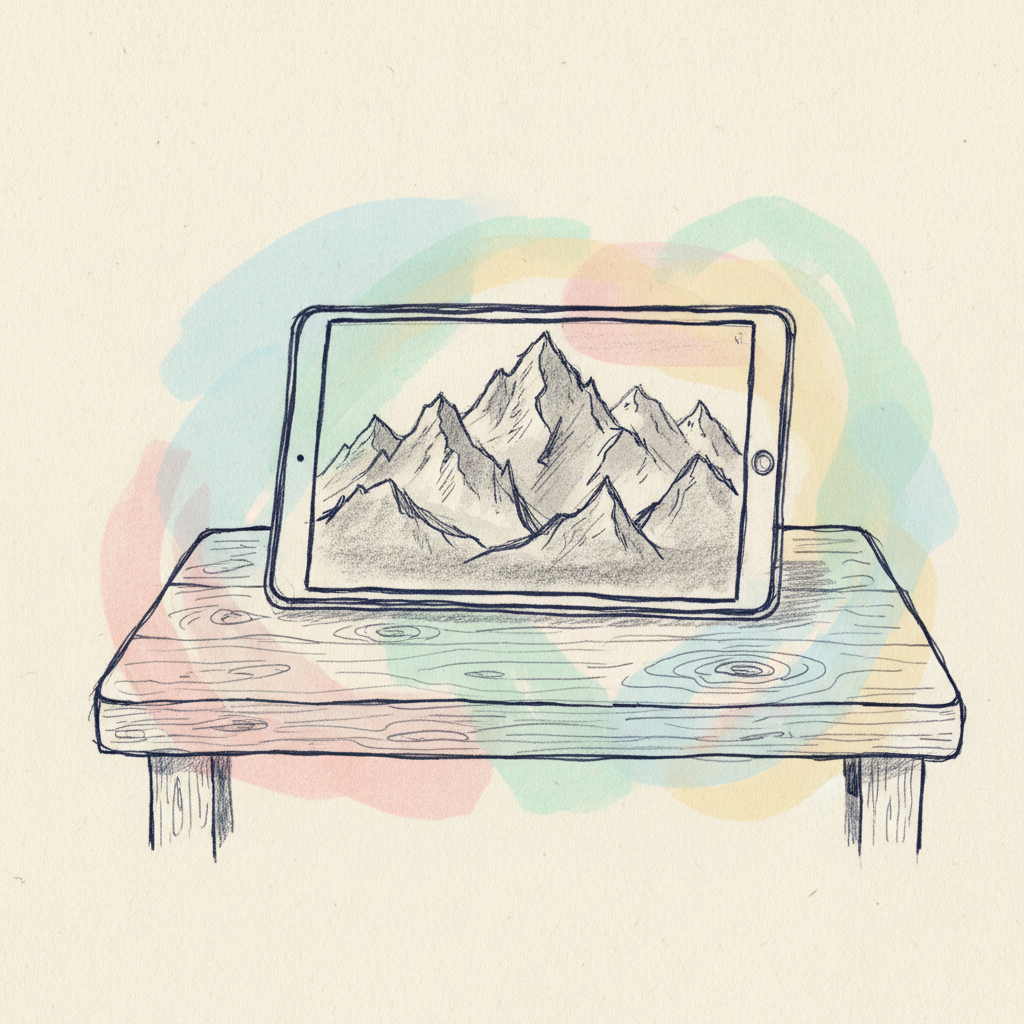
Traditional charcoal is messy, dusty, and notoriously difficult to undo. While the medium offers unparalleled depth and texture, the physical cleanup often discourages quick creative sessions during a busy workday. You want that gritty, organic feel for your concepts without the charcoal-stained fingers or the risk of ruining a paper sketch with one wrong stroke.
Digital sketching has often struggled to replicate the friction and unpredictability of burnt willow or compressed carbon. However, with the right tools, you can achieve that high-contrast, atmospheric look directly on your screen. Sketchboard AI provides a dedicated charcoal brush family that responds to your touch, allowing for a seamless transition from physical to digital art.
Understanding the Charcoal Brush Family
Charcoal is all about the grain. Unlike a felt-tip pen or a digital ink stroke, charcoal leaves behind a textured path that reveals the 'tooth' of the surface beneath it. In a digital sketch board environment, this is simulated through opacity and pressure sensitivity.
When you select a charcoal brush, the speed and pressure of your stylus or mouse dictate the density of the pigment. A light, fast stroke creates a faint, wispy grey line, perfect for initial structural layouts. A slow, heavy press results in a deep, velvety black that anchors your composition. Experimenting with these variables is the first step to mastering the medium.
The Power of the Smudge Tool
One of the most defining characteristics of charcoal drawing is the ability to blend. In a physical sketchbook, you would use a tortillon, a cloth, or your fingertips to soften edges.
Sketchboard AI includes a specialized smudge tool that functions differently from a standard eraser. Instead of removing pixels, it nudges the existing digital pigment. This allows you to:
- Create soft gradients: Drag the smudge tool from a dark area into a light one to create a smooth transition.
- Soften harsh outlines: If your initial sketch looks too 'digital' or sharp, a quick rub with the smudge tool adds an organic, hand-drawn blur.
- Add movement: Use directional smudging to imply wind, speed, or shadow cast.
Layering and Depth with Digital Adjustments
Charcoal drawings thrive on high contrast. Once you have your basic shapes down, you can use non-destructive adjustments to push the values further. This is where digital sketching takes a leap ahead of paper.
If your sketch feels a bit flat, you can apply a Curves adjustment to the entire layer. Pulling the darks lower and the lights higher will give your charcoal work that signature 'chiaroscuro' effect. Because these adjustments are non-destructive, you can experiment with different looks—like a grainy halftone or a subtle gaussian blur—without ever losing your original brushwork.
Essential Charcoal Techniques Checklist
- Block in large shapes: Use a thick charcoal brush at low pressure to define the composition.
- Define the light source: Identify where your highlights will be and avoid placing heavy pigment there.
- Build up darks: Layer your strokes to create deep shadows. Avoid going to 100% black immediately.
- Smudge for mid-tones: Use the smudge tool to pull pigment from dark areas into the grey zones.
- Refine with the partial eraser: Rub away small sections to create sharp highlights or clean up edges.
- Apply HSB adjustments: Tweak the brightness or saturation if you decide to add a hint of tint to your charcoal.
Integrating Charcoal into Professional Work
While charcoal is a classic art medium, it has a practical place in professional workflows. It is particularly effective for mood boards, storyboarding, and rough architectural concepts. The 'unfinished' nature of a charcoal sketch invites feedback more readily than a polished, high-fidelity render.
Using Sketchboard AI as your sketch board, you can quickly toss together a charcoal concept and share it with your team in real-time. The hand-drawn aesthetic communicates a sense of creativity and raw ideation that standard vector shapes often lack.
Common Mistakes
- Over-smudging: It is tempting to blend everything, but this can lead to a 'muddy' look. Keep some sharp, un-smudged lines for definition.
- Ignoring pressure: Using a constant pressure makes charcoal look like a standard grey marker. Vary your touch for authenticity.
- Forgetting the background: Charcoal looks best against a slightly off-white or textured background. Adjust your slide background colour to complement the dark tones.
- Under-using the eraser: The partial eraser isn't just for fixing mistakes; use it as a drawing tool to 'cut out' light from a dark area.
Comparison of Digital Drawing Tools
| Tool | Primary Use | Best For |
|---|---|---|
| Charcoal Brush | Texture and value | Atmospheric sketches and high-contrast concepts |
| Smudge Tool | Blending and softening | Creating gradients and realistic shadows |
| Partial Eraser | Selective removal | Refining edges and creating negative space highlights |
| Adjustments | Post-processing | Tuning the mood, contrast, and grain of the board |
FAQ
Can I use charcoal brushes with a mouse?
Yes, while a stylus offers the best pressure response, the software uses velocity tracking for mouse users. Faster movements create lighter, thinner lines, mimicking the flick of a charcoal stick.
How do I stop my charcoal sketches from looking blurry?
Ensure you maintain a few 'anchor points' with sharp, high-pressure lines. Contrast is the key to clarity; make sure your darkest blacks are truly dark and your highlights are clean.
Is the smudge tool the same as a blur effect?
No. A blur effect applies a uniform haze over an area. The smudge tool picks up the digital pigment from where you start the stroke and drags it in the direction you move, just like a real finger on paper.
Try it on your next sketch
You don't need a physical studio to create professional-grade charcoal art. Sketchboard AI provides the texture of traditional media with the flexibility of a modern digital canvas. Whether you are sketching out a new product concept or just exploring a creative idea, the charcoal brush family offers a tactile, satisfying experience. Start a new deck today and see how a little digital smudge can bring your ideas to life.
- charcoal drawing
- digital art techniques
- freehand sketching
- brush effects
- digital illustration


