Digital Brushwork for Visual Storytelling
Master the art of narrative sketching by using digital brushwork, pressure-sensitive strokes, and atmospheric effects to tell compelling visual stories on a digital canvas.
· 6 min read
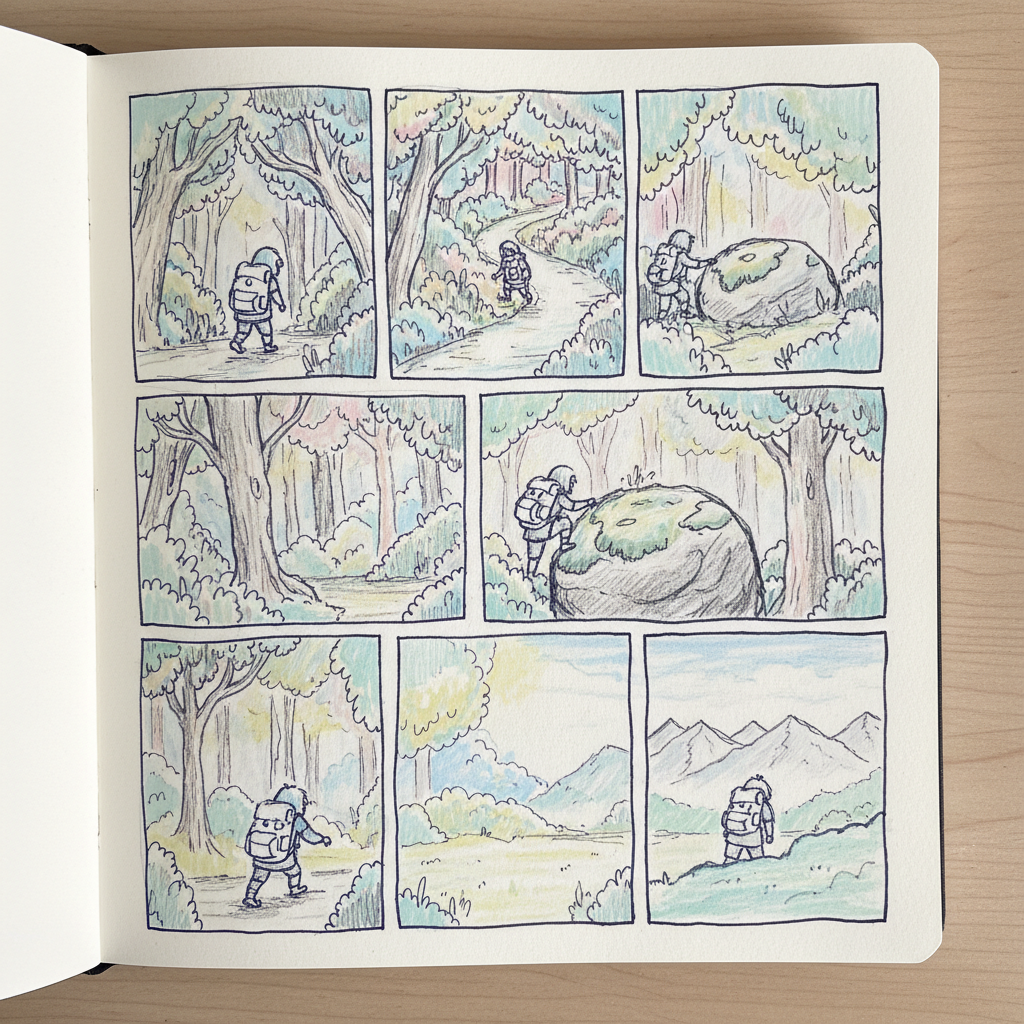
Every drawing tells a story, but sometimes the message gets lost in flat lines and static compositions. When your sketches feel like technical exercises rather than living narratives, the problem often lies in how you apply your digital strokes. A story needs atmosphere, weight, and a sense of time that only varied brushwork can provide.
The Power of Narrative Line Weight
In visual storytelling, the line itself is a character. A thin, shaky line suggests vulnerability or distance, while a thick, bold stroke implies strength and proximity. On Sketchboard AI, the brush engine responds to both pressure and velocity, allowing you to breathe life into your narrative through physical intent.
If you are sketching a character facing a storm, your strokes should reflect that chaos. Fast, aggressive strokes with a charcoal or ink brush create a sense of frantic movement. Conversely, slow and deliberate lines with a fine pen can draw the viewer’s eye to a small, important detail—like a key sitting on a table or a secret letter. By varying your speed, you tell the viewer where to feel tension and where to find calm.
Creating Atmosphere with Smudge and Blur
Environment is the foundation of any narrative. A story set in a sunny meadow feels different from one set in a foggy alleyway. You can use the smudge tool to nudge your strokes, picking up pigment and blending edges to create soft, atmospheric depth. This is particularly effective for backgrounds where you want to lead the viewer's eye toward a sharp, focused subject in the foreground.
Non-destructive adjustments like Gaussian blur and bloom add a cinematic quality to your sketches. If you are drawing a campfire scene, a slight bloom effect on your brightest highlights can make the light feel like it is truly radiating. Because these adjustments are non-destructive, you can experiment with the intensity of your "lighting" without committing to a permanent change in your linework.
Using Symbol Libraries for Visual Pacing
While freehand drawing is the soul of a narrative sketch, consistency in recurring elements keeps the story grounded. Sketchboard AI includes libraries of over 1,000 hand-drawn marker illustrations and symbols that you can drag onto your board. These act as narrative anchors.
Strategic Element Placement
- Establish the Setting: Drag a marker-style building or tree to set the scene quickly.
- Identify the Subject: Use the one-click swap feature to change a character's pose or style while keeping the same dimensions.
- Guide the Eye: Use snapping arrows with elbow routing to show the flow of time or the path of a character through a landscape.
By mixing these pre-drawn elements with your unique freehand brushwork, you can build complex stories without losing momentum. The "stick-to-objects" toggle ensures that as you move your characters around the board, their relationships and connections remain intact.
Narrative Sketching Workflow Checklist
Use this checklist to ensure your visual story is hitting the right marks before you finish your session.
- Identify the Focal Point: Is the most important part of the story drawn with the highest contrast or sharpest lines?
- Check the Horizon: Does the background recede using lighter ink or blurred strokes to create depth?
- Audit the Weight: Are your foreground elements heavier and more detailed than the distant ones?
- Review the Flow: Do your elbow-routed arrows or character placements lead the viewer through the board in the correct order?
- Layer Organization: Are your characters, backgrounds, and text annotations on separate layers for easy reordering?
Enhancing Mood with HSB and Gradient Maps
Colour is a powerful emotional shorthand. A story about a lonely robot might benefit from a cool, desaturated blue palette, whereas an adventure in a busy marketplace needs vibrant, high-saturation tones. Using the HSB (Hue, Saturation, Brightness) sliders, you can fine-tune the mood of your entire sketchboard in seconds.
Gradient maps take this a step further. They allow you to map specific colours to the light and dark areas of your sketch. This creates a cohesive look across multiple slides, ensuring your story feels like one continuous piece of work rather than a collection of random drawings. You can even use the "smart washes" tool to apply marker-like textures that automatically shape themselves to the elements they sit behind, adding a tactile, hand-made feel to your digital canvas.
Common Mistakes in Digital Storytelling
- Over-detailing the background: This confuses the viewer and buries your main subject.
- Static line weight: Using the same thickness for everything makes the drawing look flat and technical.
- Cluttered layouts: Not leaving enough negative space makes it hard for the viewer to "breathe" between narrative beats.
- Ignoring the Pan Tool: Trying to cram a big story into a small corner instead of using the infinite board space to let the narrative expand.
FAQ
How do I maintain character consistency across slides?
You can use the grouping and alignment tools to keep your character parts together. Once a character is drawn, copy it to the next slide or save it as a sticker in your personal images tab to reuse it while maintaining the same style and size.
Can I mix AI-generated elements with my hand-drawn sketches?
Yes. You can generate symbols or illustrations in a specific style directly on the board. These are created on transparent backgrounds, so they sit naturally behind or in front of your freehand brushwork without messy white boxes.
What is the best way to share a visual story with a team?
Use the Present Mode. You can use the laser pointer to highlight specific details during a live walkthrough, or turn on the torch spotlight to focus the team's attention on one narrative beat at a time. The board also allows for real-time collaboration, so teammates can add their own sketches or feedback simultaneously.
Try it on your next sketch
Visual storytelling is about the marriage of intent and technique. Next time you open Sketchboard AI, don't just draw an object—draw a moment. Start with a rough charcoal sketch to block out the emotion, use the smudge tool to soften the edges of the world, and then refine your subject with sharp, pressure-sensitive pen strokes. Whether you are building a storyboard for a film or a user journey for a new app, let your brushwork lead the way.
- narrative sketching
- digital drawing
- visual storytelling
- brush techniques
- creative workflow


