Mixing Dry and Wet Digital Media for Texture
Discover how to balance the grit of dry media with the fluid nature of wet digital brushes to create visually arresting and tactile sketches.
· 6 min read
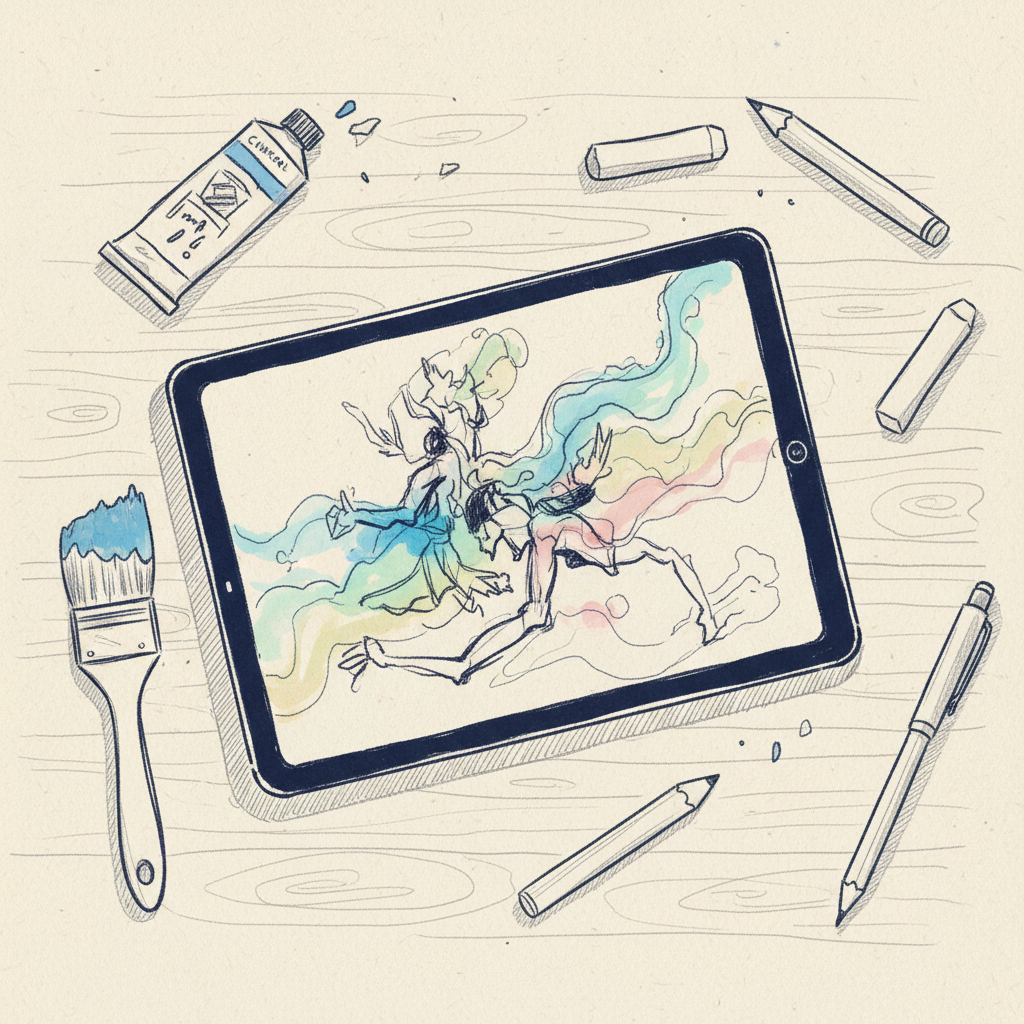
Creating depth in a digital sketch often requires more than just a single tool. If your work feels flat or overly digital, you might be relying on a uniform brush style that lacks the friction of the real world. The secret to a tactile, professional result is the deliberate mixing of dry and wet digital media.
Dry media like charcoal and pencil provide grit and structure. Wet media like ink, gouache, and airbrush provide flow and saturation. When you learn to layer these opposing textures, your drawings gain a physical presence that stands out. Sketchboard AI offers 25 brush families designed to mimic these real-world physics, allowing you to experiment with mixed media on a flexible sketch board.
Understanding the Friction of Dry Media
Dry media brushes are defined by their grain. When you use the charcoal or crayon tools, the pigment does not saturate the surface evenly. Instead, it catches on the simulated tooth of the paper. This creates a scattered, textured look that is perfect for initial layouts or adding character to a finished piece.
On your sketch board, the charcoal brush responds to both pressure and velocity. A quick, light stroke creates a faint, dusty line. A slow, heavy press produces a thick, dark mark with jagged edges. These tools are excellent for establishing the mid-tones and shadows of a sketch. Because they are not opaque, they leave room for underlying layers to peek through, which is essential for a mixed-media look.
Adding Fluidity with Wet Media
Wet media brushes behave like liquid. The ink and gouache families in Sketchboard AI provide a sense of flow and high pigment density. These brushes are ideal for defining sharp edges or filling in large areas with bold colour.
Unlike dry media, wet brushes often have a smoother taper. The ink tool, for example, produces a clean, continuous line that cuts through the grain of a charcoal sketch. Using the airbrush tool allows for soft, diffused transitions that look like sprayed paint. The contrast between a gritty pencil line and a smooth airbrush gradient creates a visual tension that makes a sketch look more sophisticated.
The Smudge Tool as a Bridge
One of the most effective ways to blend dry and wet media is through the smudge tool. This tool does not just blur pixels; it nudges the strokes and picks up pigment as you move it across the canvas.
If you have a heavy charcoal shadow next to a wet ink stroke, you can use the smudge tool to pull some of the ink into the charcoal. This mimics the effect of a damp brush hitting a dry drawing, creating a transition that feels organic. It turns two distinct layers into a cohesive piece of art. You can also use the partial eraser to clean up the edges, as it only removes the specific area you rub, allowing you to keep the core of your mixed-media texture intact.
Workflow for Mixing Media
To get the best results, try following a structured approach to your layers. Sketchboard AI includes a layers list with front and back ordering, which is vital for managing complex textures.
- Structure (Dry): Start with the pencil or charcoal brush to block out shapes. Focus on the grainy texture.
- Saturation (Wet): Use the gouache or ink brush to add the darkest shadows or the most vibrant pops of colour.
- Blending: Use the smudge tool to soften the borders where dry meets wet.
- Refinement: Use the partial eraser to carve out highlights or sharpen silhouettes.
- Adjustments: Apply non-destructive adjustments like HSB or Curves to unify the different media styles.
| Brush Type | Best For | Texture Quality |
|---|---|---|
| Charcoal | Initial shading and grit | Highly porous and grainy |
| Gouache | Opaque fills and highlights | Thick, creamy and solid |
| Ink | Line work and deep shadows | Smooth, liquid and sharp |
| Airbrush | Atmosphere and soft glows | Diffused and weightless |
| Crayon | Bold, waxy highlights | Rough and waxy |
Enhancing Texture with Non-Destructive Adjustments
Once your mixed-media sketch is complete, you can use adjustments to push the contrast even further. Because Sketchboard AI uses non-destructive adjustments, you can experiment without fear of ruining your work.
Adding a subtle Halftone adjustment to a wet ink wash can give it a printed, graphic feel that contrasts beautifully with a hand-drawn pencil outline. Alternatively, using the Bloom adjustment on a gouache highlight can make it look like wet, reflective paint hitting the light. These effects help bridge the gap between traditional techniques and digital possibilities.
Common mistakes
- Over-smudging: Too much smudging turns your grit and flow into a muddy mess. Keep some edges sharp to maintain clarity.
- Ignoring pressure: Using a mouse or a static-pressure stylus prevents the brushes from showing their true grain and flow.
- Too many styles: Mixing charcoal, ink, gouache, and crayon all at once can look cluttered. Stick to one primary dry tool and one primary wet tool per sketch.
- Forgetting the background: A bright white background can make dry media look washed out. Try a slightly off-white or textured slide background colour.
FAQ
Can I swap a dry brush for a wet one after I have drawn the stroke?
You cannot change the brush type of a stroke once it is drawn, but you can use the one-click swap for symbols and illustrations to change their style while keeping their size and position.
How do I stop my wet media from covering my dry media lines?
Use the layers list to move your dry pencil or charcoal sketches to the top of the stack. This ensures the grit remains visible over the top of smooth gouache or ink washes.
Will the smudge tool work on AI-generated images?
Yes, if you use the AI generation tool to create a symbol or illustration, you can smudge and edit it just like your own hand-drawn strokes on the sketch board.
Try it on your next sketch
Open a new board and select the charcoal tool. Roughly sketch a simple object, like a piece of fruit or a coffee mug. Switch to the gouache tool and add a single, bold stroke of colour for a highlight. Use the smudge tool to pull the edge of the gouache into the charcoal. You will immediately see how the mix of grit and flow creates a professional, hand-drawn look.
Sketchboard AI gives you the space to play with these textures on an infinite canvas. Whether you are building a presentation or just filling a digital sketchbook, mixing your media is the fastest way to improve your visual style.
- digital sketching
- brush textures
- wet media
- dry media
- mixed media


