Mastering Pigment Displacement with Digital Smudge Tools
Discover how to use the smudge tool to nudge digital strokes and redistribute pigment for realistic, tactile textures in your hand-drawn sketches.
· 6 min read
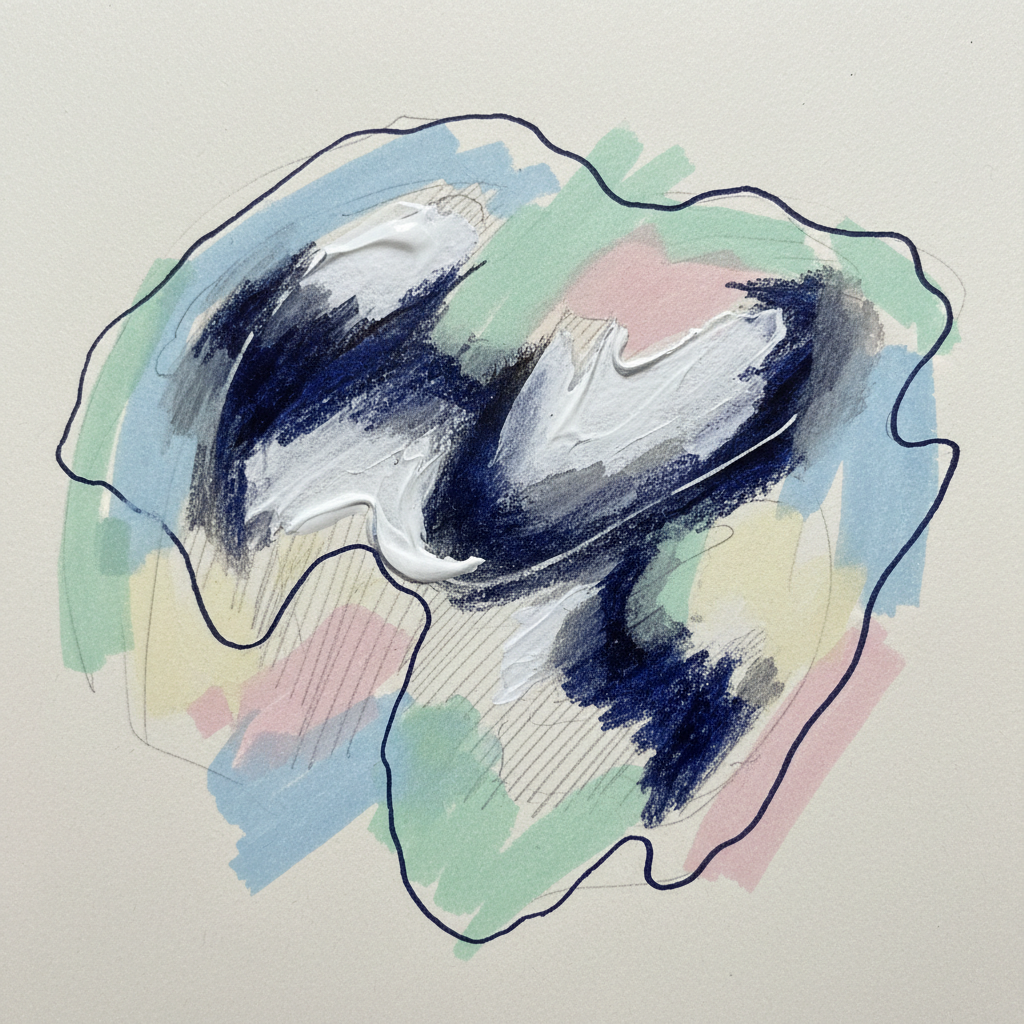
Digital sketching often feels too clean and clinical when strokes sit perfectly on top of one another. Traditional artists rely on the physical movement of graphite, charcoal, or oil to create transitions that feel alive. If your digital work looks flat, you likely need to move beyond simple layering and start manipulating the pigment itself.
The Mechanics of Pigment Displacement
In a physical sketchbook, a smudge occurs when you apply friction to a medium that hasn't fully bonded with the paper. Digital tools usually mimic this by simply blurring pixels. However, more advanced tools like the smudge tool in Sketchboard AI actually nudge the existing strokes. This means the tool picks up the color from one area and pushes it into the next, mimicking the way a finger or a blending stump works on a physical board.
When you use this tool, you aren't just blurring edges; you are redistributing the weight of the medium. If you have a heavy charcoal line, the smudge tool will grab that dark pigment and pull a trail of it across the canvas. This creates a sense of flow and physical presence that static brushes cannot achieve on their own.
Choosing the Right Base for Smudging
Not all digital brushes respond to smudging in the same way. To get the best results, you need a base layer that has enough texture and "pigment" to move.
- Charcoal and Graphite: These are the easiest to displace. Because they have a grainy texture, smudging them creates a soft, smoky effect that is perfect for shadows or atmospheric depth.
- Gouache and Oil: These provide a thicker look. When you smudge these, you get the appearance of wet paint being dragged. It creates beautiful, marbled transitions.
- Markers: Smudging markers is harder because they represent ink that soaks into the page. Use a light touch here to soften the edges of a marker wash without losing the shape of the stroke.
Techniques for Controlled Nudging
To master the art of displacement, you must control the direction and pressure of your smudge. Small, circular motions tend to blend colors together into a new, third hue. Long, sweeping motions create a sense of speed or motion blur.
On Sketchboard AI, the tool responds to your velocity. A quick flick of the wrist will pull a thin, sharp trail of pigment. A slower, heavier movement will displace a larger volume of color, creating a more dramatic shift in the composition. This is particularly useful when you want to soften a hard edge on a portrait or create a gradient in a landscape sketch.
Building Texture Through Displacement
One of the most effective ways to use the smudge tool is to build texture rather than just removing it. By nudging strokes in a jagged pattern, you can simulate the look of wood grain, fur, or rough stone.
Texture Displacement Checklist
- Lay down several strokes of varying shades (e.g., dark brown, tan, and cream).
- Set your smudge tool to a medium size with high pressure response.
- Pull the pigment in the direction of the desired grain.
- Use the partial eraser to clean up any pigment that strayed outside your boundary.
- Apply a subtle HSB adjustment to the layer to deepen the shadows created by the smudge.
Combining Smudging with Non-Destructive Adjustments
Smudging is a destructive process in traditional art—once you've rubbed the charcoal, the original line is gone. In a digital sketch board, you have more flexibility. You can smudge your strokes on one layer and then use non-destructive adjustments to refine the look.
For example, after smudging a sky to create clouds, you might apply a Bloom adjustment. This will make the lightest areas of your smudged pigment glow, creating a realistic sunlight effect. If the smudging made the colors too muddy, you can use a Curves adjustment to bring back the contrast without having to redraw the entire section.
Comparison of Smudging vs. Blurring
| Feature | Smudge Tool (Displacement) | Blur Tool (Softening) |
|---|---|---|
| Action | Nudges and pushes existing pigment | Averages pixel colors in place |
| Texture | Retains or creates new texture streaks | Erases texture to create smoothness |
| Mixing | Picks up and carries color to new areas | Blends colors only at their borders |
| Feel | Tactile and traditional | Digital and photographic |
Common Mistakes
- Over-smudging: If you smudge every edge, your drawing will look out of focus. Keep some hard edges to anchor the viewer's eye.
- Smudging empty space: Trying to smudge where there is no pigment will do nothing. Always ensure you have a base of brush strokes before you start nudging.
- Uniform direction: Moving the tool in the same direction for every stroke makes the drawing look mechanical. Vary your angles for a more natural, hand-drawn feel.
- Ignoring opacity: High-opacity smudging can sometimes look like a solid smear. Lower the pressure to let some of the original stroke's character peek through.
FAQ
Can I smudge images I upload to the board?
Yes, if you upload an image or generate one with the AI tool, you can use the smudge tool to blend it into your hand-drawn elements. This is a great way to make separate assets feel like they belong in the same sketch.
Does the smudge tool work with the 25 brush families?
Absolutely. The tool is designed to interact with any stroke made by the pen, pencil, marker, or gouache brushes. Each brush family has a different pigment density, which changes how much it can be nudged.
How do I reset a smudge if I go too far?
Since the tool is part of the drawing process, you can use the standard undo shortcut. Alternatively, use the partial eraser to thin out areas where the pigment has become too thick or dark after being pushed around.
Try it on your next sketch
The best way to understand pigment displacement is to feel it. Open a new project on Sketchboard AI and select a heavy medium like charcoal or gouache. Lay down a few bold strokes and then use the smudge tool to pull the color across the canvas. Notice how the pigment follows your movement and creates new, unexpected shapes. Whether you are building a professional presentation or just doodling in your digital sketchbook, mastering the nudge will give your work a professional, tactile finish.
- smudge tool
- digital painting
- pigment displacement
- sketching techniques
- hand-drawn art


