Digital Smudge Tool for Picking Up Pigment
Master the art of nudging strokes and picking up digital pigment to create professional, hand-drawn textures that look like real media on a sketchbook page.
· 6 min read
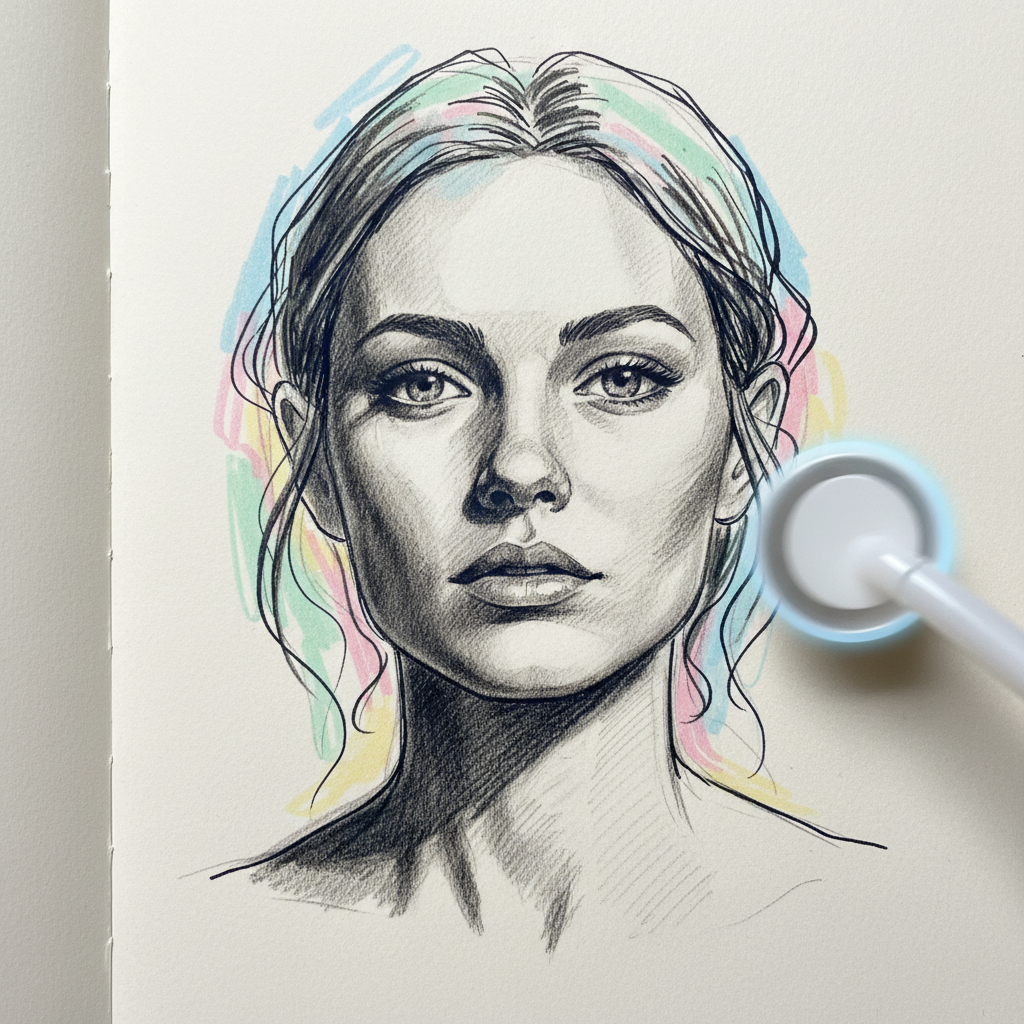
Creating realistic depth in digital art often feels like a battle against clinical perfection. Hard edges and flat fills make a drawing feel stiff, lacking the warmth of a physical sketchbook. The challenge lies in manipulating your digital pigment with the same fluidity you would find when dragging a finger through charcoal or a brush through wet gouache.
The physics of digital smudging
Traditional artists rely on the physical movement of particles across a surface. When you smudge a pencil line, you are physically displacing graphite. In a digital environment, the smudge tool needs to mimic this displacement rather than just blurring pixels. Sketchboard AI uses a smudge tool designed to nudge existing strokes and pick up pigment as you move across the board.
This distinction is vital. Simple blurring tools often result in a 'muddy' look where the colours lose their vibrancy. A true smudge tool treats the digital ink as a physical substance. It pushes the edge of a stroke forward, thinning it out and mixing it with the background or adjacent colours. This creates the soft, organic transitions found in professional charcoal or ink wash drawings.
Setting up your canvas for texture
Before you start smudging, you need a foundation of varied strokes. The smudge tool requires pigment to work with, so your initial layout should involve different brush families. Sketchboard AI offers 25 brush families, including pen, pencil, marker, and charcoal. Each reacts differently when nudged.
- Charcoal and Graphite: These produce the most grit when smudged. They are perfect for creating soft shadows in anatomical sketches.
- Gouache and Ink: These behave like wet media. Smudging them feels like pulling a damp brush through a pool of colour.
- Marker: Smudging markers creates the look of overlapping ink layers, excellent for architectural renderings or product concepts.
Preparing the board
You can set your canvas size to match specific device presets to ensure your resolution is high enough for fine detail. Enable the grid or rulers if you need technical precision, but for organic smudging, a clean, blank space is often best. Remember that Sketchboard AI is a sketch board you actually draw on, so treat the interface like a physical desk.
Nudging strokes and picking up pigment
The most powerful feature of the smudge tool is its ability to 'pick up' pigment. If you start your smudge stroke inside a dark area and drag it into a light area, the tool carries that dark value with it, gradually depositing it onto the canvas.
Techniques for pigment control
- The Tapered Pull: Start at the densest part of a stroke and pull outward with a quick flick. This mimics the look of a dry brush stroke.
- The Circular Blend: Move the tool in small, tight circles at the intersection of two colours. This creates a smooth, painterly transition similar to oil blending.
- The Nudge: Use tiny, precise taps to slightly shift the edge of a stroke. This is ideal for correcting the silhouette of a drawing without using an eraser.
| Technique | Best For | Visual Result |
|---|---|---|
| Feathering | Soft light transitions | Wispy, cloud-like edges |
| Heavy Nudge | Reshaping bold lines | Organic, irregular silhouettes |
| Cross-Smudge | Texturing surfaces | Woven or fabric-like appearance |
| Pigment Drag | Adding depth | Gradient-like shadows |
Non-destructive refinements
One of the risks of smudging is over-blending, which can make a sketch look unfocused. To maintain clarity, use the non-destructive Adjustments available on the sketch board. If your smudged area becomes too dark or loses its hue, you can apply HSB (Hue, Saturation, Brightness) or Curves adjustments to just that element.
Because these adjustments are non-destructive, you can experiment with the 'Bloom' effect to give your smudged highlights a soft glow, or use 'Halftone' to add a retro, printed texture to your blended shadows. This allows you to combine the tactile feel of hand-drawing with the power of digital post-processing.
Managing layers and overlapping elements
When working on complex sketches, your board can become busy. Use the layers list to keep your smudged backgrounds separate from your crisp linework. This ensures that when you smudge a shadow, you don't accidentally blur the primary outlines of your subject.
If you find yourself with overlapping elements, the right-click picker allows you to select exactly which stroke you want to manipulate. This is particularly useful when you have multiple marker washes or charcoal layers stacked on top of one another.
Common mistakes
- Over-smudging: Blending every single edge makes the drawing look blurry rather than artistic. Keep some hard edges for contrast.
- Uniform Pressure: Always using the same pressure results in flat textures. Use the pressure and velocity response of the tools to vary the intensity of the smudge.
- Smudging on Empty Space: The smudge tool needs pigment to work. If you try to smudge an empty area of the board, nothing will happen. Always lay down a base stroke first.
- Ignoring the Partial Eraser: Sometimes the best way to clean up a smudge is to use the partial eraser, which removes only the specific area you rub, rather than the whole stroke.
FAQ
Does the smudge tool work with all brush families?
Yes, you can smudge strokes from any of the 25 brush families. However, the visual result will depend on the texture of the original stroke. Charcoal smudges differently than a digital airbrush.
Can I undo a smudge if it goes too far?
Yes, all actions on the board are tracked. You can use standard keyboard shortcuts to undo. You can also use the smudge tool to 'push' the pigment back toward its original position.
Will smudging affect my AI-generated illustrations?
If you have used the AI generation tools to create a symbol or illustration on a transparent background, you can smudge the edges of these elements to blend them seamlessly into your hand-drawn work.
Try it on your next sketch
Open a new board on Sketchboard AI and experiment with the charcoal brush and smudge tool. Start with the Free plan to explore the basic brush responses, or upgrade to a Pro or Team plan for unlimited boards and advanced export options like SVG and PDF. Whether you are sketching a quick concept or a detailed anatomy study, mastering the movement of digital pigment will give your work a professional, hand-crafted edge.
- smudge tool
- digital drawing
- pigment blending
- brush textures
- sketchboard techniques


