Digital Oil Pastel Textures with Smudge Tools
Discover how to master digital oil pastel techniques by combining pressure-sensitive brushes with a pigment-pushing smudge tool for tactile, expressive sketches.
· 6 min read
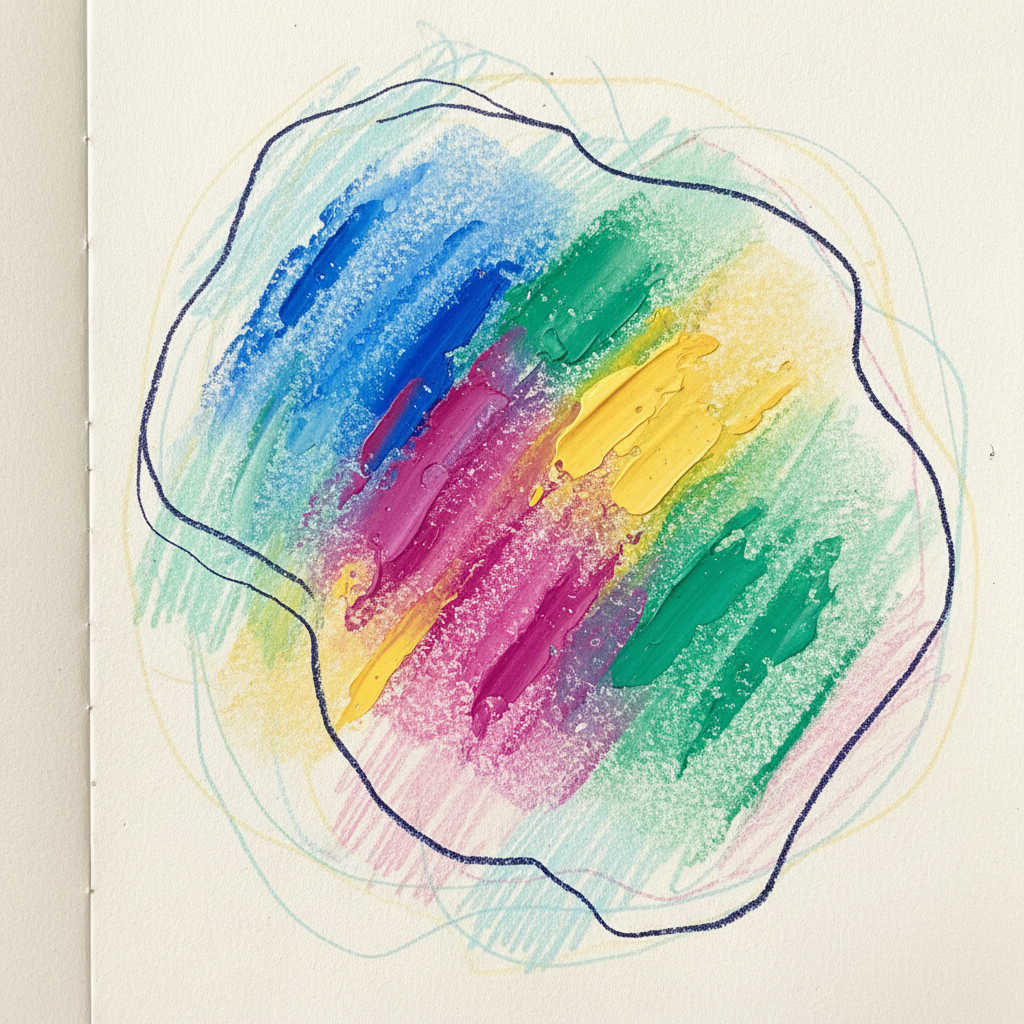
Digital sketching often feels too clean or clinical when you want the grit of traditional media. Achieving that heavy, waxy buildup of oil pastels requires a toolset that understands how pigment actually moves across a surface. If your digital drawings lack physical weight, it is time to experiment with the interaction between high-velocity brushwork and active smudging.
The physics of digital oil pastels
Traditional oil pastels are loved for their buttery consistency and the way colors sit on top of one another. In a digital environment, this translates to brushes that respond heavily to pressure. Sketchboard AI offers 25 brush families, including specific options for wax and heavy pigments that mimic this tactile feel.
When you use a digital oil pastel brush, the velocity of your stroke determines the coverage. A quick, light stroke might leave a dry, textured mark that shows the grain of the board. A slower, firmer stroke deposits a solid block of color. To get the best results, you must treat the canvas like a physical board that can only hold so much material before it starts to blend.
Using the smudge tool to move pigment
The secret to realistic oil pastel work is not just the brush itself, but how you manipulate the paint after it is down. The smudge tool in Sketchboard AI does more than just blur edges. It nudges the existing strokes and picks up the pigment, dragging it into adjacent areas.
This is essential for creating smooth transitions between bold colors. Instead of picking a new middle-ground color, you can simply drag the edge of a dark blue stroke into a light yellow one. The tool blends them naturally, creating a green transition that looks hand-mixed. You can also use the smudge tool to soften the 'shoulders' of a thick stroke, making it look like it has been pressed into the grain of the paper by a thumb or a rag.
Layering and opaque builds
Oil pastels are inherently opaque. In your digital sketches, this means you should focus on building layers from dark to light. Start with your broad shadows using a larger brush size. Do not worry about precision at this stage; focus on the weight of the color.
Creating highlights with pressure
Once your base layer is down, switch to a lighter hue. Because the brushes respond to pressure, you can lightly scumble a highlight over a dark area to create a broken, textured look. If you press harder, the light pigment will completely cover the dark pigment below. This mimicry of traditional media allows for a very forgiving workflow where you can always 'fix' an area by simply painting over it with a denser stroke.
Refining with the partial eraser
Traditional artists often use a palette knife to scrape away excess pastel. You can replicate this with the partial eraser. Unlike a standard eraser that deletes entire elements, the partial eraser only removes the specific area you rub. This allows you to carve out sharp highlights or clean up messy edges without losing the organic feel of the surrounding brushwork.
A workflow for expressive sketching
To keep your hand-drawn sketches looking fresh, follow a structured approach to building up your digital media. This ensures you do not over-work the board and lose the energy of the initial lines.
- Block in shapes: Use a wide, low-velocity stroke to fill large areas.
- Define edges: Use a smaller brush with higher velocity for sharper, leaner lines.
- Smudge for volume: Use the smudge tool on a medium setting to round out forms.
- Add highlights: Apply bright, high-pressure strokes for the final pops of light.
- Adjust tones: Use non-destructive HSB or Curves adjustments to fine-tune the color balance without flattening your texture.
| Technique | Tool | Result |
|---|---|---|
| Scumbling | Oil Pastel / Light Pressure | Grainy, broken texture |
| Impasto | Oil Pastel / Heavy Pressure | Thick, opaque color blocks |
| Blending | Smudge Tool | Soft, painterly transitions |
| Sgraffito | Partial Eraser | Carved-out details and highlights |
| Tinting | Smart Washes | Subtle shifts in atmospheric color |
Non-destructive refinements
One of the greatest advantages of working on a sketch board is the ability to change your mind. Even after you have applied thick 'oil' textures, you can use the Adjustments panel. If your colors look too muddy, a quick tweak to the Saturation or a shift in the Curves can bring the drawing back to life. These adjustments are non-destructive, meaning they sit on top of your brushwork rather than baking into the pixels. You can toggle them on and off to see which version of your sketch has the most impact.
Common mistakes
- Over-smudging: Blurring every single edge makes the sketch look blurry rather than textured. Leave some raw, un-smudged strokes for visual interest.
- Uniform pressure: Using the same pressure for every stroke results in a flat, lifeless image. Vary your hand strength to create depth.
- Ignoring the background: A bright white background can make oil pastel colors look harsh. Use the board background settings to choose a neutral or toned opacity for a more natural look.
- Forgetting velocity: Moving the pen too slowly can sometimes create too much buildup. Practice quick flicks for lighter, airier textures.
FAQ
Can I use the smudge tool on imported images?
Yes, the smudge tool works on any element on the board, including your own uploads and AI-generated images. It is a great way to blend a photo into a hand-drawn environment.
How do I make the oil pastel look more like a wash?
If you want a thinner look, use the Washes picker. You can choose marker-scribble patches or smart washes that automatically shape themselves to the elements you have already drawn.
Do these brushes work with a mouse?
While they respond best to a stylus with pressure sensitivity, Sketchboard AI uses velocity tracking to simulate these effects for mouse users. Faster mouse movements will result in thinner, lighter strokes.
Try it on your next sketch
Open a new board and select the oil pastel brush from the family of 25 brushes. Try blocking out a simple still life or a landscape using only thick, high-pressure strokes. Once the board is covered, take the smudge tool and start pushing the pigment around to see how the colors interact.
Whether you are on the free plan with one board or a Team member collaborating in real-time, the tactile nature of these tools brings a new level of personality to your work. Start drawing and see how the combination of pressure, velocity, and smudging changes your digital process.
- digital oil pastel
- smudge tool
- sketching techniques
- digital brushwork
- texture layering
- hand-drawn visuals


