Digital Brush Shading: Mastering Soft Volumes
Master the art of creating depth and soft form using pressure-sensitive digital brushes and specialized smudge tools for realistic sketching.
· 7 min read
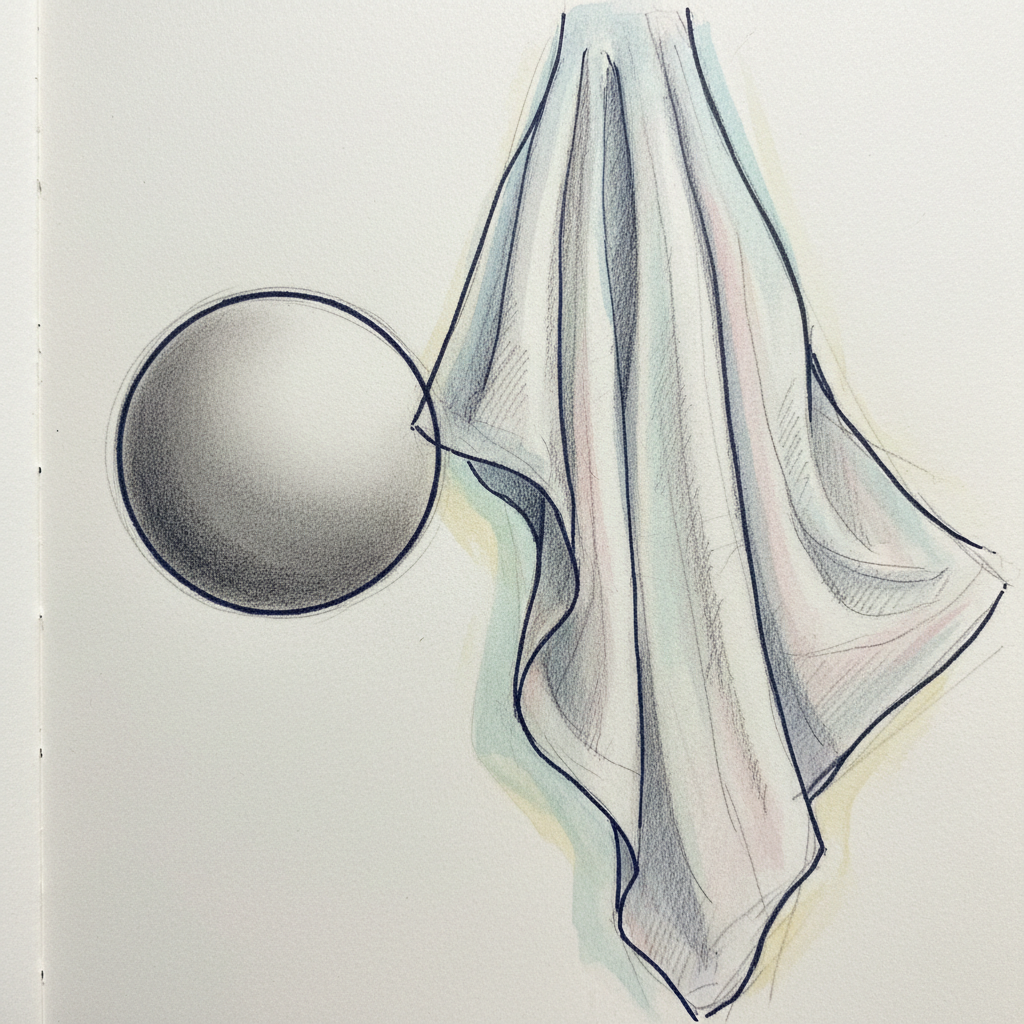
Creating a sense of weight and three-dimensional volume is often the hardest part of a digital sketch. Many artists find their drawings look flat or plastic because they cannot bridge the gap between hard outlines and soft transitions. Without the right pressure response and blending tools, your sketches lack the tactile feel of real paper.
Building soft volumes requires a mix of tool choice and physical technique. On Sketchboard AI, you are working on a sketch board that mimics the tactile response of traditional media. By understanding how to layer strokes and manipulate digital pigment, you can turn a flat circle into a heavy, glowing sphere.
The Role of Pressure and Velocity in Shading
To achieve soft volumes, you must move beyond simple opacity settings. Real pencils and charcoal respond to the weight of your hand. When you use a digital pen on a canvas, the software tracks both pressure and the speed of your stroke.
Light pressure allows you to lay down a faint ‘ghost’ of a shadow. This is essential for the initial mapping of form. As you increase pressure, the brush deposits more pigment, allowing for a natural gradient. Velocity is equally important. A quick, flicking motion often results in a tapered end to a stroke, which is perfect for feathered edges. Slower movements allow for a more controlled, saturated application of colour. Experimenting with these two variables helps you avoid the dreaded ‘staircase’ effect where gradients look blocky and digital.
Choosing the Right Brush Families for Form
Not all brushes are created equal when it comes to volume. Sketchboard AI offers 25 brush families, each with a unique footprint and texture. For soft volumes, you should look for tools that offer natural grain.
- The Charcoal Family: This is the gold standard for soft shading. It has a broad, grainy texture that mimics the side of a charcoal stick. It fills large areas quickly and blends beautifully.
- The Airbrush Family: If you want a completely smooth, mechanical gradient, the airbrush is your friend. It is ideal for rendering polished surfaces or soft light glows.
- The Gouache Family: Use this when you want to build volume with overlapping opaque strokes. It feels more painterly and allows you to ‘carve’ the light out of the shadow.
- The Soft Pencil: Best for smaller details and fine-grain shading in tight corners.
Building Value with Layered Strokes
One of the biggest mistakes in digital sketching is trying to reach your darkest shadow too quickly. Professional shading is a process of accumulation. Start with a mid-tone wash across the entire shadowed side of your object. Avoid the temptation to use black; instead, use a deep version of your base colour.
Once the base shadow is down, identify the 'core shadow.' This is the darkest part of the shadow where the light can no longer reach. Use a smaller brush or increased pressure to define this area. By keeping your initial layers light, you maintain the ability to adjust the form as you go. Because Sketchboard AI uses non-destructive adjustments, you can always tweak the HSB or curves of your strokes later if the value range feels off.
Using the Smudge Tool to Nudge Pigment
The smudge tool is the secret weapon for soft volumes. Unlike a simple blur, the smudge tool on this sketch board actually nudges the strokes you have already placed. It picks up the pigment from one area and drags it into another, much like using a paper stump or your finger on real charcoal.
To create a soft transition, start your smudge stroke inside the dark area and pull outward toward the highlight. This carries the dark pigment into the light, creating a smooth, tapered edge. If you go too far, you can use the partial eraser. Because it only removes the specific area you rub rather than the whole stroke, you can refine the edges of your highlights without losing the core of your work.
Shading Checklist for Digital Artists
Use this list to ensure your volumes look realistic and consistent across your board.
- Identify the primary light source direction.
- Map out the highlight, mid-tone, and core shadow.
- Check for reflected light on the underside of the shadow.
- Ensure the cast shadow on the ground is darker than the form shadow.
- Soften the 'terminator' line where the light meets the dark.
- Check that your brush texture remains consistent across the object.
Common Mistakes in Volume Shading
- Using pure black for shadows: This makes your sketch look muddy and kills the vibrancy of the colour.
- Ignoring reflected light: Real objects usually catch a bit of light bouncing off the surface they sit on. Skipping this makes the object look detached from the world.
- Over-blending: If you smudge everything, your drawing will look blurry and out of focus. Keep some hard edges to define the silhouette.
- Inconsistent light sources: Ensure all objects on your board are lit from the same direction to maintain visual logic.
FAQ
Can I adjust the intensity of my shading after I have drawn it?
Yes. You can select your shaded elements and use the Adjustments panel to change HSB, apply curves, or add a Gaussian blur for even softer transitions without redrawing.
How do I keep my shading from looking ‘dirty’?
Try using a warmer or cooler version of your base colour for shadows rather than grey or black. This keeps the pigment looking fresh and intentional.
Does the brush size affect the softness of the volume?
Generally, yes. A larger brush with a soft edge will produce a more gradual volume, while a small brush is better for defining hard muscle groups or sharp folds in fabric.
Try it on your next sketch
Soft volume is what separates a quick doodle from a professional illustration. By combining pressure-sensitive charcoal brushes with the pigment-moving smudge tool, you can create work that feels like it belongs in a physical sketchbook. Open a new board on Sketchboard AI today and try rendering a simple sphere using only the Charcoal and Smudge tools. You will be surprised at how much depth you can achieve with just a few deliberate strokes.
- shading
- digital drawing
- brushwork
- sketchbook
- art techniques


