Digital Brush Families: Finding Your Drawing Style
Discover how to master 25 distinct brush families to add organic, hand-drawn character to your digital sketches and visual notes.
· 6 min read
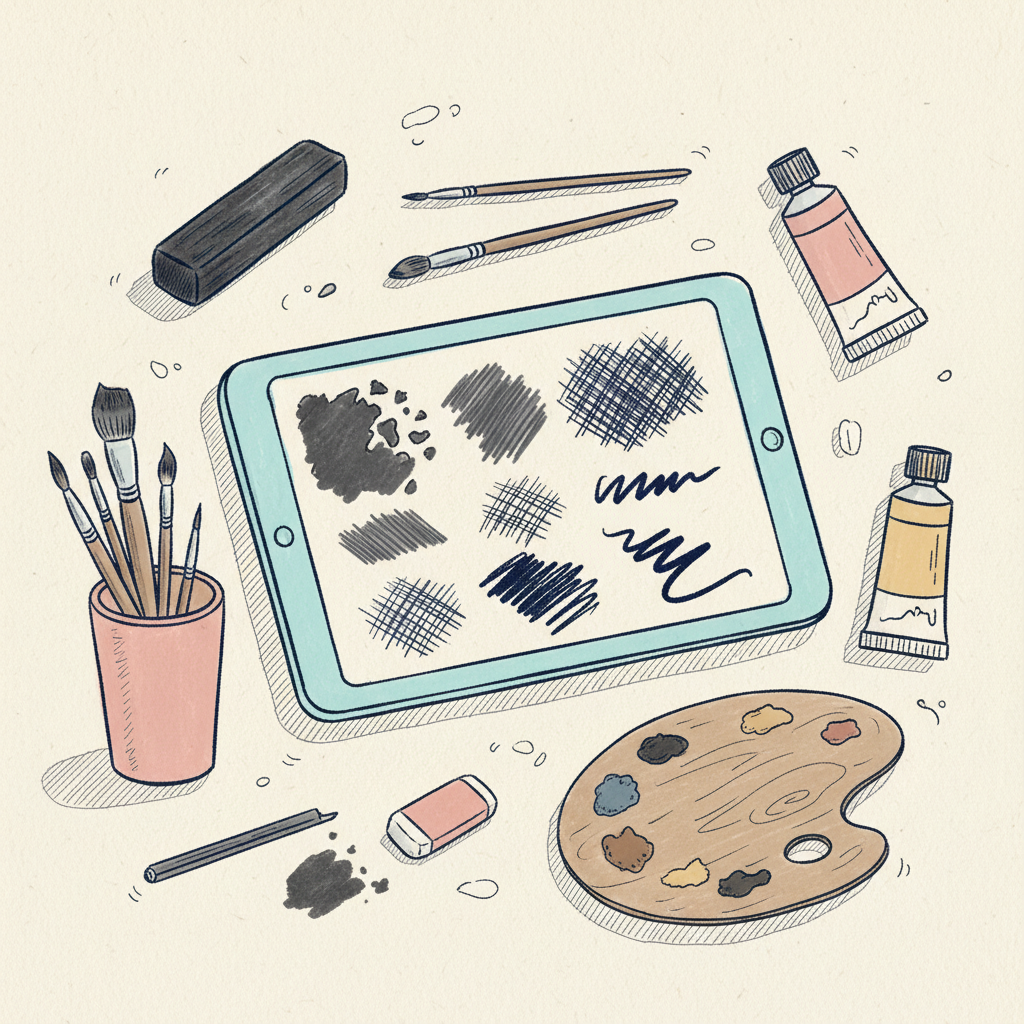
Finding the right texture for your digital sketches often feels like a search for something missing. Many digital tools offer lines that feel too clinical, cold, or predictable. When you want your visual notes or character studies to feel human, you need tools that respond to your hand's unique rhythm.
Sketchboard AI provides a creative space where digital sketching feels like a real sketchbook. With 25 brush families, you can move between the gritty scratch of charcoal and the smooth flow of digital ink. This guide explores how to choose and use these brush families to bring your ideas to life.
Understanding Brush Families
A brush family is more than just a line. It represents a specific physical medium. In a digital sketch board, these families simulate how real-world materials interact with paper. Some brushes are opaque and sharp, while others are translucent and build up pigment over time.
When you select a brush, you are choosing the personality of your sketch. A sharp pen suggests precision and finality. A rough crayon suggests a playful, exploratory phase. Understanding these differences helps you match the medium to the message of your board.
Pressure and Velocity Response
The brushes in Sketchboard AI are not static. They respond to how you move. If you use a stylus, the pressure you apply changes the thickness or opacity of the stroke. Even if you draw with a mouse or trackpad, the velocity—the speed of your stroke—affects the output. Fast strokes might taper off into a thin point, while slow strokes stay deliberate and saturated. This creates a natural variance that removes the 'robotic' look of standard digital diagrams.
The Core Texture Groups
To make the most of the 25 available families, it helps to group them by their visual weight and texture. Each group serves a different purpose in your sketching workflow.
- The Graphite and Charcoal Group: These brushes, including the pencil and charcoal families, offer a grainy texture. They are perfect for initial layouts or adding soft shading to a character's face. They allow for 'searching' lines where you aren't quite sure of the shape yet.
- The Ink and Pen Group: For bold outlines and finished work, the ink, pen, and digital brushes are best. They offer high contrast and clean edges. Use these when you want your sketch to look professional and ready for a presentation.
- The Painterly Group: Gouache, airbrush, and various marker families fall here. These are excellent for filling large areas with colour. The gouache brush, for instance, provides an opaque, heavy look, while the airbrush allows for soft, atmospheric transitions.
- The Textured Classics: Crayon and marker strokes add an immediate sense of whimsy. These are brilliant for workshops or internal team boards where you want to keep the mood light and creative.
Matching Brushes to Tasks
Choosing the right brush depends on what you are trying to communicate. A technical architecture sketch requires a different toolset than a quick storyboard for a video.
| Task Type | Recommended Brush Family | Why it Works |
|---|---|---|
| Initial Brainstorming | Pencil or Charcoal | Low pressure, easy to draw over |
| Final Outlining | Ink or Digital Pen | High contrast, clear visibility |
| Adding Highlights | Airbrush | Soft edges for a glowing effect |
| Emphasis & Annotation | Marker or Crayon | High visibility, hand-drawn feel |
| Background Fills | Gouache | Solid coverage with textured edges |
Advanced Techniques with the Smudge Tool
Once you have laid down your strokes, you aren't stuck with them. The smudge tool is a powerful companion to the brush families. It doesn't just blur the pixels; it nudges the strokes and picks up the 'pigment' of the brush you used.
If you have used the charcoal brush, the smudge tool will spread that grainy texture across the canvas, just like a finger on paper. If you use it on a gouache stroke, it will blend the thick colours together. This tool is essential for creating realistic shadows and softening the transition between two different brush families.
Organizing Your Sketchboard
Because Sketchboard AI is a vast canvas, it is easy to get lost in the details. Use the layers list to keep your brushwork organised. You might keep your rough pencil sketches on a bottom layer and your clean ink lines on a layer above. This allows you to hide the 'messy' parts of your process when it is time to show your work to the team.
Remember that you can also use non-destructive Adjustments. If you find your pencil lines are too light, you can adjust the Curves or HSB of that specific element without redrawing it. This flexibility is what makes a digital sketch board superior to traditional paper for professional workflows.
Common mistakes
- Over-mixing families: Using too many different textures in one small sketch can make it look cluttered. Stick to two or three per drawing.
- Ignoring velocity: Drawing every line at the same speed leads to a flat, uninteresting image. Vary your speed for natural tapers.
- Forgetting the partial eraser: Don't delete the whole stroke if only a corner is wrong. Use the partial eraser to rub out just the bit that needs fixing.
- Neglecting zoom: When doing fine brushwork, double-click to zoom into the point of interest for better control.
FAQ
Can I change the brush style after I have drawn the line?
Yes, you can use the one-click swap feature or adjustments panel to modify the appearance of elements while keeping the original size and position.
Do the brushes work with a standard mouse?
Absolutely. While a stylus offers pressure sensitivity, the brushes also respond to the velocity of your mouse movements, ensuring a hand-drawn look regardless of your hardware.
How do the brushes interact with the 1,000+ marker illustrations?
The brushes are designed to match the style of the built-in library. You can draw your own elements next to the hand-drawn symbols and they will look like they belong in the same sketchbook.
Try it on your next sketch
Ready to add some texture to your ideas? Open a new board on Sketchboard AI and experiment with three different brush families. Start with a charcoal layout, ink the important bits, and use a marker wash for the background. Whether you are on the free plan with one board or a Team plan for big projects, the 25 brush families are there to help you express yourself. Grab a brush and start drawing today.
- digital drawing
- brush textures
- sketching tips
- visual note-taking
- digital art tools


